


Why Redshift GPU Renders Take Unexpectedly Long in Cinema 4D (And How to Fix Out-of-Core Bottlenecks)
Redshift is celebrated as one of the fastest production GPU renderers available for Cinema 4D, heavily favored in motion graphics and high-end 3D commercials. However, if you have ever worked on a heavy project, you might have experienced a sudden, inexplicable drop in render speed. Instead of flying through frames, the render stalls for minutes on the “Preparing Scene Data” phase, and the actual frame calculation time skyrockets from 30 seconds to 10 minutes. In almost all cases, this massive performance hit is not caused by complex lighting or high polygon counts. It happens because Redshift’s Out-of-Core (OOC) architecture kicks in when your GPU VRAM is completely exhausted. In this article, we will break down exactly why this bottleneck happens and how to optimize your textures to get Redshift’s blazing speed back.
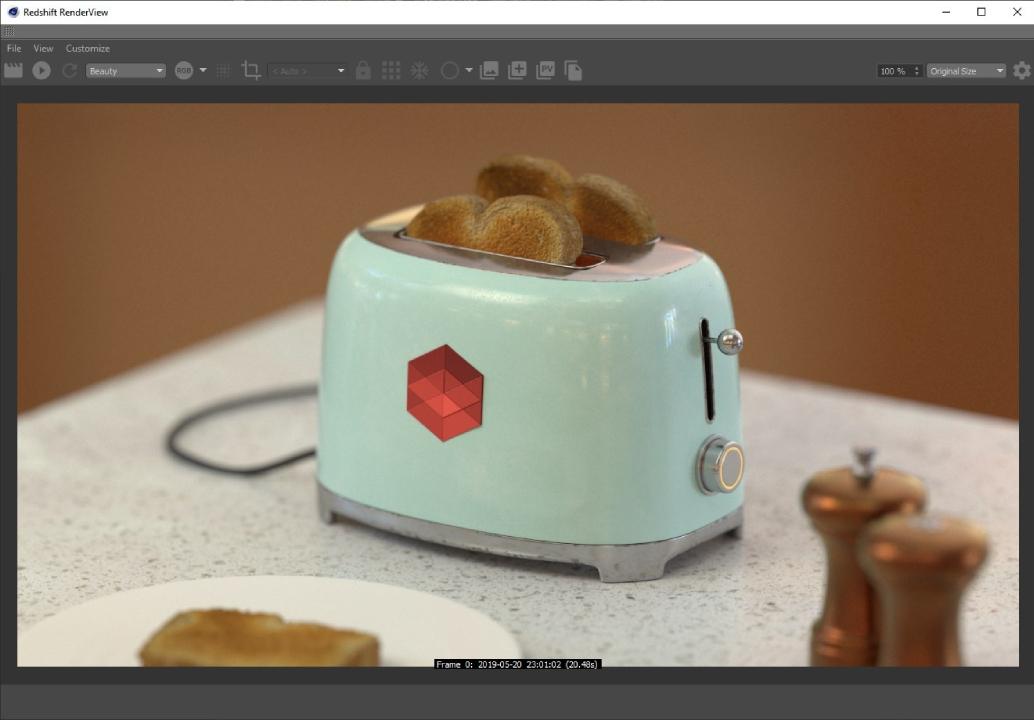
Source: Maxon Redshift Documentation
What is the Out-of-Core (OOC) Bottleneck?
Graphics cards possess a limited amount of extremely fast Video RAM (VRAM)—typically 8GB, 12GB, or 24GB. When a Cinema 4D scene requires more memory than your GPU has available, Redshift does not crash to the desktop (unlike older GPU renderers). Instead, it utilizes an “Out-of-Core” memory management system.
OOC actively offloads the excess data (usually heavy textures or geometry) to your system’s standard RAM. While this brilliant feature prevents the render from failing, it comes with a massive penalty: speed.
Fetching 8K textures back and forth across the motherboard’s PCIe bus is vastly slower than reading them directly from the GPU VRAM. This data transfer bottleneck is exactly what causes your lightning-fast Redshift renders to crawl to a halt.
How to Fix VRAM Bottlenecks in Redshift
If your render times have suddenly multiplied, here is the professional workflow to diagnose and eliminate the Out-of-Core bottleneck.
1. Check the Redshift Feedback Display
Before you start deleting assets, you need to confirm if OOC is actually the culprit.
- In Cinema 4D, go to the top menu and open Redshift> Redshift Feedback Display.
- Start an IPR (Interactive Preview Render).
- Watch the text log. If you see warnings indicating that textures are being “evicted” from VRAM or loaded via Out-of-Core memory, you have officially hit a VRAM bottleneck.
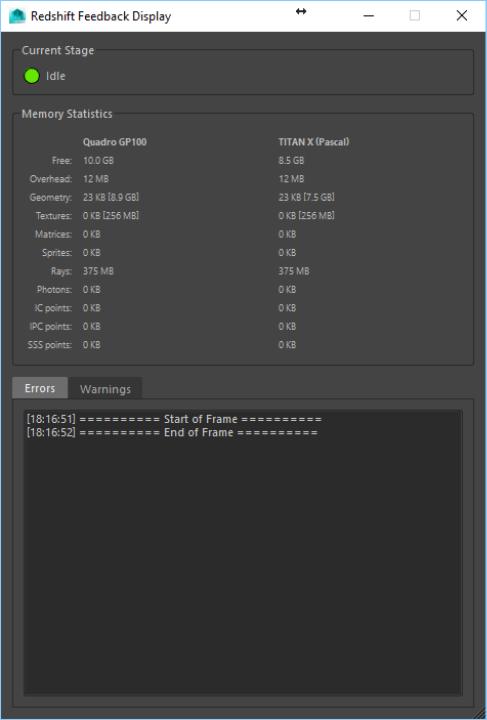
Redshift Feedback Display (Source: Maxon Redshift Documentation)
2. Convert Textures to Redshift Format (.rstexbin)
Using standard high-resolution formats like PNG, JPG, or uncompressed TIFF forces Redshift to load the entire massive image into memory, even if the object is far away from the camera.
- The solution is converting your assets to .rstexbin This format uses mip-mapping, meaning Redshift pre-generates multiple lower-resolution versions of the texture. If a 4K texture is applied to an object in the background, Redshift will intelligently only load a tiny 256×256 version of that texture into VRAM.
- Go to Redshift> Tools > Texture Processor. Select your texture folders and batch-convert them. This single step can reduce VRAM usage by over 50%.
3. Optimize Automatic Memory Limits
By default, Redshift attempts to balance memory usage dynamically, but adjusting its limits manually can force it to work more efficiently within your specific hardware constraints.
- Go to Edit> Preferences > Renderer > Redshift.
- Under the Memorytab, check the Used VRAM % By default, it reserves a percentage of VRAM for your OS and displays (usually 90%).
- If you are running a multi-GPU setup, ensure your monitor is plugged into your weakest GPU. Then, you can safely allocate a higher percentage of VRAM on your primary rendering GPUs entirely to Redshift.
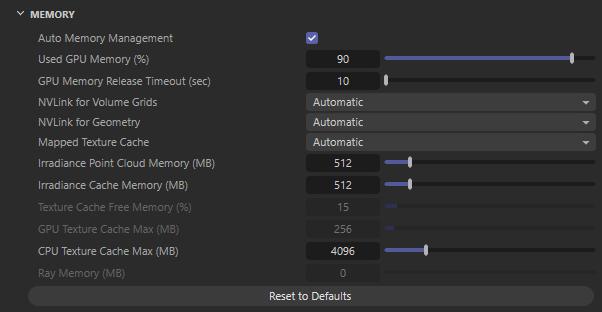
Configuring VRAM allocation limits in Cinema 4D Preferences (Source: Maxon Redshift Documentation)
4. Use Redshift Proxies (RS Proxies) for Heavy Geometry
If textures aren’t the issue, ultra-dense geometry (like millions of scattered trees or highly detailed scanned assets) might be filling up your VRAM.
- Instead of keeping heavy Cloner objects active in the viewport, export your dense meshes as Redshift Proxies (.rsfiles).
- RS Proxies stream geometry data directly to the render engine at render-time, keeping your Cinema 4D viewport fast and drastically optimizing how Redshift compiles the scene data before rendering.
Wrap Up
By converting your heavy assets to .rstexbin and managing your memory allocation, you can stop Redshift from relying on the slow Out-of-Core fallback and keep your render times lightning fast. However, if you are rendering massive environments, 8K UDIM workflows, or complex commercial animations, a standard 8GB or 12GB graphics card will always be a bottleneck. At RadarRender, we test and analyze the best render farms that fully support Cinema 4D and Redshift. Renting cloud nodes equipped with high-VRAM GPUs (like 24GB RTX 4090s or 32GB 5090s) gives you the massive memory buffer needed to keep all your textures natively on the GPU, while multi-GPU setups render those complex scenes at blazing speeds without ever hitting an Out-of-Core slowdown.
Check out our Top Render Farms in 2026 to find the most powerful and cost-effective cloud services for your next project!
FAQs
- Can I just turn off Out-of-Core memory to force Redshift to render on the GPU?
Yes, in the Redshift Memory Preferences, you can set the Out-of-Core memory limit to 0. However, if your scene exceeds your physical VRAM, Redshift will no longer have a safety net and the render will fail. Note: Certain assets like VDB Volumes (smoke/fire) cannot use Out-of-Core at all—if these exceed your VRAM, Redshift will crash regardless of your OOC settings.
2. Does NVLink help with Redshift VRAM limitations?
Yes! Unlike many other render engines, Redshift fully supports NVLink. If you have two compatible GPUs (like two RTX 3090s) connected via an NVLink bridge, Redshift can pool their memory together, effectively giving you 48GB of VRAM to work with. (Note: NVIDIA has discontinued NVLink on the newer RTX 40-series consumer cards).
3. Why is my CPU usage so high during a Redshift GPU render?
Your CPU handles the “Preparing Scene Data” phase—extracting geometry, evaluating Cinema 4D deformers, and transferring data to the GPU. Furthermore, if Out-of-Core memory is active, your CPU is working overtime to fetch textures from your System RAM across the PCIe bus.
4. Do procedural Cinema 4D noises take up VRAM?
No. Pure procedural mathematical shaders (like C4D Noise or Maxon Noise) are calculated on the fly using processing power, so they consume virtually zero VRAM. However, if you “bake” those procedurals into 8K image sequences, they will suddenly become massive VRAM hogs.
5. Does lowering the render output resolution (e.g., from 4K to 1080p) save VRAM?
Yes, but only slightly. Lowering the output resolution reduces the size of the frame buffers and render passes (AOV memory). However, it does not reduce the VRAM required to hold your scene’s textures and geometry.
See more: Best Cloud Rendering for Cinema 4D Architecture: Redshift on Cloud GPU
Part of our guide: for a full overview of cloud options, see the Redshift render farm guide and Cinema 4D render farm guide.