



How to Stop CUDA/OptiX Out-of-Memory Crashes in Blender Cycles
Nothing kills the momentum of a 3D artist faster than hitting F12 in Blender and immediately seeing the dreaded warning: CUDA_ERROR_OUT_OF_MEMORY or OptiX error: Out of memory.
Unlike CPU rendering (which can safely overflow into your system RAM), GPU rendering requires all of your scene data textures, mesh geometry, and ray-tracing acceleration structures to fit strictly within your graphics card’s onboard Video RAM (VRAM). When your 8GB or 12GB VRAM buffer fills up, Cycles simply stops dead in its tracks.
In this guide, we will break down exactly what is eating up your VRAM and show you the best techniques to drastically reduce memory consumption in Blender Cycles without losing the visual quality of your final render.
What is Eating Up Your GPU VRAM?
Before you start blindly deleting objects from your viewport, it helps to know where your memory is actually going. In Blender Cycles, VRAM is typically consumed by three main culprits:
- Uncompressed Textures: Loading multiple 4K and 8K uncompressed image textures (PNG/TIFF files) into memory is the fastest way to max out a mid-range GPU.
- Dense Geometry: High polygon counts take up massive amounts of space. This usually happens when active Subdivision Surface modifiers are left too high on background objects.
- BVH Data: The Bounding Volume Hierarchy (BVH) is the spatial map Cycles builds to calculate light rays. Heavier geometry equals a heavier BVH tree, which requires its own dedicated chunk of VRAM to function.
How to Fix Out-of-Memory Errors in Cycles
If your scene is constantly crashing during the “Building Scene” or “Updating Images” phase, apply these four steps to get your render back on track:
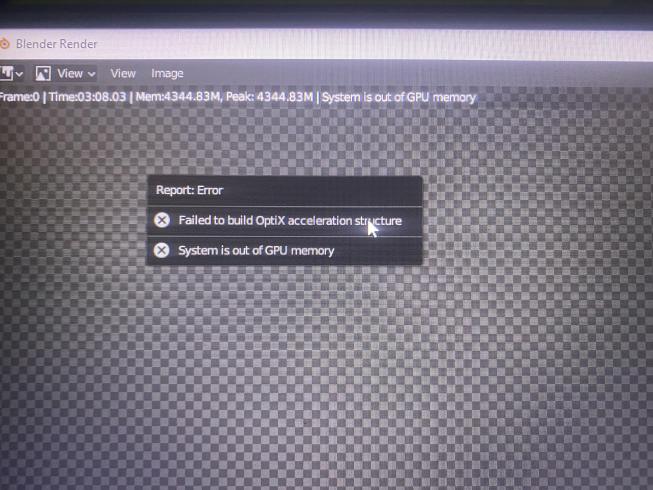
The dreaded OptiX Out of Memory error. Source: Reddit (r/blender)
1. Use the Simplify Panel (The Magic Button)
The Simplify tab is your best friend when rendering heavy environments. It acts as a global override, allowing you to cap geometry and texture sizes at render time without manually editing every single material in your scene.
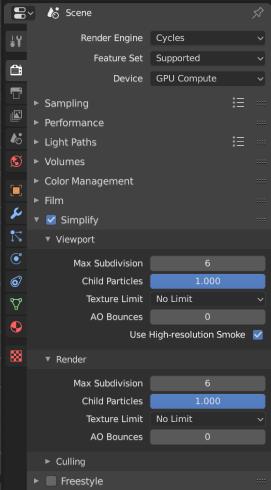
Source: Blender Artists Community
- Go to Render Properties> Simplify.
- Check the box to enable it.
- Under the Renderdropdown, set Max Subdivision to 2 or 3. This stops background objects from subdividing into millions of invisible polygons.
- Set Texture Limitto 2048 (2K) or 4096 (4K). Blender will automatically scale down oversized 8K textures in memory. The visual difference is usually unnoticeable, but the VRAM savings are enormous.
2. Enable Compact BVH for OptiX
If you are using an NVIDIA RTX card, rendering with OptiX is undeniably faster than CUDA. However, OptiX BVH structures can take up a significant amount of VRAM.
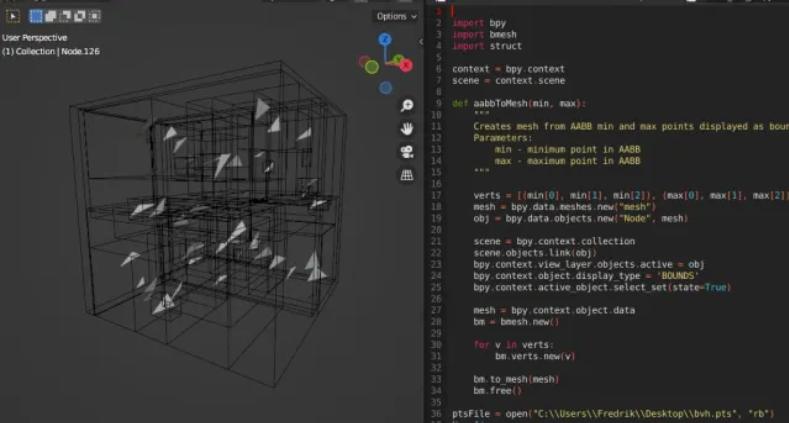
Source: Fredrik Linde
Go to Render Properties > Performance > Acceleration Structure.
- Check the box for Use Compact BVH.
- This will slightly increase your render setup time (the initial calculation before the first pixel appears), but it significantly shrinks the memory footprint of the BVH tree, leaving much more room for your textures.
3. Stop Duplicating, Start Instancing
If your scene features a forest of trees, rows of chairs, or scattered debris, standard duplication is killing your render. Pressing Shift + D creates a brand-new, unique mesh in memory every single time.
- The Fix: Use Linked Duplicates by pressing Alt + D instead.
- For large-scale scattering, use Geometry Nodes or Particle Systems.
- Instancing tells Cycles to load the mesh data into the GPU exactly once. You can scatter 10,000 trees, but Cycles will only use the VRAM required for one single tree.
4. Enable Render Tiling for High-Resolution Outputs
If your scene data (geometry and textures) fits within your VRAM, but Blender still crashes right as the final render starts, the culprit might be the frame buffer. Rendering at huge resolutions (like 4K or 8K) requires gigabytes of VRAM just to store the final pixels and render passes.
- Go to Render Properties > Performance > Memory.
- Check the box for Use Tiling.
- Set the Tile Size to 256 or 512. Cycles will now compute the image in smaller chunks rather than holding the entire massive canvas in active memory at once.
Note on System Memory Fallback (Out-of-Core): You do not need to manually enable system RAM fallback in Blender. Modern NVIDIA Studio Drivers handle “Out-of-Core” (Shared GPU Memory) automatically at the operating system level. Keep your GPU drivers updated! Just be warned: when this automatic fallback kicks in, render speeds will drop significantly because reading from System RAM via the motherboard is vastly slower than reading from native GPU VRAM.
Wrap Up
By mastering the Simplify panel, utilizing Linked Duplicates, and compressing your BVH data, you can push a standard 8GB graphics card to render incredibly complex Blender scenes.
However, if you are working on high-end Arch-Viz animations, complex character VFX, or cinematic environments with massive 8K UDIM workflows, you will eventually hit a hard limit. When local hardware bottlenecks your creativity, leveraging a Cloud GPU Render Farm is the smartest solution.
At RadarRender, we test and analyze the best render farms that fully support Blender Cycles. Renting cloud nodes equipped with high-VRAM GPUs (like 24GB RTX 4090s or 32GB 5090s) gives you the massive memory buffer needed to load your heaviest files without crashing, while multi-GPU setups render those complex scenes at blazing speeds.
Frequently Asked Questions (FAQs)
1: Does rendering with CUDA use less VRAM than OptiX?
In some older versions of Blender, CUDA did use slightly less memory than OptiX because it didn’t require hardware ray-tracing BVH structures. However, with the introduction of “Compact BVH” for OptiX in recent Blender updates, the memory difference is minimal, and OptiX is vastly faster. Always use OptiX if you have an RTX card.
2: Can I use two 8GB GPUs to get 16GB of VRAM in Blender?
No, VRAM does not stack in standard multi-GPU setups. If you have two 8GB RTX 3060s, your maximum scene size is still limited to 8GB, because both cards need to load the exact same scene data into their own memory to render tiles simultaneously. (The only exception is using NVLink, but this is rarely supported on consumer cards today).
3: Why does Blender crash when rendering an animation, but renders single frames perfectly?
This is often a memory leak issue or a problem with persistent data. When rendering animations, Blender can hold onto memory from previous frames. To fix this, try rendering your animation via the Command Line (CLI) instead of the UI, which uses significantly less RAM and VRAM.
4: Does hiding objects in the viewport free up VRAM for rendering?
Hiding an object with the “Eye” icon only hides it in the viewport; it will still be loaded into memory and rendered. To exclude an object from the render and save VRAM, you must uncheck the Camera icon (Disable in Render) in the Outliner.
5: Should I bake my textures to save VRAM?
Yes! If you have complex procedural materials with multiple math nodes and noise textures, baking them down into a single image texture can speed up rendering. However, be careful not to bake them at unnecessarily high resolutions (like 8K), as this will ironically consume more VRAM.
See more: Best Render Settings for Blender Cycles
Part of our guide: for a full overview of cloud options, see the Blender render farm guide.