

Why D5 Render Animation Export Takes Hours (And How to Cut It Down)
D5 animation export takes hours because it renders your video one frame at a time with real-time ray tracing, on a single GPU. The number of frames is the length times the frame rate, so a two minute walkthrough at 30 frames per second is 3,600 separate renders, and the time adds up. D5 does not automatically split one animation across multiple GPUs or machines the way an offline render farm does, so a faster single card is what moves the needle. To cut the time, lower the frame rate and resolution for review passes, trim the frame count, optimize the scene the way you would for any VRAM issue, and render on a stronger GPU. Reserve full 4K and high frame rates for the final.
In this article, Radarrender breaks down exactly why this process takes so long and how to systematically cut your render times.
What Decides Your D5 Export Time?
| Factor | Impact on Export Time | How to Reduce for Review Passes |
| Frame Count (Length × FPS) | Direct multiplier: each frame is an individual render | Lower the frame rate (24 or 30 instead of 60), cut unnecessary video length |
| Resolution | 4K contains four times the pixels of 1080p | Review at 1080p or 1440p, reserve 4K for the final delivery |
| Ray Tracing Quality / Preset | High presets increase computation per frame | Use lower quality presets for draft reviews |
| Scene Weight (Textures, Vegetation) | Heavy scenes slow down frames and risk VRAM bottlenecks | Optimize textures, use proxy vegetation, clear hidden assets |
| GPU Speed | A faster card processes each frame quicker | Render on a more powerful graphics card |
Why does a short D5 animation take so long to export?
Source: D5 render
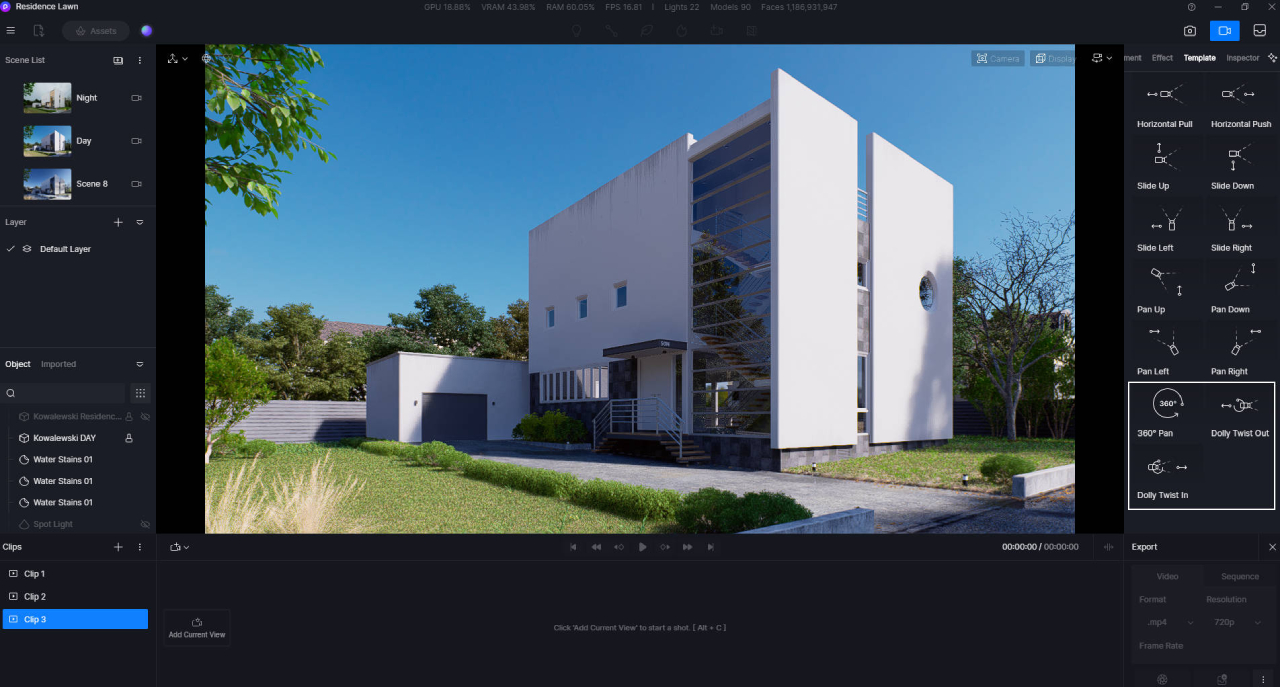
To understand why D5 takes hours, look at how animation actually works: a video is just a fast sequence of static images. D5 exports your project by rendering each frame one by one using heavy ray-tracing calculations.
The math is simple: Total Frames = Video Length × Frame Rate (FPS).
- A 30-second walkthrough at 30 fps = 900 individual renders.
- A 2-minute presentation at 30 fps = 3,600 individual renders.
If your graphics card spends just 4 seconds processing a single high-quality frame, that 2-minute video adds up to 14,400 seconds—or exactly 4 hours of non-stop rendering. While D5 feels instant in the real-time viewport, exporting requires full-quality calculations for thousands of frames back-to-back.
Crucially, D5 only utilizes a single GPU. Even if your computer has two or more graphics cards installed, D5 will not automatically split the workload across them. Your export speed depends entirely on the power of that single active card.
How do I cut the number and weight of frames?
To reduce your export times, you must focus on two main areas: reducing the total number of frames and reducing the rendering workload of each individual frame. Lowering your frame rate, shortening camera paths, and adjusting resolution for draft renders will yield immediate improvements.
Here are the specific actions you can take to optimize your animation settings:
- Adjust the Frame Rate Based on Project Needs
- Trim Unnecessary Camera Length
- Use Draft Resolutions for Client Reviews
- Lower the Quality Presets During Editing
- Organize Your Animation into Multiple Camera Shots
Does optimizing the scene speed up the export too?
Yes, a lighter scene renders faster per frame and prevents VRAM bottlenecks. When your scene exceeds your graphics card’s Video RAM (VRAM), the system uses slow system RAM to handle the overflow. This drops your rendering speed drastically or crashes D5 mid-export.
I remember rendering a massive plaza last year filled with unoptimized 8K textures and heavy 3D trees. The export slowed to a crawl at over 10 seconds per frame. Once I compressed the textures to 2K and swapped the background plants for low-poly versions, the render time dropped to just 2 seconds per frame saving me a whole day of waiting.
To keep your scenes light and fast, follow these habits:
- Downsize textures: Use 1K or 2K resolutions for small or background objects instead of heavy 4K/8K files.
- Use proxies: Swap complex vegetation for proxy assets and scattering tools.
- Clean up hidden geometry: Delete or hide heavy assets and models that sit outside the camera’s view.
Can the cloud make a single D5 animation render faster?
Cloud rendering speeds up D5 animation by providing a more powerful GPU, not by splitting one file across multiple machines. Unlike traditional offline engines that use automated Software-as-a-Service (SaaS) farms to split frames across hundreds of computers, D5 is a real-time Windows application that cannot distribute its workload automatically. Therefore, standard SaaS farms do not support D5. To use the cloud, you must rely on Infrastructure-as-a-Service (IaaS) providers. This model allows you to rent a powerful remote computer via remote desktop and run D5 exactly as you would locally, accelerating your export frame by frame.
Here is an analysis of how major cloud rendering services interact with D5 Render:
ere is an analysis of how major cloud rendering services interact with D5 Render:
| Service / Model | Supports D5? | Real Advantages | Important Considerations |
| iRender
(IaaS / Remote Rental) |
Yes | • Fast RTX 4090 speeds up frames
• Frees up local PC • Run multiple scenes parallelly |
• Multi-GPU won’t speed up a single clip
• Must turn off manually to stop billing • Uses RTX 4090 (not 5090) |
| GarageFarm
(SaaS / Per-frame) |
No | • Great for offline batch rendering (CPU/GPU) | • Cannot run real-time, interactive Windows apps like D5 |
| RebusFarm
(SaaS / Per-frame) |
No | • Integrated scene checker for offline workflows | • Does not support D5 Render |
Because iRender provides a full Windows environment, it is the primary cloud option for D5 users. Renting a remote Nvidia RTX 4090 machine (24GB VRAM, from $8.2/hour) processes frames significantly faster than a mid-range desktop or a laptop GPU. If you want to use multiple cloud machines to speed up a single animation, you must do it manually. You can split your project into separate shots or frame ranges across different rented nodes (e.g., Machine A renders frames 1–500, Machine B renders 501–1000), then stitch the finished clips together in a video editor.
This IaaS setup also frees up your local workspace. Instead of letting an export lock up your office computer for five hours, you can offload the file to the cloud and keep designing on your local machine.
Optimize Your D5 Render Workflow
Is a long architectural walk-through threatening to lock up your local computer for the entire night? iRender lets you rent a dedicated remote workstation equipped with a powerful RTX 4090 graphics card. This high-end hardware processes individual D5 frames rapidly, reducing long export times significantly while keeping your office computer completely free for your ongoing design work. You can manage your D5 project settings exactly how you want, run multiple versions in parallel, and shut down the server the moment your export is complete.
Sign up for a free trial on iRender today to test your animation speeds, and take advantage of their current 100% first-deposit bonus.
Frequently Asked Questions
- Why does D5 animation export take hours?
D5 Render processes animations by rendering your video one frame at a time using real-time ray tracing on a single GPU. Your final export time is determined by multiplying the total number of frames by the time required to calculate each frame. A 2-minute walkthrough at 30 frames per second requires 3,600 individual image renders. When your scene contains heavy geometry, high-resolution textures, or complex lighting, the time needed for each frame increases, causing the total export time to accumulate into several hours on average hardware.
2. How do I make D5 animation export faster?
You can accelerate your export times by reducing both the number of frames and the complexity of each frame. Lower your frame rate to 24 fps or 30 fps instead of 60 fps, and trim long, unnecessary camera paths. For draft presentations, render at 1080p resolution and use lower quality presets, reserving 4K resolution for final delivery. Additionally, optimize your scene by downsizing oversized textures, using proxy models for vegetation, and hiding assets that are outside the camera view to prevent VRAM bottlenecks.
3. Can I split a D5 animation across multiple GPUs or machines?
D5 Render does not automatically split a single animation file across multiple graphics cards or multiple network machines. It runs strictly on a single GPU per project window. If you want to distribute the rendering workload across multiple computers, you must divide your project manually. You can do this by exporting separate camera shots or assigning specific frame ranges to different machines, then combining the finished video files afterward in an external video editing program.
4. Does cloud rendering help D5 animation?
Cloud rendering helps by providing access to high-end single-GPU hardware and freeing up your local computer. Renting a powerful cloud server with an RTX 4090 allows you to render heavy frames much faster than you could on a standard workstation or laptop. It also allows you to run multiple project files at the same time on separate cloud nodes. However, because D5 cannot automatically distribute a single clip across multiple cards, hiring a multi-GPU cloud machine will not speed up a single animation clip automatically.
5. What frame rate should I use for D5 walkthroughs?
For the majority of architectural walkthroughs, 30 frames per second provides clean, professional motion. You can choose 24 frames per second if you prefer a traditional cinematic feel for your presentation. Avoid using 60 frames per second unless your client explicitly requests ultra-high-fluidity footage, as 60 fps doubles the total number of frames in your video and directly doubles your rendering time. Use lower frame rates for your everyday review passes to keep your project moving quickly.
Related post: My D5 Render Video Export Is Stuck for Hours: Diagnosis and Speed-Up
Part of our guide: for a full overview of cloud options, see the D5 Render farm guide.