

Student Architect on a Budget: The Cheapest Way to Render Lumion Projects
You do not need to buy a powerful rig to render Lumion as a student. Stack the free and cheap options in the right order. Start with Lumion’s free student license, use your school’s lab machines for the heavy work, keep your own laptop for modeling, and pay for a cloud GPU by the hour only when you need a fast final render your laptop cannot handle. That way your total spend can be close to zero for most of a project, with a few dollars only at crunch time. Buying a rendering workstation on a student budget is almost never the right move.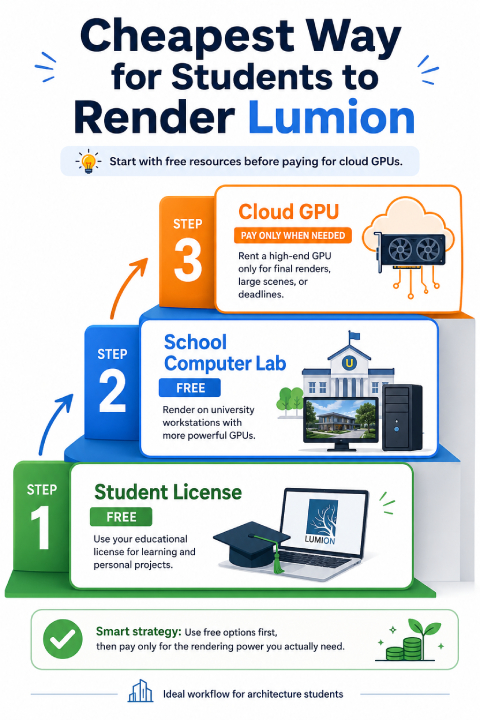
Start with what is free
Before spending anything, use the two free resources most students overlook or underuse.
When to pay, and for what
| Student render job | Rough cloud cost |
|---|---|
| A few 4K exterior stills for a submission | a couple of dollars |
| A full board of stills with revisions | $5 to $12 |
| A short 20 to 30 second walkthrough | $25 to $40 in GPU time |
| Buying a render-capable laptop instead | hundreds to over a thousand |
The last row is the point. A single walkthrough that costs the price of a couple of lunches to render in the cloud does not justify a four-figure laptop you would buy mainly for rendering. Spend the small amount at deadline, keep the big money in your pocket. The same logic, scaled up for working freelancers, is in can freelance architects afford a render farm.
Making the cloud option even cheaper
A few things stretch a student budget further. Many cloud services, iRender included, offer a student discount worth asking about with your credentials, on top of a first-deposit bonus that matches your initial top-up and Credit Back on each session. A free trial lets you render a real submission before spending anything. And the single habit that keeps the cost genuinely low is shutting the machine down the moment your render finishes, because per-hour billing runs until you do, and a machine left on overnight can quietly cost more than the render itself, the trap detailed in the surprise idle bill.
One clarification that saves students confusion: because Lumion is a real-time app, the per-frame render farms you may have read about, GarageFarm, RebusFarm, Fox, cannot run it. Those are for offline engines like V-Ray or Corona. For Lumion, the cloud option is a rented machine you control, which is what iRender provides, with a dedicated RTX 4090 you run your own student license on. It is RTX 4090 rather than the newer 5090, and you handle a short setup the first time. The worked cost of a specific Lumion project is in how much it costs to render a Lumion project.
Deadline tomorrow and the lab is full? Render your Lumion final on a cloud RTX 4090 with iRender for a few dollars, with a student discount and free trial to start. Check the student offer →
FAQ
- What is the cheapest way for a student to render Lumion?
Stack free and cheap options in order. Use Lumion’s free student license so the software costs nothing, do heavy renders on your school’s lab machines which are already paid for by tuition, and keep your own laptop for modeling. Only pay for a cloud GPU by the hour when a deadline hits and the lab is full or your laptop is too slow. That keeps most of a project at zero cost, with a few dollars only at crunch time.
2. Is Lumion free for students?
Lumion offers a free educational license to students and educators at qualifying institutions, giving you the full software for learning use, so your renders cost nothing on the software side. You apply through Lumion with your student credentials. Eligibility and the exact features can change, so check Lumion’s current education terms directly rather than relying on older guides. It is the first thing any architecture student should set up before paying for anything.
3. Should a student buy a render laptop or use cloud rendering?
For most students, cloud rendering at deadlines is far cheaper than buying a render-capable laptop. A powerful laptop runs into four figures and is bought mainly for rendering you do occasionally, while renting a cloud GPU for a heavy final render costs a few dollars per project. Keep an affordable laptop for modeling and lab work, and rent power only when a submission needs it. Buying makes sense only if you render heavy scenes almost daily.
4. How much does it cost a student to render a Lumion project in the cloud?
Very little for typical coursework. Illustratively, at around eight dollars an hour for a cloud RTX 4090, a few 4K exterior stills cost a couple of dollars, a full board with revisions runs $5 to $12, and a short walkthrough is $25 to $40 in GPU time. A student discount, first-deposit bonus and free trial lower that further. The main cost to avoid is leaving the machine running after the render, so shut it down as soon as you finish.
Related post: Lumion Pro vs Lumion on Cloud GPU: When Local Just Isn’t Fast Enough