


Why Twinmotion Crashes When Importing Large Revit Models
A large Revit model crashes Twinmotion on import because it arrives with far more geometry and texture data than a typical scene, and loading it all at once can exhaust your RAM or your graphics card’s VRAM. Revit models carry heavy internal detail, hidden components, thousands of families and full-resolution materials, and Twinmotion has to convert and hold all of it live. When the memory runs out mid-import, the program crashes. The reliable fix is to prepare the model before importing, hide and purge what the visualization does not need, then import, and to make sure the machine has enough RAM and VRAM for what is left. Figures below are illustrative.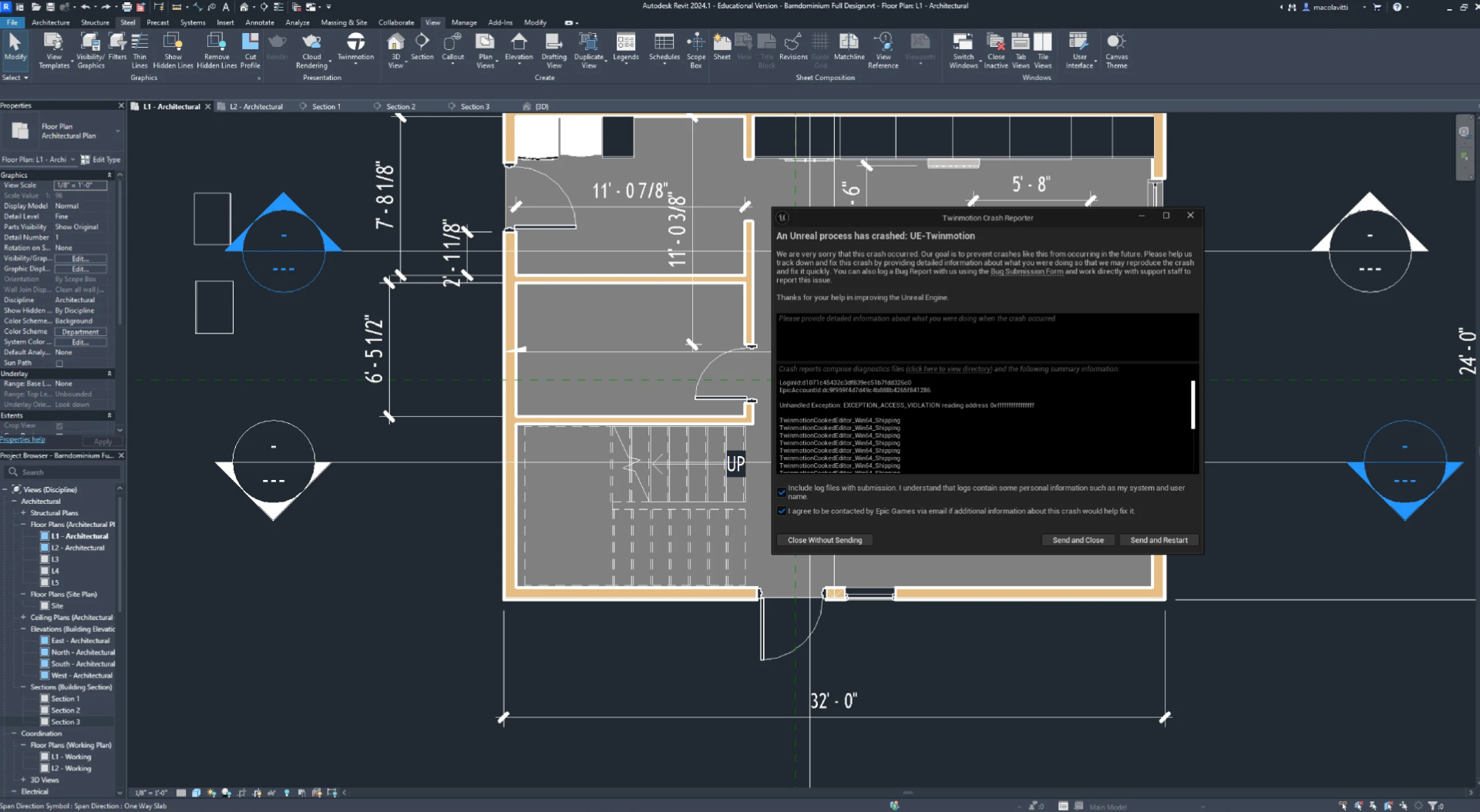
Why Revit models are so heavy for Twinmotion
A Revit file is a database of the whole building, not a clean visualization mesh. It holds structural detail you will never see, mechanical and electrical systems, every instance of every family, and materials at full resolution. When you send that to Twinmotion, the software has to translate all of it into renderable geometry and load it into memory at once. A model that behaves fine inside Revit, which streams and culls cleverly, can balloon when Twinmotion tries to hold the entire thing live for real-time rendering. So the crash is rarely Twinmotion being fragile. It is a very large amount of data hitting a memory ceiling during import.
Two ceilings matter here. System RAM handles the import and conversion, and graphics VRAM holds the scene for rendering. A big Revit model can hit either, and which one fails first depends on your machine, which is why the same import crashes on one setup and merely crawls on another.
Prepare the model before you import
Most import crashes are solved on the Revit side, by sending a lighter model rather than the full database. Work through this before importing.
- Hide or delete everything the visualization will not show: structural framing inside walls, MEP systems, and any linked models you do not need.
- Use a dedicated 3D view set up for export, rather than exporting the entire project with every category switched on.
- Reduce the detail level where fine geometry will never be seen, so components import as simpler shapes.
- Purge unused families and materials from the Revit file so they do not travel into Twinmotion.
- Import in stages for very large sites: bring in the main building first, confirm it is stable, then add context and landscape.
When the model is clean and it still crashes
If you have trimmed the model sensibly and Twinmotion still runs out of memory, the machine is the limit, and the two numbers to look at are RAM and VRAM.
| What crashes first | Symptom | What helps |
|---|---|---|
| System RAM exhausted | Crash during import or conversion, disk thrashing | More system RAM; import in stages |
| Graphics VRAM exhausted | Crash when the scene loads for rendering, or heavy stutter | A card with more VRAM, such as a 24GB RTX 4090 |
| Both near the limit | Unstable, crashes vary run to run | A stronger balanced machine, owned or rented |
Large architectural sites genuinely need generous memory, and there is a point where a modest machine cannot hold the model no matter how you prepare it. This is the same VRAM wall we describe for other tools in Lumion crashing on big scenes and the out of VRAM error in D5, just triggered on import rather than render.
When the fix is more memory than your machine has, a cloud workstation is a quick way to get it without buying hardware. Because Twinmotion is real-time, a per-frame render farm cannot run it, so this means a rented machine you control rather than a farm. GarageFarm, RebusFarm and Fox handle offline engines well but not Twinmotion. iRender is the service I use for this, with a remote machine carrying an RTX 4090, 24GB of VRAM and a large pool of system RAM, enough to import Revit models that crash a smaller setup. You run your own Twinmotion build on it, the cards are RTX 4090 rather than the 5090, the meter runs until you shut down, and a free trial lets you test the exact model that keeps crashing before paying.
A clean model that still crashes on import needs more memory, not more patience. Open it on a remote RTX 4090 with 24GB of VRAM and a large RAM pool through iRender. A free trial lets you import the exact model that keeps failing. → Try it on your model.
FAQ
- Why does Twinmotion crash when I import a large Revit model?
Because a Revit model carries far more data than a visualization needs, structural detail, MEP systems, thousands of families and full-resolution materials, and Twinmotion loads and converts all of it into memory at once. A large model can exhaust your system RAM during import or your graphics VRAM when the scene loads, and when memory runs out the program crashes. Preparing a lighter export view in Revit before importing solves most of these crashes.
2. How do I import a large Revit model into Twinmotion without crashing?
Send a lighter model. Hide or delete what the visualization will not show, structural framing, MEP, unneeded linked models, and export from a dedicated 3D view rather than the whole project. Reduce detail level where fine geometry will not be seen, purge unused families and materials, and for very large sites import in stages, starting with the main building. These steps cut the memory load enough to import cleanly on most machines.
3. Is it a RAM or VRAM problem when Twinmotion crashes on import?
It can be either. System RAM handles the import and conversion, so a crash during import with disk thrashing points to RAM. Graphics VRAM holds the scene for rendering, so a crash when the scene loads, or heavy stutter after import, points to VRAM. If both sit near the limit, the machine is unstable and crashes vary run to run. Checking which maxes out in Task Manager during the import tells you which to increase.
4. How much RAM and VRAM do I need for large Revit models in Twinmotion?
It scales with the model, but large architectural sites want generous headroom on both. As an illustrative guide, heavy imports are far more stable with plenty of system RAM for the conversion and a 24GB graphics card such as an RTX 4090 to hold the scene. Smaller projects manage on less. If you regularly import big Revit sites, a machine with a large RAM pool and 24GB of VRAM, owned or rented, removes the crashes that a modest setup cannot avoid.
Related post: Best Render Farm for Twinmotion and Revit: Syncing BIM Models to Cloud