

V-Ray GPU vs CPU for Architecture: Which Wastes Less of Your Time?
For most architectural still images that fit inside modern GPU memory, V-Ray GPU finishes the job faster than V-Ray CPU and provides much quicker interactive look development. However, GPU rendering immediately becomes less practical when the entire scene cannot fit inside the graphics card’s memory. In CUDA and RTX modes, the complete scene must fit into GPU VRAM. A workstation with an RTX 4090 and 24GB of VRAM may struggle with a detailed city model that a CPU render using 256GB of system RAM can complete without running out of memory. Another common source of lost time is switching renderers halfway through production. Chaos recommends choosing either V-Ray GPU or V-Ray CPU at the beginning of a project because the two renderers do not always produce identical results or support exactly the same features. Based on RadarRender’s comparison, you can realize that the best renderer is not always the one with the highest speed in a short benchmark. The better choice is the renderer that can complete the entire project without creating workflow interruptions.
| Feature / Metric | V-Ray GPU (CUDA / RTX) | V-Ray CPU |
| Speed Per Frame (Typical Still) | Faster | Slower |
| Memory Limit Constraint | Entire scene must fit into VRAM (e.g., 24GB on RTX 4090) | Uses system RAM (e.g., 128GB – 256GB+), supports paging |
| Handling Massive Scenes | High risk of running Out of Memory (OOM) | Handles massive masterplans and heavy geometry smoothly |
| Feature Support | Select advanced features or elements not fully supported | Full, native feature set support across all tools |
| Interactive Look-Dev | Fast, responsive viewport feedback | Slower iteration times for lighting and shading tweaks |
| Multi-Device Scaling | Scales near-linearly across multiple installed GPUs | Scales across available physical CPU cores |
| Corona Compatibility | Not available | Corona is strictly CPU-only |
Is V-Ray GPU Actually Faster Than V-Ray CPU for Arch-Viz?
Source: mvpfreear
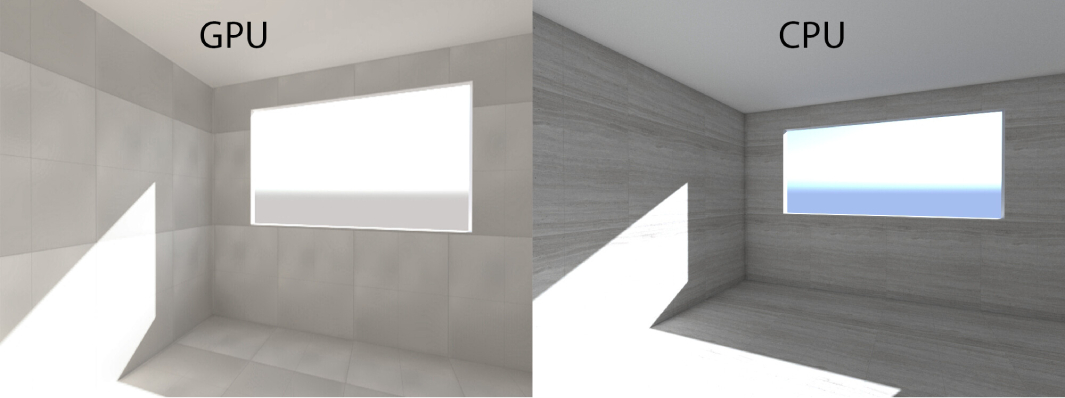
For the majority of standard architectural interior and exterior renders that fit within GPU memory, V-Ray GPU finishes first. Ray tracing is a massively parallel computation task, which aligns directly with the architectural design of modern graphics processors. Chaos notes that GPU rendering can accelerate render tasks by an order of magnitude compared to standard CPU configurations.
However, GPU rendering does not guarantee a victory in every scenario. Performance varies based on how the engine processes scene data:
- CUDA Engine: Tends to perform fastest on complex architectural scenes featuring multi-layered shaders, heavy bump maps, and detailed procedural textures.
- RTX Engine: Gains a clear performance advantage on scenes utilizing ray-tracing hardware acceleration, particularly those with dense geometry instances, such as forests or detailed exterior scattering.
Because scene architecture dictates performance, Chaos officially recommends rendering a representative test frame in both CUDA and RTX modes to determine which engine handles your specific asset better.
When Does V-Ray GPU Waste Your Time?
V-Ray GPU loses its speed advantage under two specific conditions: running out of video memory (VRAM) and hitting feature compatibility limits. Both issues typically manifest late in the production pipeline, after scene assembly and shading are already complete.
The VRAM Hard Ceiling
Chaos documentation explicitly states that in CUDA and RTX modes, the entire rendering payload, including geometry, textures, light caches, and frame buffers, must reside within the graphics card’s physical VRAM.
When a scene exceeds this memory boundary (for example, a large-scale masterplan using multiple uncompressed 8K texture sets on a 24GB RTX 4090), the render engine will either crash or fail to initialize.
Memory Offloading Workarounds
When a scene breaches the VRAM ceiling, Chaos provides alternative processing routes:
- CUDA-x86 Mode: Runs the GPU render engine directly on the host CPU.
- Out-of-Core Textures: Introduced in recent V-Ray updates, this feature allows texture assets to be loaded from system RAM on demand rather than stored entirely in VRAM.
Feature Support Gaps
V-Ray GPU does not maintain absolute feature parity with V-Ray CPU. Chaos maintains a dedicated “V-Ray GPU Supported Features” matrix for each host application (such as 3ds Max, Maya, and Rhino), which changes across software updates.
- Motion Blur: GPU motion blur calculations may require integer frame steps, limiting complex sub-frame effects.
- Light Select Elements: Certain Raw or Indirect Light Select passes may not output identical channels on GPU compared to CPU.
- Procedural Textures & Displacement: Specific procedural textures function only partially when assigned to bump channels, and subtle displacement mapping differences can occur between CPU and GPU rendering pipelines.
When is V-Ray CPU the one wasting your time?
V-Ray CPU wastes your time on standard architectural projects that easily fit within your graphics card’s memory (under 24GB). For typical interior stills or exterior house renders, waiting on CPU calculations slows down your workflow unnecessarily.
The biggest time-waster happens during look-development:
- Slow Viewport Feedback: Changing material roughness, lighting, or camera angles takes much longer to update in CPU Interactive Rendering (IPR).
- Fewer Creative Iterations: Because visual updates are slower, you test far fewer lighting and material variations in an afternoon compared to the instant feedback of V-Ray GPU.
V-Ray CPU is only worth the extra wait time when your scene is too large for GPU VRAM or requires niche features that GPU rendering does not support.
What about hybrid rendering (CPU + GPU together)
V-Ray GPU includes a hybrid execution mode (often referred to as XPU rendering), allowing the engine to utilize both NVIDIA GPUs and the host CPU simultaneously under the CUDA driver model.
source: chaos.com
Engine Characteristics and Scaling Rules
- Device Activation: Users can enable the host CPU as a rendering device inside the V-Ray GPU Device Selection panel.
- Visual Parity Across Engines: The three underlying execution modes within V-Ray GPU (CUDA, CUDA-x86, and RTX) are engineered to produce visually identical output.
- Host Core Requirements: To prevent processing bottlenecks, Chaos recommends maintaining at least 6 physical CPU cores per installed GPU.
Can I switch between V-Ray GPU and CPU mid-project?
No. Chaos explicitly recommends against switching between V-Ray CPU and V-Ray GPU mid-project.
Because the two engines calculate lighting and materials differently, their final renders will not look identical. Switching halfway through a job changes how your lights bounce, how materials look, and how render passes come out. Switching mid-project forces you to re-adjust materials, fix lighting, and re-check render elements from scratch. The only safe switch is moving between V-Ray GPU modes (CUDA, RTX, and CUDA-x86), as they share the same underlying engine.
If You Use Corona, Do You Have a GPU Option?
If your studio uses Chaos Corona alongside V-Ray, the GPU versus CPU debate does not apply.
Chaos officially states that Corona is an exclusively CPU-based rendering engine built upon Intel Embree ray tracing kernels. Corona does not utilize GPU acceleration for frame rendering; graphics hardware is used only for viewport display driver functions and optional AI-based noise reduction pass calculations.
For Corona pipelines, processing performance depends entirely on CPU core capacity and system memory. Chaos recommends a minimum of 32GB of system RAM for basic Corona setups, with 64GB or higher serving as the optimal target for production scenes. Studios running Corona workflows should prioritize cloud options with high-spec CPU nodes.
Which Render Farm Setup Fits V-Ray GPU and Which Fits V-Ray CPU?
Because V-Ray is an offline rendering engine, both Infrastructure-as-a-Service (IaaS) and Software-as-a-Service (SaaS) cloud architectures support its workflows.
| Render Farm | Model | Best Fit For | Pros | Cons |
| iRender | IaaS (Full PC rental) | V-Ray GPU, Hybrid setups, custom plugins | Full control
Up to 4x RTX 4090 & 256GB RAM Custom builds & real-time apps |
Idle billing risk
Manual setup (~15 mins) |
| GarageFarm | SaaS (Per-frame) | Automated V-Ray batch renders | Easy onboarding
Direct plugin integration |
Locked environment
Supported plugin limits |
| RebusFarm | SaaS (Per-frame) | V-Ray CPU & Corona projects | Pre-upload scene checker
Simple 1-click submission |
No environment control |
| Fox Renderfarm | SaaS (Per-frame) | Large offline CPU batch queues | Budget-friendly for big batches | Rigid setup, low flexibility |
For V-Ray GPU Workflows: Rendering speed increases with more GPUs and higher VRAM. Multiple GPUs cut render times significantly, but your scene must still fit within a single card’s memory. Remote IaaS providers like iRender offer full control over bare-metal servers with up to 4x RTX 4090 GPUs (24GB VRAM each) and 256GB RAM, allowing you to use custom V-Ray builds, specialized plugins, or hybrid rendering.
For V-Ray CPU & Corona Workflows: SaaS render farms work best here. They spread CPU frame rendering across dozens of cloud nodes at once, which is ideal for huge masterplans that demand more RAM than a GPU can handle.
Need more power?
With iRender, you rent full bare-metal servers to run V-Ray GPU across multiple RTX 4090s, use V-Ray CPU with 256GB RAM, or run hybrid mode on your own custom setup. New users get a 100% bonus on their first deposit within 24 hours (top up $50, get 100 points) plus a free trial to test their scenes.
→Test your V-Ray scene on iRender
Frequently Asked Questions
- Is V-Ray GPU faster than V-Ray CPU?
Yes, for standard scenes that fit inside your GPU’s memory. CUDA mode performs best with complex materials, while RTX mode shines with dense scattered geometry (like forests). However, high-core CPUs can still keep up on massive files.
2. Does a V-Ray GPU need the whole scene to fit in VRAM?
Yes, in standard CUDA or RTX modes. If your scene exceeds VRAM, you must use CUDA-x86 mode (which uses system RAM) or Out-of-Core textures to prevent crashes.
3. Can I use two GPUs to double my VRAM?
No. Adding a second GPU doubles your rendering speed, but not your VRAM. Every card must hold a full copy of the scene.
4. Can I switch from CPU to GPU mid-project?
No. Chaos advises against it because CPU and GPU calculate light and materials differently. Switching mid-way alters lighting, colors, and render passes, costing you extra time to fix.
5. Does Chaos Corona support GPU rendering?
No, Corona is strictly CPU-only. It uses the GPU solely for viewport display and optional AI denoising.
Related post: Best Cloud Rendering for V-Ray Architecture: GPU vs CPU Cost on Cloud