

Top 6 Blender Plugins for 2026
SUMMARY
EXECUTIVE ANSWER // HOW THE RIGHT BLENDER PLUGINS ACCELERATE YOUR PIPELINE
Even within the advanced Blender 5.x ecosystem, out-of-the-box tools cannot fully eliminate production bottlenecks under tight deadlines. Selecting specialized, actively maintained plugins targeted at specific workflow categories, such as hard-surface modeling, character rigging, retopology, fluid dynamics, rigid-body destruction, and environment vegetation, provides immediate efficiency gains without bloating your pipeline. Rather than buying tools speculatively, studios should evaluate additions based on exact scene requirements, Edit Mode integration, and hardware caching demands to maintain maximum speed and visual fidelity.
Blender continues to firmly solidify its dominance in the 3D industry. However, even with the groundbreaking features introduced in the latest Blender 5.x ecosystem, relying solely on out-of-the-box tools is no longer enough to keep pace with modern production deadlines. Whether you are managing complex Arch-Viz environments, sculpting photorealistic character assets, or building real-time game worlds, maintaining a high speed, frictionless workflow is what separates elite studios from the rest.
This is where the right add-ons become your ultimate competitive advantage. To help you cut through the noise of hundreds of tools on Blender Market and Gumroad, we have curated the Top 6 Blender Plugins for 2026. These handpicked tools address the biggest pipeline bottlenecks from VRAM optimized texture management and automated lighting to advanced Geometry Nodes workflows, ensuring your studio stays ahead of the curve this year. Let’s dive in!
How We Compare These 6 Blender Plugins for 2026
This isn’t six plugins competing for the same job, so they aren’t scored against each other on a single scale. Each one was picked for covering a distinct production category, hard-surface modeling, rigging, retopology, fluid simulation, destruction, and vegetation, and for still receiving active updates going into 2026. A plugin that’s been abandoned for two years didn’t make the cut even if it’s still widely used.
For each plugin, we looked at the same four things:
- What it actually does, based on the developer’s own product page or documentation, not just marketing copy.
- Stated strengths and limitations, including what the tool doesn’t cover yet or hasn’t proven out in production, not just what it’s good at.
- Who it’s realistically best for, since “everyone” isn’t a useful answer for a paid tool.
- Current list price, checked against the developer’s own store or marketplace listing at the time of writing.
Marketplace pricing moves with sales and version upgrades.
Hard Ops + Boxcutter

Image Source: SuperHive
Hard Ops and Boxcutter are sold separately but almost always used together, and between them they’re reportedly the best-selling Blender product bundle of all time. Hard Ops handles the workflow side of hard-surface modeling, bevels, arrays, mirroring, and Boolean shortcuts, built around staying inside the 3D viewport instead of jumping between menus. Boxcutter is the cutting tool itself: an interactive, object-mode Boolean system with subtract, slice, inset, and create modes, usable destructively or non-destructively.
- Key strengths: Dramatically faster Boolean-based modeling once the keyboard shortcuts click, and a huge, still-active user base means tutorials and troubleshooting threads are easy to find.
- Limitations: Neither tool replaces modeling fundamentals, you still need to understand topology and Booleans conceptually. The learning curve on the hotkey-driven workflow is real; expect a few hours before it feels faster than the default tools.
- Best for: Hard-surface and mechanical modeling: sci-fi props, weapons, vehicles, architectural trim.
- Price: $38 for the Ultimate Bundle, or roughly $20 for each tool separately.
Auto-Rig Pro

Image Source: SuperHive
Auto-Rig Pro is a third-party rigging system that’s been a Blender Market, now Superhive, mainstay for years, built around getting from a mesh to a usable, animatable rig faster than Blender’s built-in Rigify. It handles custom rig definitions, limb duplication and removal, automatic bone placement on humanoid meshes, and retargeting animation between different rigs, including round-tripping through game engines.
- Key strengths: The smart auto-rigging genuinely cuts setup time versus building a rig by hand, and the retargeting tools are useful well beyond the initial rig, especially for mocap or sharing animation across multiple characters.
- Limitations: The Lite version only covers core rigging tools, FBX export and some advanced retargeting features are gated behind the Full version. It’s also a deep enough tool that getting full value out of it takes more than a weekend.
- Best for: Character animators and small studios who need production-ready rigs without a dedicated technical animator on staff.
- Price: Lite around $25, Full around $50, with team licensing available for studios.
RetopoFlow 4.0

Image Source: SuperHive
RetopoFlow got a genuine rewrite for 2026, not just a version bump. Now developed by Orange Turbine and released in late 2025, version 4.0 rebuilt the toolset to run inside Blender’s own Edit Mode rather than as a separate overlay, which the developers describe as a complete rewrite for a faster, non-blocking workflow. It also extended snapping support to non-mesh objects, curves, NURBS, metaballs, and text, not just polygon meshes.
- Key strengths: Working directly in Edit Mode cuts down on context-switching, and the retopology toolset itself, Strokes, PolyStrips, PolyPen, Tweak, Relax, is well established from earlier versions and genuinely faster than manual retopo for organic surfaces and scan data.
- Limitations: The Patches tool from RetopoFlow 3 has not been ported to version 4 yet, so workflows built around it need to wait or stay on the older version. It’s also recent enough that production stability on heavy scenes is still being proven out; testing on a real project before a full studio rollout is the sensible move here, not a formality.
- Best for: Studios doing character work from sculpts, or converting scan data into clean, animation-ready topology.
- Price: $86 for a single-user Personal/Commercial license, with Small Team, Full Team, and Studio tiers priced higher. Requires Blender 4.2 or later.
FLIP Fluids
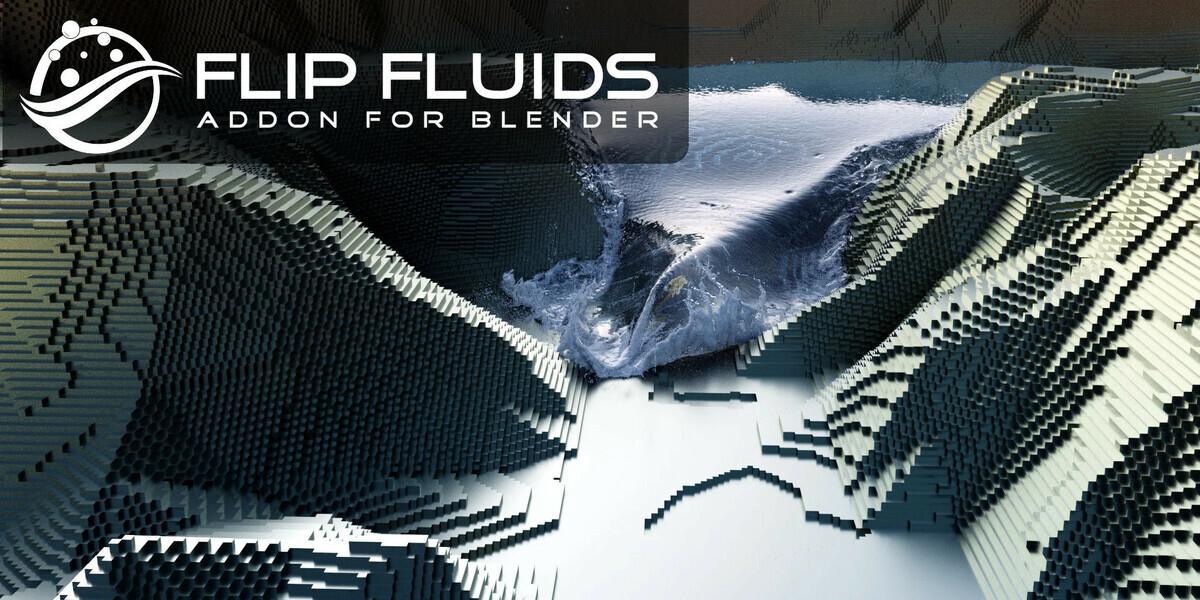
Image Source: SuperHive
FLIP Fluids extends Blender’s native fluid solver with the features production work tends to need that the built-in tool doesn’t fully cover: whitewater, foam and spray, surface tension, and viscosity controls, plus debugging and caching tools built around actually finishing a shot rather than just previewing one.
- Key strengths: It’s been in continuous development for several years, which shows in how much more complete the whitewater and viscosity systems are compared to Blender’s native Mantaflow solver on its own. Documentation and native integration are both solid.
- Limitations: Fluid sims of any complexity are heavy to cache and heavier to render, and simulations need to be cached and correctly linked before they’ll render properly on a different machine than the one that ran the sim, worth knowing before you try to hand a cache off to a render farm.
- Best for: Any shot with liquid, splashes, waves, or pouring effects that need to look like water instead of grey goo.
- Price: $79 for an individual license on Superhive (Team $149, Studio $299, checked November 2026).
RBDLab
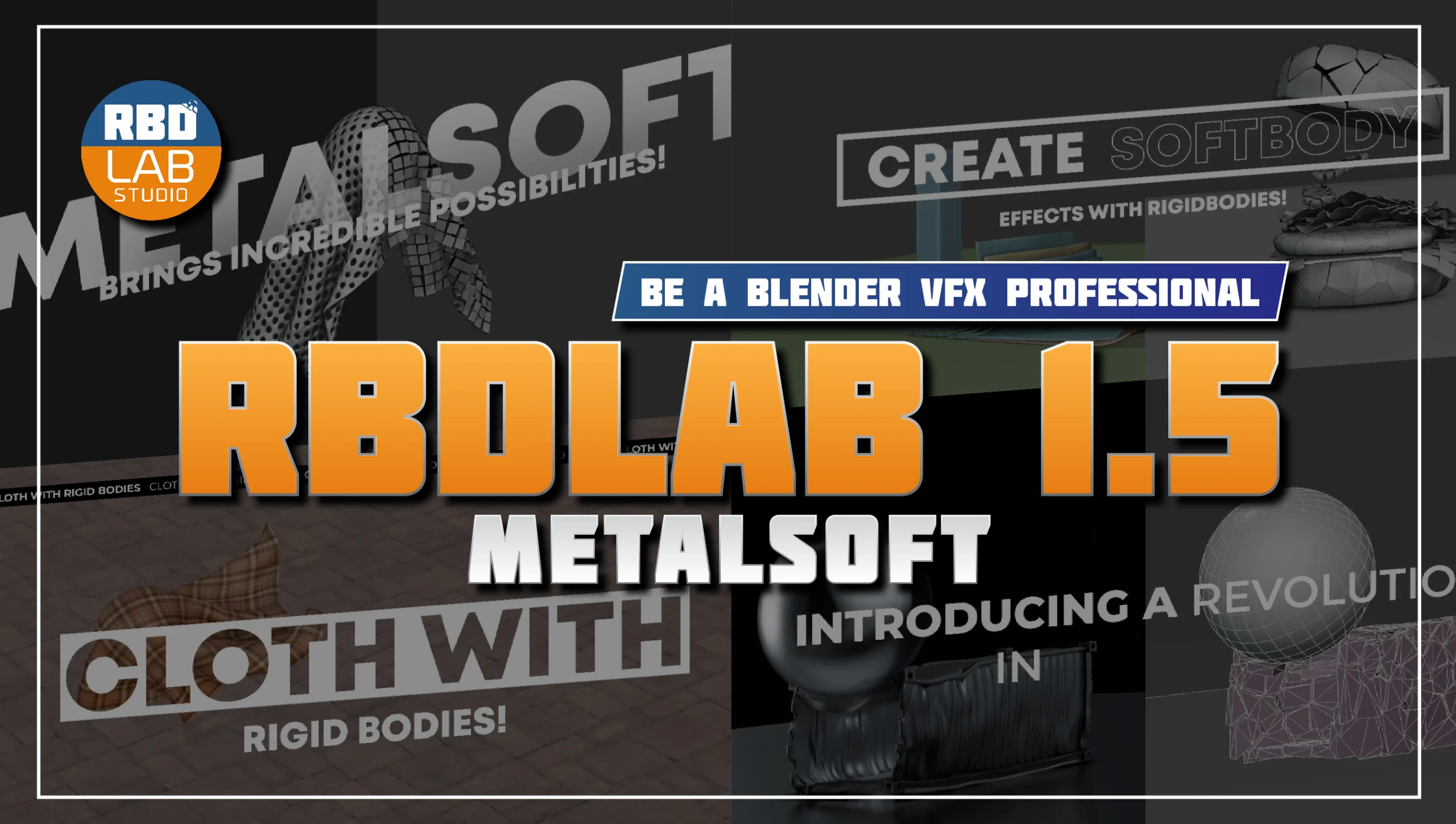
Image Source: SuperHive
RBDLab fills a gap Blender’s built-in tools still don’t cover well: rigid-body destruction. It adds proper fracturing methods, sequential workflow panels for fracturing, rigid bodies, constraints, simulation, and particles, plus debris and dust generation tied specifically to chunks that actually break, rather than emitting particles from the whole object regardless of what fractured.
- Key strengths: The chipping tools and break-aware particle emission make destruction look considerably more physically plausible out of the box than hand-building the same effect with base Blender physics.
- Limitations: Destruction sims are inherently simulation-heavy and CPU or GPU-bound depending on your pipeline, large fracture counts with high particle detail will push render and simulation times up fast. The add-on’s own marketing material is the main source for its feature claims, so test on your own scene before counting on a specific look.
- Best for: Building collapses, impacts, shattering, and any shot where something needs to break convincingly.
- Price: $73 on Superhive (checked November 2026).
Botaniq

Image Source: SuperHive
Botaniq is a vegetation asset library rather than a modeling tool, trees, grass, and plants built with wind animation and seasonal variation already set up, plus tools like Snap to Ground and randomization for scattering them across a scene without hand-placing every instance.
- Key strengths: The sheer size of the library and the fact that assets come pre-rigged for wind movement saves real time on environment and archviz work where vegetation would otherwise eat hours of setup.
- Limitations: Pricing is tiered by how much of the library you’re buying access to, which makes it easy to end up with less than you expected if you don’t check what a given tier actually includes. Site-license pricing for multiple machines climbs quickly.
- Best for: Archviz exteriors, environment art, and any scene that needs convincing vegetation without building it from scratch.
- Price: Superhive lists a Starter tier at about $2 (a small share of the assets with all features), Lite at about $40 to $49 and Full at about $100 to $129, with the lower figures shown in the purchase panel (November 2026), with multi-machine studio licensing priced separately and considerably higher.
Which plugin should you choose?
There isn’t one answer here, because these six solve different problems. If your work is mostly hard-surface props and mechanical designs, Hard Ops and Boxcutter pay for themselves within the first few models. If you’re rigging and animating characters regularly, Auto-Rig Pro is close to an industry default at this point, and worth the Full version if you’re exporting to a game engine. RetopoFlow 4.0 is the one to watch if your pipeline touches sculpted or scanned geometry, since the Edit Mode rewrite is a real workflow change, not just a refresh, though it’s new enough that testing it on a real project before full rollout is worth the extra hour. FLIP Fluids and RBDLab both solve the same underlying problem from different directions, Blender’s native tools being thin on liquids and destruction respectively, so pick whichever matches the shot you’re actually building rather than buying both speculatively. And Botaniq is really a licensing decision disguised as a plugin purchase.
Renting GPU Time for the Heaviest Plugins
FLIP Fluids, RBDLab and RetopoFlow on dense scan data share one problem: they get slow once a scene gets real. FLIP Fluids simulates on the CPU, so a whitewater shot is limited by core count and RAM, while rendering the cached result in Cycles leans on the GPU and its VRAM. A destruction shot with thousands of fracture pieces or a retopology pass on a multi-million-polygon scan can tie up a workstation for hours.
Renting a machine by the hour is one option once a scene outgrows your own hardware. SaaS render farms handle the final Cycles frames from a cached scene, while a remote server lets you run the simulation itself with your own add-ons installed. Compare at least two services against one representative scene before you commit.
iRender rents whole remote GPU servers that you operate yourself (an IaaS model). Its pricing page lists RTX 4090 (24 GB) servers from $8.20 per hour and RTX 5090 (32 GB) servers from $10.80 per hour (checked November 2026) and describes its data center as Tier III (Uptime Institute) with ISO 27001, ISO 9001 and ISO 50001 certifications, and its terms and conditions offer an NDA for confidential projects. The limits: you install Blender and each add-on yourself (check that paid add-on licenses allow use on a remote machine), billing runs until you shut the server down, and VRAM does not add up across cards.
FAQ
Is Blender Market the same thing as Superhive?
Yes. The marketplace was called Blender Market for years and has since rebranded to Superhive. Most older reviews, forum threads, and tutorials still say Blender Market, and the two names refer to the same storefront.
Do any of these plugins require a specific Blender version?
It varies by plugin. RetopoFlow 4.0 specifically requires Blender 4.2 or later because of its Edit Mode rewrite. Check each add-on page before you upgrade Blender: in November 2026 FLIP Fluids listed Blender 4.5 to 5.3 and RBDLab listed Blender 5.0 to 5.2.
Are simulation-heavy plugins like FLIP Fluids and RBDLab worth it if I don’t have a powerful GPU?
The plugins themselves will run, but simulation and caching times scale with your hardware the same way any Blender simulation does. A thin laptop can still set up and preview a fluid or destruction sim; it just won’t crunch through a dense, final-quality version of it quickly. That’s less an argument against buying the plugin and more a reason to test on rented hardware before committing render time on your own machine.
Do I need the full version of Auto-Rig Pro, or is Lite enough?
It varies with what you’re exporting to. Lite covers core rigging, which is enough for most inside-Blender animation work. If you need FBX export for a game engine, or you’re doing more advanced retargeting between different rig types, the Full version is where those features live.
Will these plugins keep working across Blender’s yearly updates?
Most of the plugins on this list have survived multiple major Blender versions already, which is itself a decent proxy for how actively maintained they are. That said, a major Blender release can still break a plugin temporarily until its developer ships an update, so it’s worth checking a plugin’s changelog or support forum before updating Blender on a machine you’re mid-project on, rather than after.
See more: Why Your Cloud Renders Look Different From Your Local Preview
Part of our guide: for a full overview of cloud options, see the Blender render farm guide.