

Uploading 10GB Arch-Viz Scenes to a Render Farm: Why It’s Slow and How to Fix It
SUMMARY
EXECUTIVE ANSWER // OPTIMIZING 10GB ARCH-VIZ SCENE UPLOADS
Uploading heavy 10GB Arch-Viz scenes often freezes or takes hours not just because of raw bandwidth limits, but due to transmitting uncollected assets, oversized textures, thousands of loose files, and re-uploading unchanged data. Zipping loose image formats barely reduces file size, while protocol overhead on small files severely drags down real-world transfer speeds.
💡
Use asset-collection tools (Pack Project or Archive) to strip unused assets, downscale textures to camera resolution, archive loose files into a single container, and sync only changed delta files on persistent cloud storage (like iRender’s NVMe drive) rather than re-uploading the entire project.
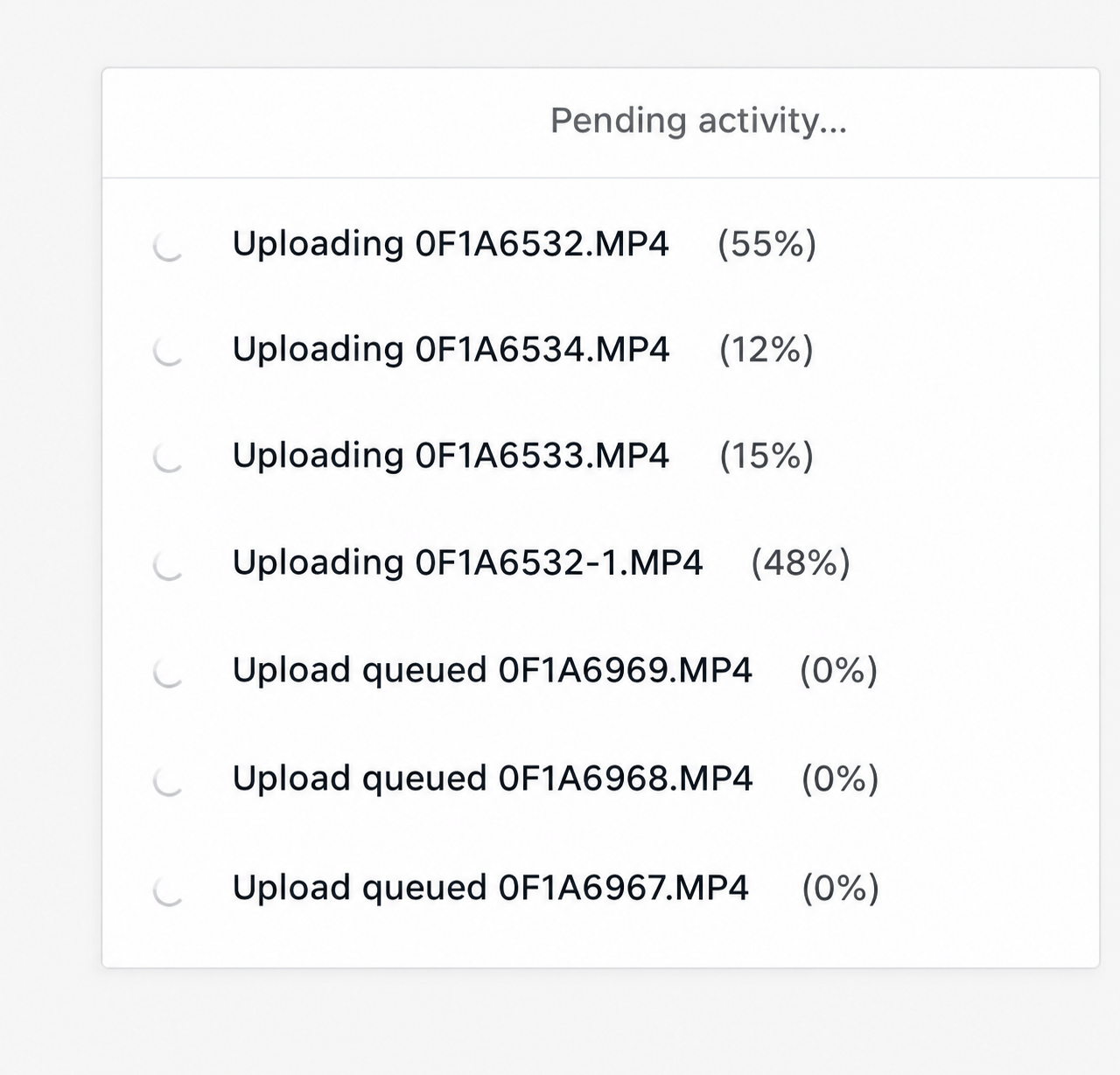
It is Thursday at 4:00 PM. The final exterior visualization sequence is due to the client early Friday morning. You upload your 10.2 GB project folder, turn off your monitor, and prepare to review the frames later that evening. Two hours later, you check the transfer progress: the bar is frozen at 87 percent, the connection dropped mid-transmission, and your estimated time remaining keeps creeping upward.
Why a 10GB upload takes hours
Four things decide how long an upload takes: your real upload speed, how much you actually send, how many files it’s split into, and whether you resend the same data every time. Most people only think about the first one.
Ten gigabytes is about 80,000 megabits. At a real upload speed of 20 Mbps, that’s roughly 67 minutes before any overhead. At 100 Mbps, it’s roughly 13 minutes. These are theoretical numbers, not measured ones, and actual time is always longer once you add protocol overhead and thousands of small files.
Megabits and megabytes aren’t the same unit, mixing them up can throw your estimate off by a factor of eight.
Send less than you think you need to
A 10GB project usually doesn’t need all 10GB. Old proxies, unused textures, backup copies and renders from three versions ago all ride along unless something removes them first. Your software’s own asset-collection tool (Pack Project in V-Ray for SketchUp and Rhino, Archive in 3ds Max) gathers only what the current scene actually uses, which is usually a smaller number than the folder you’ve been working in.
Texture size matters too. An 8K texture on a plant pot at the edge of frame costs upload time and render memory without improving the image at all. Size textures to how big the object actually looks in the final shot, keep your full-resolution originals on your own machine, and only send the resized versions. One thing worth knowing: zipping a folder full of JPGs and PNGs barely shrinks it, since those formats are already compressed. The size reduction that actually matters comes from sending fewer, smaller textures, not from zipping harder.
Don’t resend what hasn’t changed
If wherever you’re rendering keeps your data between sessions, you only need to upload once and then sync whatever changed. A material tweak after a client’s feedback is usually a few megabytes, not the whole project. Tools like rclone’s sync command send only the files that differ. It’s worth splitting your project folder so stable assets (your furniture and plant library, say) upload once, while the scene file itself, which changes often, gets synced on its own.
If you’re using a service that collects and uploads scenes for you, ask whether it keeps assets between jobs and supports sending only changes. If you’re renting a full machine instead, ask about its storage policy before you delete it.
Upload through cloud storage instead
If your project already lives in Google Drive or Dropbox, some render services can pull it from there directly, which is usually faster than pushing it up from a home connection yourself. You still have to get it into that cloud storage once, so this skips your upload speed for the second leg, not the first.
Renting a machine changes how you upload, not your internet speed
A service that collects and uploads your scene for you usually handles the packaging automatically. Renting a full machine instead means you move the files yourself and pick your own transfer tool.
iRender rents whole remote GPU servers that you operate yourself (an IaaS model). Its pricing page lists RTX 4090 (24 GB) servers from $8.20 per hour and RTX 5090 (32 GB) servers from $10.80 per hour (checked November 2026) and describes its data center as Tier III (Uptime Institute) with ISO 27001, ISO 9001 and ISO 50001 certifications, and its terms and conditions offer an NDA for confidential projects. The limits: billing runs from the moment the server starts until you shut it down, and stored project data is removed if you delete the server.
By its own published guide, project data sits on the server’s NVMe storage between sessions, so you upload once and then sync only what changed, using its built-in transfer, WinSCP, or rclone, or by pulling directly from Google Drive or Dropbox. One thing to flag, by that same guide: storage only lasts as long as the server configuration stays active. Delete and recreate the server and you’re uploading from zero again, so it’s worth asking about storage policy for your specific plan before you tear a server down.
FAQ
How long does it take to upload 10GB to a render farm?
Ten gigabytes is about 80,000 megabits, so at a real upload speed of 20 Mbps the theoretical time alone is about 67 minutes, and at 100 Mbps it’s about 13 minutes. Real time usually runs longer because of protocol overhead and large numbers of small files.
Does zipping my project make the upload faster?
A little, but not because the files get smaller. JPGs, PNGs, and most already-compressed formats barely shrink from extra zipping. What an archive actually helps with is combining thousands of small files into one, since each file carries its own transfer overhead. To cut the real size down, remove unused assets and resize oversized textures instead.
Do I have to re-upload my whole project after every change?
No. If wherever you’re rendering keeps your data between sessions, sync only the files that changed using a tool like rclone. A material edit is usually a few megabytes, not the full project. Ask your provider whether it keeps assets between jobs, or, if you’re renting a server, what its storage policy is before you delete it.
How can I make my scene smaller before uploading?
Use your software’s own asset-collection tool, such as Pack Project in V-Ray for SketchUp and Rhino or Archive in 3ds Max, so you only send what the scene actually uses. Remove backups, old renders and unused proxies, and resize textures on small or distant objects. Open the packed version once yourself before sending it.
See more: Missing Textures and Assets on the Render Farm: How to Stop It Happening