

Enscape vs Lumion for Slow PCs: Which Punishes Weak Hardware More?
Lumion punishes weak hardware harder at the entry point, while Enscape punishes it through your CAD model. Lumion 2026 runs exclusively on Windows, listing 6GB of VRAM as its absolute minimum and requiring at least 8GB for 4K rasterization or 1080p ray tracing. Enscape lists a 4GB dedicated GPU with Vulkan 1.1 support as its minimum and runs inside Revit, SketchUp, Rhino, Archicad, or Vectorworks, meaning the CAD application and Enscape compete for the exact same system memory. On a graphics card under 6GB VRAM, Enscape is the only option between the two that satisfies official minimum requirements. On a 6GB to 8GB card, both software will run, but Lumion hits a strict wall on 4K and ray tracing, whereas Enscape slows down progressively as your CAD scene grows. Because both applications render on a single GPU, adding a second graphics card provides zero performance gain.
| Criteria | Enscape | Lumion (Lumion Pro 2026) |
|---|---|---|
| Software Type | In-CAD Plugin | Standalone Application (Import Model) |
| Operating System | Windows; macOS (Apple Silicon only) | Windows only (Mac not officially supported) |
| Minimum VRAM | 4GB dedicated GPU (Vulkan 1.1) | 6GB VRAM |
| Threshold for 4K / Ray Tracing | Dependent on CAD scene size & texture load | 8GB VRAM for 4K raster or 1080p ray tracing |
| Recommended Hardware | ~RTX 3070 Ti 8GB VRAM | 10GB VRAM, 32GB System RAM (e.g., RTX 3060) |
| Weak Hardware Penalty | Shared RAM/VRAM resource contention with CAD | Hard entry gates; feature lockouts or launch failure |
| Storage Requirement | Lightweight plugin footprint | 105GB for full commercial installer |
| Multi-GPU Scaling | Single GPU only | Single GPU only |
| SaaS Upload Render Farm | Unsupported | Unsupported |
| Remote IaaS Workstation | Supported (via Remote Desktop) | Supported (via Remote Desktop) |
Which one actually runs on a 4GB graphics card?
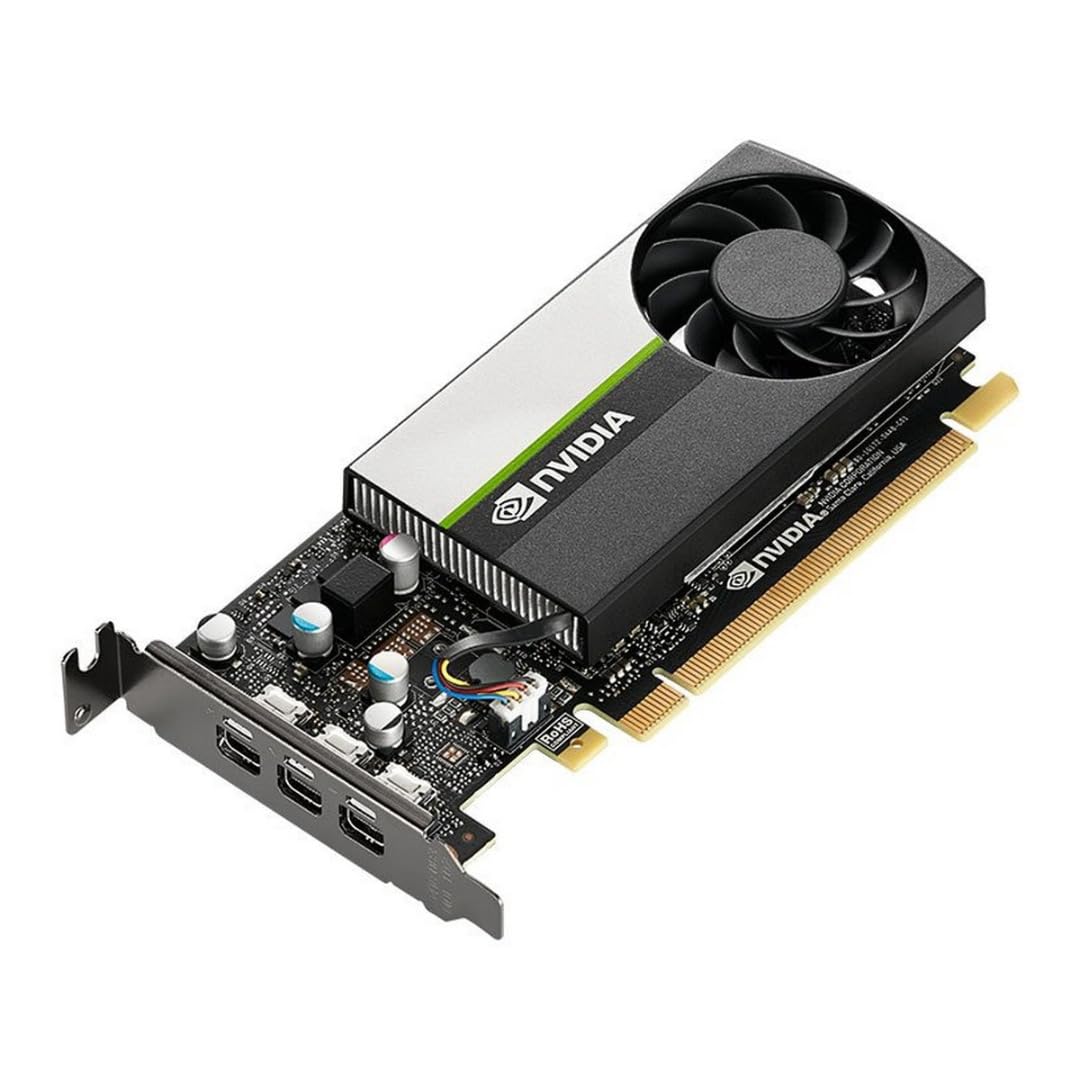
Only Enscape runs on a 4GB graphics card. Chaos Enscape lists a 4GB dedicated GPU with Vulkan 1.1 support as its baseline minimum, whereas Lumion Pro 2026 sets its absolute entry bar at 6GB of VRAM.
At the 4GB minimum mark, Enscape handles small to medium-sized scenes and moderate export resolutions reliably. However, pushing complex geometry or high-resolution texture maps will quickly max out your card’s frame buffer.
If you are running Enscape on a laptop with a 4GB card, ensure Windows is actively directing the plugin to your dedicated GPU rather than an integrated graphics processor. Laptops frequently revert to integrated graphics to save power, which leads to immediate startup crashes in real-time engines.
Lumion offers a lightweight viewing tool called Lumion View, which features lower system requirements and accepts integrated GPUs with ray tracing support (such as Intel Arc or Radeon 760M with a PassMark score of 5,500+). However, Lumion View requires a constant internet connection and cannot render 4K outputs at its minimum tier. For the core Lumion Pro 2026 authoring suite, a 4GB card simply fails to meet official requirements.
How does Lumion punish a weak PC?

Image Source: Lumion
Lumion punishes weak hardware through unyielding hardware gates. If your graphics card falls below 6GB of VRAM, the application fails to satisfy basic runtime checks. If your card has less than 8GB of VRAM, key production features like 4K rasterization and 1080p ray tracing become unavailable or unstable.
There are three distinct tiers:
- Minimum Tier: PassMark G3DMark 8,000+, 6GB VRAM, 16GB System RAM, CPU Single-Thread CPUMark 2,200+ (e.g., NVIDIA GTX 1060, Quadro K6000, AMD RX 580). Note: Lumion explicitly states that the Minimum tier is not recommended when purchasing new hardware.
- Recommended Tier: PassMark G3DMark 14,000+, 10GB VRAM, 32GB System RAM, CPU Single-Thread CPUMark 2,600+ (e.g., NVIDIA RTX 3060, AMD RX 6700 XT).
- High-End Tier: PassMark G3DMark 22,000+, 16GB VRAM, 64GB System RAM, CPU Single-Thread CPUMark 3,000+ (e.g., NVIDIA RTX 3090, RTX A6000, AMD RX 6800 XT).
8GB VRAM threshold represents a significant bottleneck for budget hardware. While a 6GB card can open Lumion and allow you to edit basic scenes, client deliverables usually demand 4K still renders or ray-traced flythroughs. Attempting 4K output on a 6GB card results in severe memory overflow, forcing the engine to spill texture data into system RAM and causing frame rates to collapse.
On the other hand, Lumion’s standalone architecture provides a distinct operational advantage over plugin-based tools. Once you import your model into Lumion, you can close your primary CAD software completely. This frees up system RAM and CPU cycles, giving Lumion exclusive access to your system’s resources.
Storage space presents another hurdle for older machines. The full commercial installer for Lumion 2026 requires 105GB of disk space (or 12GB for the trial version). On an older laptop equipped with a small SSD, storage capacity can become a hardware bottleneck of its own.
How does Enscape punish a weak PC?

Image Source: Chaos Blog
Because Enscape operates as a live plugin inside host CAD platforms like Revit, SketchUp, Rhino, Archicad, or Vectorworks, both applications compete for the exact same pool of System RAM and VRAM.
Enscape relies on a live-link mechanism that synchronizes every geometry update, material edit, and object placement in real time between your CAD viewport and the render engine. When running a massive Revit project containing complex parametric families, linked structural models, and heavy detail components, Revit itself can consume 12GB to 16GB of System RAM and several gigabytes of VRAM before Enscape even initializes. This dual-application load can cause Enscape to freeze during scene synchronization on low-spec hardware, even if your graphics card technically satisfies the 4GB VRAM minimum.
- To manage performance on weak hardware when using Enscape:
- Create a dedicated 3D export view in your CAD app specifically for Enscape.
- Hide unnecessary categories, linked background models, and internal MEP elements.
- Reduce repetitive geometric components and high-poly entourage models.
For small to medium projects, Enscape’s workflow remains far more agile on a 4GB to 6GB card than Lumion’s, as it eliminates the tedious model export and import cycle.
What about a 6GB or 8GB card, where both run?
On a graphics card equipped with 6GB to 8GB of VRAM, both Lumion and Enscape will launch and function. Choosing between them comes down to the specific output deliverables your project requires.
| Production Scenario | 6GB VRAM Card Performance | 8GB VRAM Card Performance |
|---|---|---|
| Full HD (1080p) Still Image | Both run smoothly on small to medium scenes. | Both run easily with full texture sets. |
| 4K Still Image Export | Enscape succeeds; Lumion hits severe VRAM limits. | Lumion reaches minimum 4K threshold; Enscape handles comfortably. |
| Ray Tracing (1080p) | Enscape RT works on small models; Lumion RT locks out. | Both support ray tracing; Lumion has zero extra memory margin. |
| 4K Walkthrough Video | Enscape renders slowly; Lumion risks driver crashes. | Both render; Lumion requires strict scene asset management. |
An 8GB card sits precisely at Lumion’s baseline requirement for 4K rasterization and 1080p ray tracing. While it enables those features, it leaves no safety margin for dense 3D foliage, high-resolution displacement maps, or complex atmospheric scattering.
Will a second graphics card or more system RAM help either one?
Installing a second graphics card will not speed up Enscape or Lumion. Both tools are real-time engines built to process viewport geometry and frame buffers on a single primary GPU. Multi-GPU configurations like SLI or NVLink are not utilized by these engines, and VRAM does not stack across multiple cards. To improve render performance, you must replace your primary card with a single GPU that offers higher raw compute performance and a larger VRAM capacity.
Adding system RAM, however, provides measurable stability gains for both applications:
- Enscape: Upgrading from 16GB to 32GB or 64GB of RAM prevents system thrashing when running heavy CAD files alongside the live rendering engine.
- Lumion: Lumion’s official specifications demand 16GB of System RAM as a minimum, recommending 32GB for standard scenes and 64GB for high-end master plans.
Can I run Enscape or Lumion on a remote machine instead of upgrading?
Yes, you can run both Enscape and Lumion on remote hardware, provided you lease a dedicated remote workstation that you control directly via Remote Desktop.
Traditional SaaS (Software-as-a-Service) render farms, where you upload a scene file and wait for rendered frames to download, do not support Enscape or Lumion. Because both engines are real-time applications requiring an active display server and interactive user input, they cannot execute inside headless command-line render pipelines.
To run these applications in the cloud, you need an Infrastructure-as-a-Service (IaaS) provider that grants full access to a remote Windows server.
iRender provides a practical option for real-time visualization workflows.
iRender offers hourly server rentals featuring high-spec hardware, such as the GPU Cloud Workstation 3i powered by a single RTX 5090 (32GB GDDR7) or dedicated RTX 4090 (24GB) instances paired with high-frequency CPUs like AMD Threadripper Pro. Because both Enscape and Lumion rely heavily on single-GPU speed and high VRAM capacity, a high-spec single-card server addresses both rendering bottlenecks at once.
FAQ
- Is Enscape lighter than Lumion on a laptop?
At the entry level, yes. Enscape lists a minimum requirement of a 4GB dedicated GPU supporting Vulkan 1.1, whereas Lumion Pro 2026 requires at least 6GB of VRAM and runs exclusively on Windows. However, because Enscape operates inside your CAD application, both programs share your laptop’s system RAM and VRAM.
- Can Lumion run on a 4GB graphics card?
No, Lumion 2026 does not support 4GB graphics cards. Lumion Pro sets its absolute entry requirement at 6GB of VRAM, with 8GB required for 4K rasterization or 1080p ray tracing. If your system only has 4GB of VRAM, Enscape is the only supported option between the two, unless you offload your Lumion rendering to a remote workstation with a higher VRAM capacity.
- Do Enscape and Lumion use more than one GPU?
No. Neither Enscape nor Lumion supports multi-GPU scaling. Both applications process geometry, textures, and ray tracing on a single primary GPU. Installing a second graphics card will not increase rendering speed or combine VRAM. Performance improvements require upgrading to a single card with more VRAM and higher compute performance, or adding system RAM to assist with large scene loads.
- Can I use a render farm for Enscape or Lumion?
Traditional SaaS render farms that rely on scene uploads do not support Enscape or Lumion, as both engines require an active display interface and real-time user interaction. However, you can rent a dedicated remote workstation (IaaS) equipped with a high-spec GPU, connect via Remote Desktop, and run your own licensed software.
- Which is better for a Mac user with a weak computer?
Lumion 2026 is not officially supported on macOS. Enscape offers a native macOS version, but it requires an Apple Silicon processor (M1, M2, M3, or later). If you are using an older Intel-based Mac, neither application is officially supported for local rendering. Intel Mac users must either run Enscape on supported Apple Silicon hardware or access a Windows-based remote GPU workstation via Remote Desktop.
See more: Revit + V-Ray Rendering Is Painfully Slow: A BIM-to-Render Speed Guide
Part of our guide: for a full overview of cloud options, see the Lumion render farm guide.
Part of our guide: for a full overview of cloud options, see the Enscape render farm guide.