


Rhino + V-Ray Complex Geometry Crashing: Memory and Hardware Fixes
When Rhino crashes on a V-Ray render of complex geometry, one of three memory pools has usually run out. Rhino first converts every NURBS object into a render mesh, and over-fine mesh settings can multiply polygon counts before V-Ray even starts. V-Ray CPU then holds geometry, displacement, light cache and textures in system RAM, while V-Ray GPU needs the whole scene to fit in the graphics card’s VRAM. Watch Task Manager during the crash to see which pool fills. Coarsen render meshes per object, convert repeated or heavy objects to V-Ray proxies, and isolate displacement before buying hardware. If the scene still exceeds a single card’s VRAM, switch to V-Ray CPU, since VRAM does not add up across GPUs.You are working on a detailed building model with thousands of panels and complex curves. Moving around the view looks completely smooth, but as soon as you click render, Rhino freezes and suddenly closes. It is easy to think your computer is too weak and that you need to buy expensive new hardware. However, a render crash usually happens simply because one specific memory area gets completely full. In this guide, Radar Render explains how to find which memory pool is overflowing and how to fix your scene to stop crashes.
Why does Rhino crash only when I hit render, not when I model?
source: mcneel
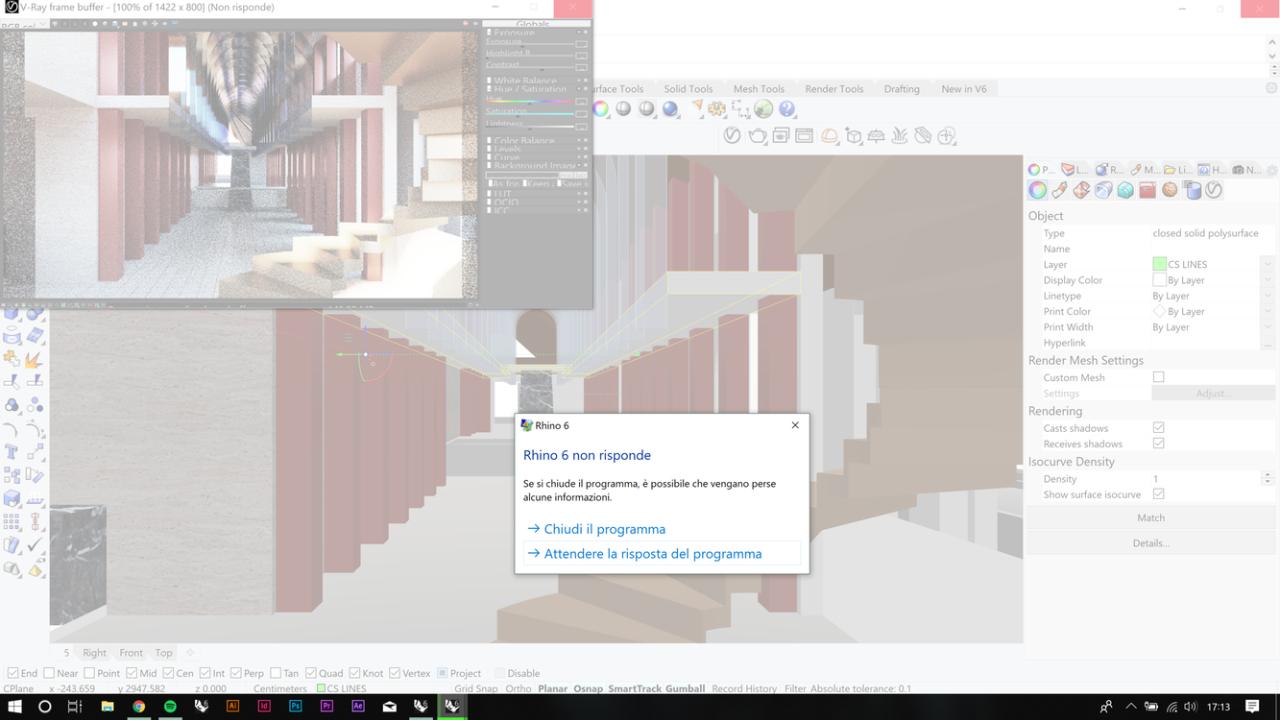
Modeling and rendering use your computer in completely different ways. While you are working, Rhino shows a simplified version of your model in the viewport so you can move around smoothly. When you click render, Rhino and V-Ray have to process every single detail at full quality all at once.
Rhino builds models using smooth mathematical curves (NURBS). Render engines cannot read these directly, so Rhino must convert every curved surface into a 3D mesh (made of small flat polygons) before rendering starts. If your model has thousands of detailed curves, this meshing process can create far more polygons than your computer can handle.
Once the mesh is ready, V-Ray loads it along with textures, materials, and lighting into memory. This data goes into three main places:
- Rhino Render Mesh: Saved in system RAM before V-Ray starts rendering. If mesh settings are too high, your RAM can fill up before the render window even opens.
- System RAM: Used mainly when rendering with V-Ray CPU. It holds all scene geometry, materials, lighting, and textures.
- GPU VRAM: Used when rendering with V-Ray GPU. The entire scene must fit inside the memory of your graphics card.
How do I tell which memory is running out?
To find out what is causing the crash, open Windows Task Manager (Ctrl + Shift + Esc) and click on the Performance tab. Keep this window open on the side so you can watch both Memory (RAM) and GPU while you work.
Hit render in Rhino and keep your eyes on those charts. You will usually see one of three things happen:
- RAM spikes before rendering starts: Your system RAM shoots up past 90% while Rhino says “meshing” at the bottom, and V-Ray hasn’t even opened yet. This means your Rhino render mesh settings are way too detailed.
- RAM fills up during V-Ray CPU rendering: The V-Ray window opens and starts calculating, but RAM slowly creeps up to 100% until Rhino freezes or disappears. Your model, heavy textures, or displacement are simply too big for your physical RAM.
- Dedicated GPU Memory hits the roof instantly: If you are rendering with V-Ray GPU, the GPU VRAM chart jumps straight to its max limit (like 12GB or 24GB) right after clicking render. V-Ray then pops up an out-of-memory error or closes Rhino immediately.
You can also check the V-Ray Log inside the V-Ray Asset Editor. If you see warnings mentioning memory allocation or CUDA errors, your graphics card has officially run out of VRAM.
Are my render mesh settings making the scene too heavy?
Yes, if you set your global render mesh settings to maximum detail across your entire model, Rhino will generate millions of unnecessary polygons. The render mesh controls how smooth curved surfaces look when Rhino converts them into polygons for V-Ray.
According to McNeel, architectural models usually only need a Maximum Distance Edge to Surface value between 0.1 mm and 1.0 mm. Values around 0.002 mm are meant for tiny jewelry designs. Applying jewelry-level mesh detail to a full building makes your file thousands of times heavier without adding any quality you can actually see.
Instead of changing the settings for the whole project, override the mesh settings per object in the Properties panel. Keep high detail on smooth curves right next to the camera, and lower it for flat walls or background objects:
- Select the objects you want to optimize.
- Open the Properties panel and click Custom Mesh.
- Check Override Document Settings.
- Lower the Density slider or reduce the tolerance for background elements.
You can run the PolygonCount command in Rhino before and after making changes to see how many polygons you saved.
Should I convert heavy objects to V-Ray proxies?
Yes, absolutely. Turning high-polygon or repeated objects into V-Ray Proxies is one of the easiest ways to free up memory. Instead of keeping heavy 3D data saved inside your active Rhino file, a proxy saves the geometry into a separate .vrmesh file and loads it only when you hit render.
The real magic happens with repeated items. When you copy a proxy 50 times across your scene, V-Ray stores the heavy mesh in memory just once and reuses it for every single copy.
Here is a quick rule of thumb for what to convert:
- Convert to Proxies: Detailed 3D trees, plants, cars, complex furniture, and repeated facade panels that are finished.
- Keep as Normal Geometry: Objects you are still actively designing, stretching, or tweaking inside Rhino.
If you use Chaos Cosmos assets, V-Ray already manages their detail levels automatically so you do not need to convert them. And if you generate facade panels with Grasshopper, bake them as blocks or export them directly as proxies instead of creating thousands of separate NURBS surfaces.
What if the crash is caused by broken geometry, not memory?
Sometimes Rhino crashes not because you ran out of memory, but because your model contains broken geometry. Bad surfaces, corrupted meshes, or duplicate objects stacked on top of each other can make V-Ray freeze or close instantly.
The biggest clue: your render crashes at the exact same percentage or in the exact same spot on your screen every single time. You can use Rhino’s built-in commands to quickly find and fix these issues:
- SelBadObjects: Automatically selects all corrupted objects in your file. Simply hide, fix, or delete them.
- Check: Analyzes selected objects and lists any structural errors in the command line.
- SelDup: Finds duplicate objects sitting directly on top of each other (which can cause V-Ray to get stuck in infinite loops).
If an imported file from another program is acting up, run ExtractBadSrf to pull out the broken surfaces and rebuild them clean. Keep in mind: if your geometry is broken, no hardware upgrade or powerful cloud server will fix the crash.
When is it time to change hardware, and what should I change?
Hardware upgrades become necessary when your scene geometry and materials are fully optimized, but your physical memory limits still fall short of your project deadline requirements.
Figure 4 (Illustrative): Understanding how data routes through system RAM and GPU VRAM during rendering.
When evaluating hardware upgrades, keep system memory and graphics memory distinct:
- System RAM Upgrades: Essential if you render using V-Ray CPU and your Task Manager shows 100% RAM usage. Expanding from 32GB to 64GB or 128GB allows V-Ray CPU to handle vast, unoptimized scenes easily.
- GPU VRAM Upgrades: Critical if you rely on V-Ray GPU. VRAM does not stack across multiple graphics cards. Installing two 24GB graphics cards provides faster processing speed, but your maximum scene size limit remains capped at 24GB because the full scene dataset must load into each card individually.
Need More Memory Power for Heavy Scenes?
Is the scene still too big for your workstation after the cleanup? iRender rents whole machines by the hour, with single RTX 5090 32GB or RTX 4090 configurations and 256GB of system RAM, so you install your own Rhino and V-Ray versions and test where the scene actually breaks. If it still overflows a single card, render that scene on V-Ray CPU on the same machine. A free trial lets you check one heavy scene before committing.
FAQs
1. Why does V-Ray crash Rhino on large models?
V-Ray crashes on large Rhino models when one of three memory pools overflows. Rhino converts NURBS geometry into render meshes before rendering begins, and over-fine mesh settings can generate millions of unnecessary polygons in system RAM. V-Ray CPU then holds geometry, displacement, light cache, and textures in system RAM, while V-Ray GPU requires the full scene to fit within dedicated GPU VRAM. Monitoring Task Manager during render initialization reveals which memory pool is failing.
2. Does more RAM fix V-Ray GPU out of memory errors?
No. Adding system RAM does not resolve out-of-memory errors during V-Ray GPU rendering. V-Ray GPU requires scene assets to fit inside the graphics card’s dedicated VRAM. System RAM expansion only helps when meshing heavy models or rendering with V-Ray CPU. To fix VRAM errors on GPU renders, reduce texture resolutions, use V-Ray Proxies, optimize displacement, or switch the rendering engine to V-Ray CPU.
3. Can two graphics cards give me double the VRAM in V-Ray?
No. Video memory does not sum together across multiple GPUs in V-Ray. If you install two 24GB graphics cards, your scene size limit remains capped at 24GB because the complete scene dataset must be loaded into the memory of every individual GPU. A second graphics card doubles your rendering speed for scenes that fit within memory, but it does not allow you to render larger scenes.
4. What render mesh settings should architects use in Rhino?
McNeel recommends Maximum Distance Edge to Surface values between 0.1 mm and 1.0 mm for architectural models, compared to much finer settings near 0.002 mm used for jewelry. Architects should avoid applying dense global mesh settings across an entire project. Instead, override render mesh settings per object in the Properties panel, reserving high mesh density for detailed curves close to the camera while setting coarser meshes for background elements.
See more: Revit + V-Ray Rendering Is Painfully Slow: A BIM-to-Render Speed Guide
Part of our guide: for a full overview of cloud options, see the Rhino render farm guide and V-Ray render farm guide.