

D5 Render “Out of Memory” on Big Arch-Viz Scenes: How to Solve It
D5 Render throws an out of memory error when your scene needs more video memory than your graphics card holds. D5 loads geometry, textures and lighting into VRAM, and once that fills there is nowhere to put the next asset, so it errors, stalls, or reports a TDR crash. D5’s own guidance warns that once GPU memory use passes 80 percent, the card becomes unstable and can lag, slow down, or crash. To solve it, watch D5’s VRAM indicator, cut your biggest memory users first by shrinking oversized textures and using proxies for vegetation, delete assets the camera never sees, and lower the output resolution while you test. When a heavy exterior genuinely needs more than the card holds, the real fix is a GPU with more VRAM, bought or rented. After researching this memory issue, Radarrender has put together the following step-by-step guide to help you identify the cause and resolve it efficiently.
Let’s get started!
Quick Fix Guide
| Step | Action | Why It Works |
| 1 | Read D5 VRAM indicator and Task Manager | Tracks how close you are to the unstable 80 percent threshold. |
| 2 | Downscale oversized textures (8K to 2K) | Textures are usually the largest VRAM consumers in a scene. |
| 3 | Use proxies or scatter for vegetation | Thousands of unique plants create an immense memory load. |
| 4 | Delete invisible assets | Hidden objects behind walls still load directly into VRAM. |
| 5 | Lower output resolution during testing | Saves memory while working; only increase it for final output. |
| 6 | Close Chrome and GPU-heavy background apps | Background software steals valuable VRAM from the same card. |
| 7 | Upgrade to a higher VRAM graphics card | Large complex scenes simply require more hardware memory. |
D5 officially recommends monitoring both VRAM and system RAM in the Windows Task Manager. If a file fails to open due to memory exhaustion, consider deleting the downloaded assets folder (the “f2” folder located within your configured WorkSpace path.
What does the D5 out of memory or TDR error actually mean?
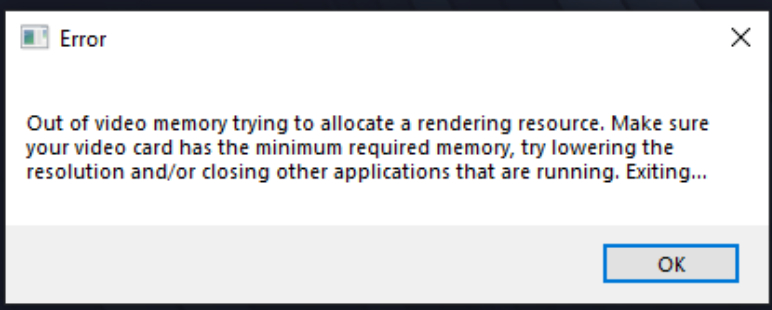
source: D5 RENDER FORUM
This error simply means your project is too heavy and requires more video memory (VRAM) than your graphics card has. When you work or render, D5 Render loads all 3D models, lights, and textures into this memory. If the VRAM gets completely full, the software cannot load anything else. This causes your computer to freeze, crash to the desktop, or show a Windows TDR error.
According to official D5 Render documents, when your GPU memory usage goes over 80 percent, your system becomes unstable. At this point, you will experience heavy lag, slow rendering speeds, sudden error pop-ups, or instant crashes. To give you an example: a simple interior design project usually stays well under 8GB of VRAM. However, a large exterior project with thousands of trees and sharp 4K or 8K textures can easily ask for 12GB to 18GB of VRAM.
For a deep dive into the technical details of why hardware limits cause these failures, read the guide on why 8GB GPUs fail on large scenes. This current guide focuses exclusively on the actionable steps to solve the issue.
How do I solve it step by step?
To fix the error, check your VRAM usage first. Then, optimize your project by following these 7 simple steps:
Step 1. Check your VRAM
Open your project and look at the VRAM counter in D5 Render or open Windows Task Manager. If your GPU memory usage is close to 80 percent before rendering, your system might crash.
Step 2. Resize big textures
Large textures use the most memory. If you have 8K or 4K textures on minor objects, change them to 2K. For objects far away from the camera, use 1K. This saves a lot of VRAM without losing visual quality.
Step 3. Fix the plants and trees
Do not place thousands of detailed trees one by one. Instead, use D5’s native scatter and brush tools. Also, use proxy models while working so your computer does not have to load millions of polygons until the final render.
Step 4. Delete hidden objects
If there are cars, furniture, or buildings hidden behind walls where the camera cannot see them, delete them. Even if objects are hidden, D5 Render still loads them into your VRAM.
Step 5. Lower test resolution
Keep your output resolution low when doing test renders or changing lights. High-resolution previews take up too much memory. Only switch to 4K or higher for your final export.
Step 6. Close other apps
Web browsers like Google Chrome and other design software secretly use your graphics card’s memory. Close all unnecessary apps before you start rendering in D5.
Step 7. Clear the “f2” cache folder
If your file is too heavy and will not open at all, go to your D5 WorkSpace directory and delete the folder named “f2”. This deletes downloaded asset caches, which helps the file open so you can optimize it.
How does D5’s own memory management help, and where are its limits?
D5 Render uses built-in features like texture streaming and large-scene memory optimization to reduce VRAM pressure by loading assets based on camera visibility instead of loading everything at once. This smart resource allocation allows mid-range graphics cards to handle complex environments that would normally crash other real-time rendering engines. The software dynamically prioritizes resources for whatever is currently inside your viewport. It lowers the memory footprint of distant objects and heavily optimizes dense foliage or urban areas.
However, these internal software optimizations have clear physical limits. The amount of VRAM saved depends entirely on how your scene is built. If your project genuinely requires 20GB of data to display a specific camera angle, texture streaming cannot bypass the physical limits of a 12GB graphics card. When your optimized project still exceeds the hardware limits, software tricks are no longer enough.
Which hardware or cloud setup solves it for good?
When an arch-viz scene continuously outgrows your local hardware, the final solution is utilizing a graphics card with more physical memory, such as an RTX 4090 with 24GB of VRAM. Because D5 Render is a real-time, single-GPU Windows application, traditional automated SaaS render farms cannot process the files. Resolving the problem via the cloud requires renting a dedicated remote GPU server where you control the interface.
The Radarrender team tested the primary cloud rendering options on the market to see how they handle heavy D5 Render projects:
| Service | Model | Supports D5? | Key Takeaway |
| iRender | IaaS (Remote PC) | Yes | Provides RTX 4090 (24GB VRAM) for heavy scenes. You control everything. |
| GarageFarm | SaaS (Plugin) | No | Only good for traditional offline rendering. |
| RebusFarm | SaaS (Plugin) | No | Only good for traditional offline rendering. |
| Fox Render Farm | SaaS (Plugin) | No | Only good for traditional offline rendering. |
When working on an emergency project, renting an online platform is often faster than purchasing new hardware. Moving the project to an online 24GB system allowed it to open instantly and render without a single glitch.
If you use a cloud provider like iRender, remember that D5 Render is a single-GPU application under Windows. Renting a server with multiple graphics cards will not give you more VRAM for a single project, because D5 cannot combine the memory of separate cards together. However, a 24GB RTX 4090 server provides exactly what a heavy scene needs.
iRender- Your Renders, Your Rules
Optimized your scene but D5 still crashes? iRender provides powerful remote servers with RTX 4090 and 24GB of VRAM to handle your heaviest exterior projects smoothly. Register now to get a free trial and a 100% bonus on your first deposit!
Register an account and Solve D5 out of memory on iRender now.
Frequently Asked Questions
- What causes the out of memory error in D5 Render?
It happens when your scene needs more video memory (VRAM) than your graphics card has. D5 loads models, lights, and textures into VRAM. When it is full, the system crashes or lags. D5 warns that your card becomes unstable once memory usage goes over 80 percent.
2. How do I fix D5 out of memory step by step?
First, check your VRAM usage in D5 or Task Manager. Then, resize big textures (8K/4K to 2K), use scatter and proxy tools for trees, delete hidden objects, lower your test resolution, and close other apps like Chrome. If the file won’t open, delete the “f2” cache folder in your D5 WorkSpace.
3. Does D5’s memory management remove the VRAM limit?
No. D5 uses texture streaming to load assets only when the camera sees them, which saves memory on mid-range cards. However, it cannot bypass physical hardware limits. If your scene data is too large for your card’s actual VRAM, D5 will still crash.
4. How much VRAM do big arch-viz scenes need in D5?
Interiors usually need less than 8GB of VRAM. Large exteriors with many trees and 4K textures easily need 12GB to 18GB or more. If your project always goes over your card’s limit, you need to upgrade to a 24GB GPU or rent a cloud server.
5. Can a render farm solve D5 out of memory?
Standard automated SaaS render farms do not work because D5 is a real-time application that runs on Windows with a single GPU. You must use an IaaS provider like iRender to rent a full remote computer equipped with a powerful 24GB RTX 4090 card.
See more: “Out of VRAM” Error in D5 Render: Why 8GB GPUs Fail on Large Scenes