

Enscape + Revit Keeps Freezing on Large BIM Models: Causes and Fixes
Enscape freezes on large BIM models because real-time performance scales directly with project size, and because Enscape runs inside Revit, waiting on Revit to hand it the model’s content before it can display anything. The bigger and more complex the project, the longer that handoff takes. When the GPU runs out of memory partway through, heavy features like ray-traced sun shadows switch off on their own rather than taking the whole session down. Enscape also needs a GPU with dedicated VRAM, not the shared memory of an integrated chip.
The fixes are to cut what Revit sends using a Section Box, hide small detailed objects like pipes and cables, keep the project on a fast SSD, close other GPU-hungry apps, and move to a GPU with more VRAM once the model genuinely outgrows the one you have.
| Cause of Freeze | Sign | What to Do |
| BIM project too large for the GPU | Sluggish navigation, low FPS | Use a Section Box, hide small detail, get a GPU with more VRAM |
| Revit sends content to Enscape slowly | Enscape takes a long time to load | Use a dedicated SSD for Revit and the project file, simplify the view |
| GPU runs out of memory | Sun shadows switch off on their own, stuttering, crashes | Close other apps using the GPU, lower Enscape’s quality setting |
| Using integrated GPU (shared VRAM) | Won’t run or runs very poorly | A dedicated GPU is required |
| Add-in conflict in Revit | Freezes right when Enscape opens | Disable other add-ins, update Enscape and Revit |
Why Does Enscape Freeze Specifically on Large BIM Models?
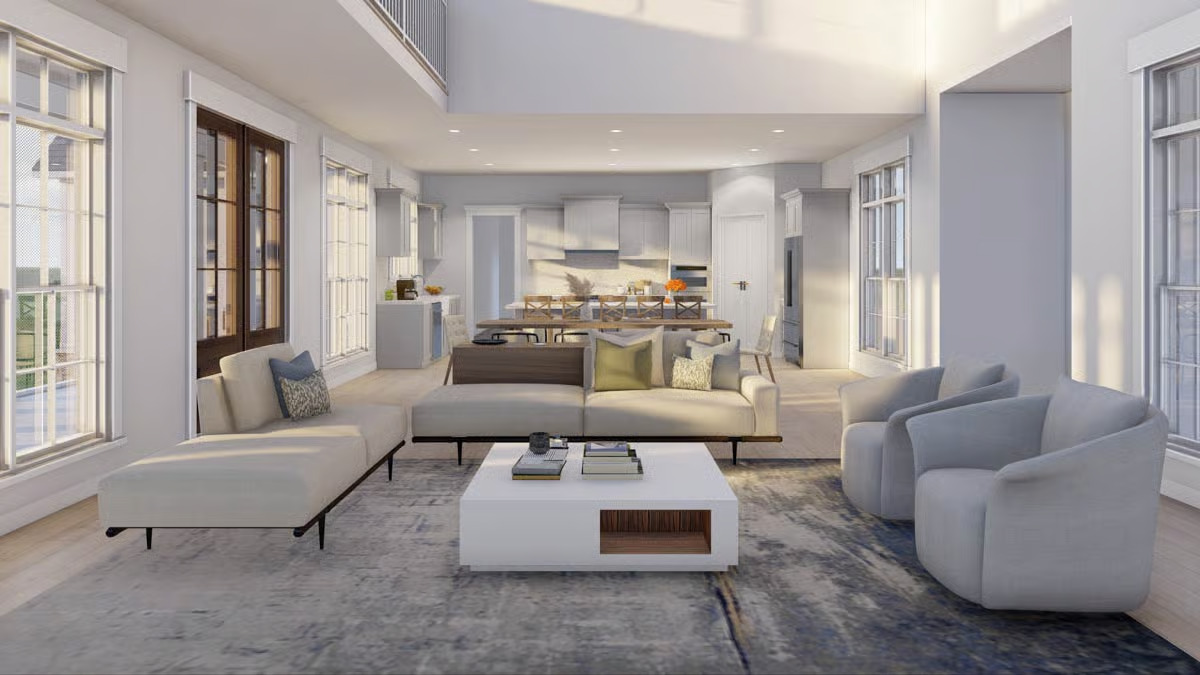
Enscape’s real-time performance is tied directly to project size. Chaos, the company behind Enscape, publishes minimum and recommended GPU specifications explicitly for large CAD and BIM projects. This isn’t a one-size-fits-all tool. The hardware you need scales with the model.
Enscape renders using the GPU and needs dedicated VRAM, not the shared memory of an Intel integrated chip. Loading time also depends on how quickly Revit can hand off the model’s content, so the more complex the project, the longer Enscape takes just to start. According to official documentation, the minimum at 4GB of VRAM, with 8GB or more recommended for real project work, and 12GB recommended if VR is part of the workflow.
How Do I Reduce What Revit Sends to Enscape?
You should use a Section Box in Revit to limit what gets sent to Enscape in the first place. Turning on a Section Box in Revit’s 3D view constrains what Enscape has to compute to whatever falls inside that box, which can dramatically improve performance on large projects, especially with limited GPU resources.
Hiding small, detailed objects helps for the same reason. Cables, pipes, and other fine MEP geometry carry real modeling value but contribute very little to how a scene actually looks in a walkthrough. Then hiding them cuts what Enscape has to process without hurting the visual result.
Storage matters too. Export time and load time are both limited by disk speed, so keeping Revit and the project file on a fast SSD, rather than a network drive or an older mechanical disk, directly shortens how long Enscape takes to start.
What Happens When the GPU Runs Out of Memory?
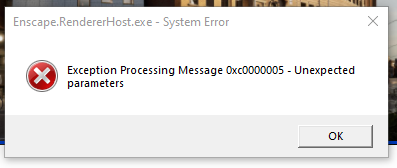
When the GPU runs out of memory, Enscape doesn’t necessarily crash outright. Ray-traced sun shadows are one of the most GPU-memory intensive features Enscape has, and when there isn’t enough memory left. Chaos’s own documentation states that the feature disables itself automatically rather than taking the whole session down with it. It can be turned back on after restarting the renderer, once memory has actually been freed.
GPU memory is a shared resource across whatever else is running on the machine. A browser with a dozen tabs open, another graphics-heavy application, or a second monitor all draw from the same pool Enscape needs. Closing unrelated GPU-hungry apps before a big Enscape session is very necessary.
It’s also worth knowing that Enscape only uses one GPU, even on a machine with more than one installed. A second graphics card sitting idle in the same system won’t help Enscape at all, so that’s not a fix worth spending money on if the freeze is a memory problem.
Could an Add-in Conflict Be Causing the Freeze?
Possibly, and it’s worth ruling out separately from the GPU question entirely, because the fix is completely different. Several Revit add-ins running at once can compete for resources or interfere with startup, causing a freeze the moment Enscape opens regardless of how much VRAM is available.
Chaos has documented specific known conflicts, including with the Revit plugins Colorizer and Techviz, and recommends uninstalling them if problems appear. More broadly, keeping Enscape and Revit updated to compatible versions matters, since recent Enscape releases have specifically improved handling of complex scenes. If a freeze happens only in Revit and not in SketchUp or Rhino on the same machine, that’s a issue is specific to something in the Revit environment rather than Enscape itself.
When Do I Need a Stronger GPU or the Cloud For Enscape Revit?
Once the software-side fixes are exhausted, the Section Box is in place, small detail is hidden, the project lives on a fast SSD, and conflicting add-ins are ruled out, but the model is still too large for the GPU in front of you, there are two solutions left.
The first is a straightforward hardware upgrade: a GPU with meaningfully more VRAM than what’s currently installed. This works well if the freeze pattern points clearly at memory, and the rest of the workstation, CPU, RAM, and storage, is already solid.
The second is renting a remote machine rather than buying new hardware outright, which matters more for Enscape specifically than it would for an offline renderer. Enscape is a real-time application that runs live inside Revit, not a batch job you queue and walk away from. That rules out traditional render farms built around offline, headless rendering, since they have no interactive session for Enscape to run in at all. What actually works is a remote workstation rental, essentially a machine you use exactly like your own, with your own Revit and Enscape installation, just with a stronger GPU underneath it.
If you are looking cloud render farm with take full control of it, you can refer to iRender!
iRender provides powerful remote servers with RTX 4090 and 24GB of VRAM to handle your heaviest exterior projects smoothly. Register now to get a free trial and a 100% bonus on your first deposit!
Register an account and solve Enscape + Revit Keeps Freezing on Large BIM Models on iRender now.
FAQ
- Why does Enscape freeze on large Revit models?
Enscape’s real-time performance is tied directly to project size, and Enscape runs inside Revit, so it has to wait for Revit to hand over the model’s content before it can display anything. The larger and more complex the project, the longer that load takes. If the GPU runs out of memory during this process, heavy features like ray-traced sun shadows switch off automatically, and in more severe cases the machine can freeze. Enscape also requires a GPU with dedicated VRAM, not the shared memory of an integrated graphics chip.
- How do I make Enscape load faster in Revit?
Reduce how much information Revit has to hand off: use a Section Box to limit the visible scope, and hide small detailed objects like pipes and cables. A fast CPU also speeds up loading, since Revit’s handoff to Enscape is part of what determines how long that step takes. The simpler and more focused the project in Revit, the faster Enscape loads and the less likely it is to freeze.
- Why do my sun shadows disappear in Enscape?
Ray-traced sun shadows are one of the most GPU-memory intensive features in Enscape, and when there isn’t enough memory left, Enscape disables the feature automatically to protect the session rather than crashing. It can be turned back on after freeing up some GPU memory and restarting the renderer.
- Can a render farm run Enscape for my Revit project?
Not a traditional one. Standard render farms are built for offline batch rendering and don’t run real-time applications like Enscape, which needs a live, interactive session inside Revit rather than a queued job. What actually works is a remote workstation rental, essentially a rented machine you use like your own, where you install Revit and Enscape yourself on a machine with dedicated VRAM and enough headroom for a large BIM model.
- Is the freeze always about hardware?
No. Beyond GPU and memory, conflicts between add-ins running alongside Enscape in Revit can cause a freeze the moment Enscape opens, regardless of how strong the GPU is. If the freeze happens only in Revit and not in other CAD software on the same machine, that points toward something specific to the Revit environment.
See more: D5 Render “Out of Memory” on Big Arch-Viz Scenes: How to Solve It