


Why Corona Renderer Maxes Out CPU & RAM in 4K Batch Renders (And How to Fix Thermal Bottlenecks)
You have spent hours perfectly lighting your 3ds Max scene, setting up your cameras, and hitting “Render” on a 4K batch sequence before heading to bed. But when you wake up the next morning, you find a disaster: either the render is only halfway done, or 3ds Max has completely crashed to the desktop. Sounds familiar?
Unlike GPU-centric renderers that fail instantly when VRAM runs out, CPU-based engines like Chaos Corona will push your hardware to its absolute breaking point. Prolonged 100% CPU usage triggers thermal throttling, while unoptimized 4K elements devour your physical RAM.
In this article, we will explore why Corona pushes your workstation so hard during heavy batch renders and, more importantly, how to optimize your settings to keep your machine cool, stable, and rendering efficiently.
Why Does Corona Overload Your Hardware?
Before we jump into the solutions, it is important to understand the two main bottlenecks happening under the hood:
- Thermal Throttling (The CPU Bottleneck): Corona is a CPU-only renderer designed to saturate every thread you have. Running at maximum capacity for hours generates extreme heat. If your CPU hits its thermal limit (usually around 90°C), your motherboard will automatically drop the clock speed to prevent hardware damage. This means your high-end processor suddenly starts rendering at half its normal speed.
- Memory Exhaustion (The RAM Bottleneck): 4K rendering (3840×2160) requires massive memory buffers. Storing dense geometry, calculating the UHD Cache, and holding multiple Render Elements (Beauty, Albedo, CryptoMatte, Denoising buffers) can easily consume 64GB or more of RAM. Once your physical RAM runs out, Windows starts writing to your hard drive (Pagefile), causing the render to freeze or crash.
How to Fix Thermal Bottlenecks and RAM Crashes
Fortunately, you do not need to let Corona hijack your entire system. Here are the best tips to optimize your workflow:
1. Cap Corona’s Thread Usage
Giving your CPU a little breathing room allows your cooling system to catch up and prevents thermal throttling over long batch sequences.
- Open Render Setup (F10) and go to the System tab.
- Click on System Settings.
- Find the Number of Threads override. By default, it is set to 0 (use all available threads).
- Change this value to -1 or -2. This tells Corona to leave one or two logical threads free. Your temperatures will drop, and your clock speeds will remain consistently high.
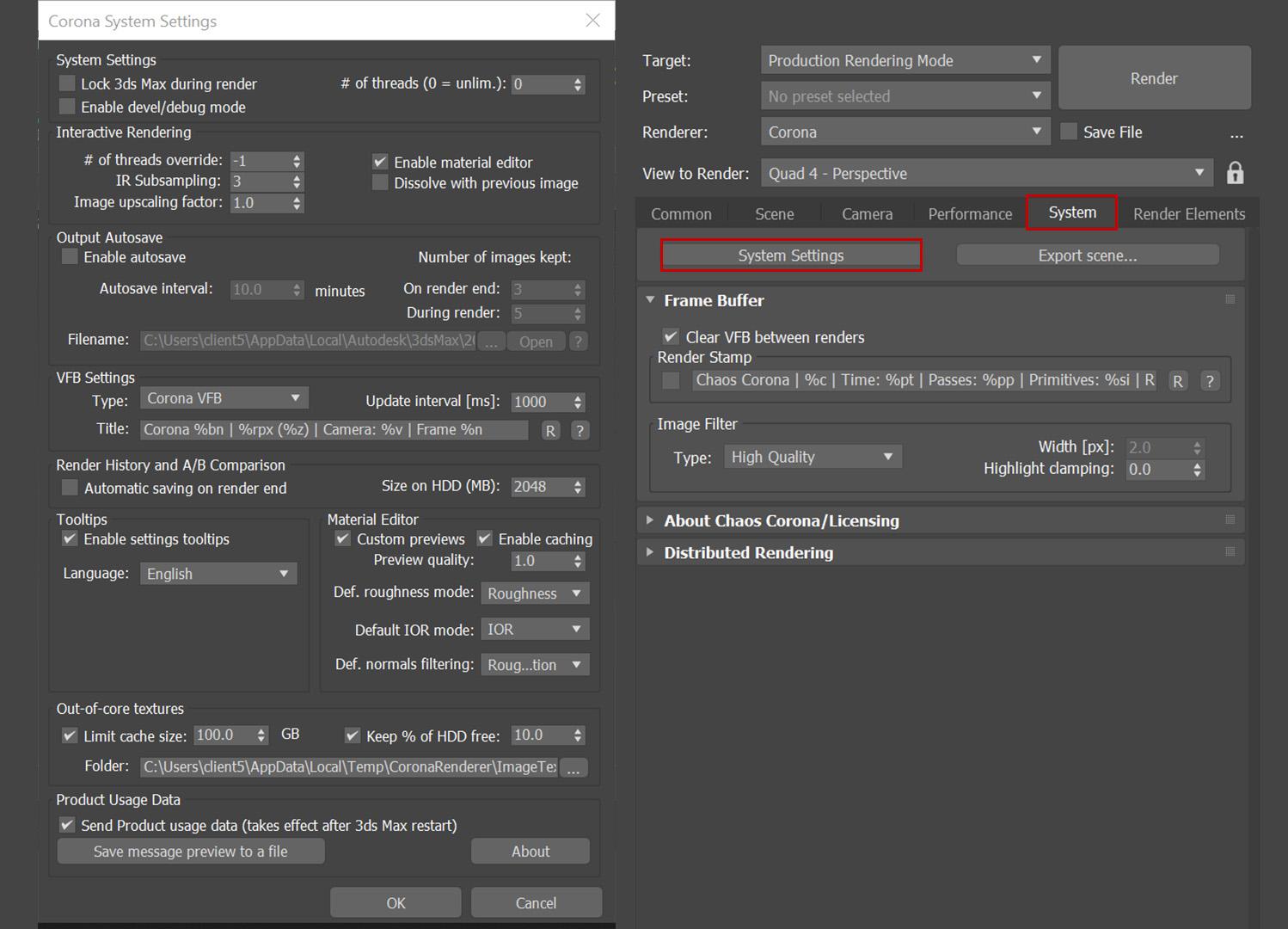
3ds max corona render setup system settings thread override. Source: support.chaos.com
2. Use Noise Level Limits, Not Pass Limits
Setting an arbitrary “Pass Limit” (like 200 passes) forces the CPU to burn power long after the image is visually clean.
- Navigate to Render Setup > Scene > General Settings.
- Under Progressive Rendering Limits, set a Noise Level Limit.
- A value of 3.0% to 4.0% is perfect for draft batch renders, while 2.0% is ideal for final 4K production. Corona will stop rendering the exact second the image reaches this clarity threshold.
3. Pre-calculate the UHD Cache
By default, Corona calculates the secondary GI (UHD Cache) from scratch for every single camera in your batch list. For static interior fly-throughs, this wastes massive amounts of RAM and CPU time.
- Go to Render Setup > Performance > UHD Cache.
- If you want the cache without waiting for a finished image, set Time Limit to 1 second in Render Setup > Scene > General Settings > Progressive rendering limits. Corona still completes the precomputation pass and saves the file.
- Set the Precomputation mode to Calculate from Scratch, render one frame, and save the .vsc file to your drive.
- For your batch render, change the mode to Load from File. Corona will now skip the heavy calculation phase between frames, stabilizing your memory usage.
4. Offload High-Quality Denoising
Using Corona High Quality Denoise at 4K resolution requires huge memory buffering. If you have 5-10 render elements, denoising alone can spike RAM usage by over 30GB.
- The Fix: Disable in-engine denoising for batch jobs. Save your outputs as raw .CXR files. After the batch finishes, use the standalone Corona Image Editor (CIE) to denoise the images. It manages memory much more efficiently than 3ds Max does during a live render.
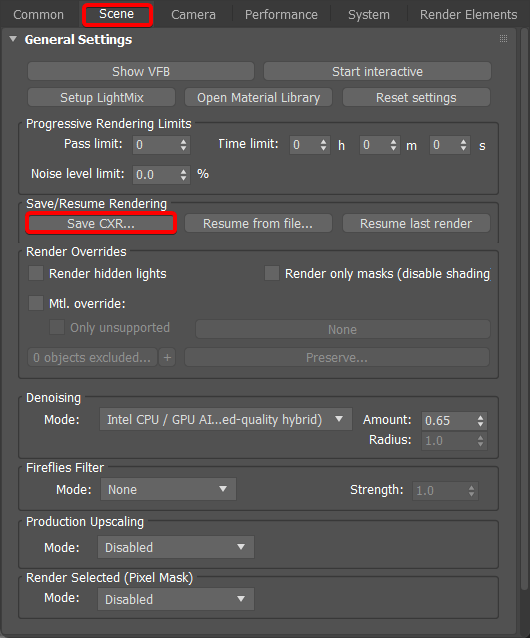
corona image editor denoising cxrile. Source: support.chaos.com
Wrap Up
By capping your thread count, using noise limits, and pre-computing your UHD cache, you can prevent thermal throttling and RAM crashes on your local workstation.
However, if you are facing a strict deadline and need dozens of 4K interior views by tomorrow, an optimized single workstation simply won’t cut it. That is where Cloud Rendering comes in.
At RadarRender, we test and rank the best CPU render farms on the market. Offloading your heavy Corona batch jobs to a render farm equipped with Dual Intel Xeon or AMD Threadripper nodes allows you to tap into hundreds of cores and 256GB+ of RAM, finishing your projects in a fraction of the time. Check out our [Render Farm Reviews] to find the perfect service for your next 3ds Max project!
FAQ
1. Does Chaos Corona use the GPU for final rendering?
No. Chaos Corona is strictly a CPU-based render engine. While it can utilize your GPU for specific AI denoising tasks (such as the NVIDIA OptiX denoiser) during interactive rendering, all core ray-tracing and scene calculations are handled by the CPU. If you are looking for a pure GPU rendering solution within the Chaos ecosystem, you should consider V-Ray GPU or Chaos Vantage.
2. How much RAM is recommended for heavy 4K Arch-Viz scenes in Corona?
For professional 4K interior and exterior renders, 64GB of system RAM is considered the bare minimum. However, if your scene relies heavily on 8K textures, complex displacement maps, or multiple high-res render elements, upgrading to 128GB of RAM is highly recommended to ensure stability during batch rendering.
3. Will undervolting my CPU stop thermal throttling during long renders?
Yes, undervolting is a highly effective method. By safely lowering the voltage supplied to your CPU (via the BIOS or software like Intel XTU/Ryzen Master), you can significantly reduce rendering temperatures without sacrificing clock speeds. This allows your CPU to maintain peak performance during overnight renders without overheating.
4. Why does 3ds Max crash between frames during a batch render instead of during the actual render?
This usually happens due to severe memory spikes. When Corona finishes a frame, it tries to save out heavy render elements and immediately calculates the UHD Cache for the next frame before the previous memory has been fully cleared. Pre-calculating the UHD Cache and saving files as .CXR (to denoise later) will usually fix this transition crash.
5. Is Corona Distributed Rendering (DR) good for batch rendering animations?
Corona DR is fantastic for speeding up a single, massive high-resolution still image across multiple local PCs. However, for batch rendering sequences or animations, it is much more efficient to assign each frame to a different computer using a render manager (like Deadline or Backburner), or by utilizing a dedicated cloud render farm.
See more: Top Render Farms in 2026: Six Services Worth Knowing, and How Each One Has Evolved
Part of our guide: for a full overview of cloud options, see the Corona render farm guide.