

My PC Crashes Every Time I Render in Lumion. Here’s What’s Actually Happening
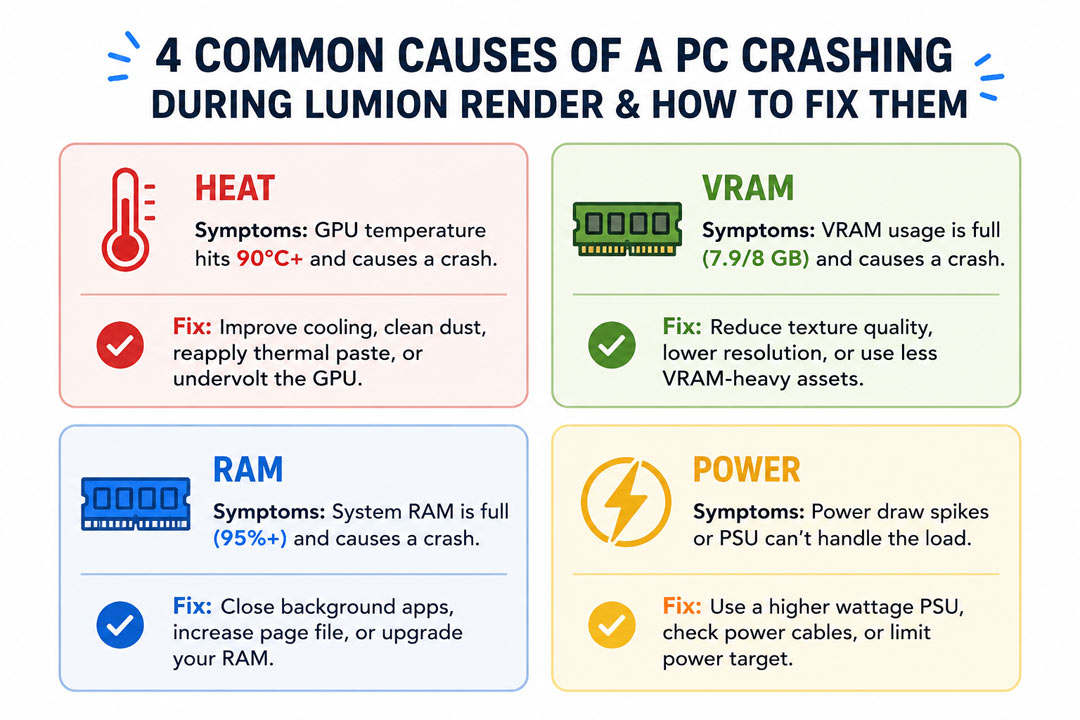
A PC that crashes or hard freezes the moment you render in Lumion is almost always hitting a physical limit, not a software bug. The four usual culprits are video memory overflowing on a card with too little VRAM, system RAM filling up on a heavy scene, the GPU overheating past its shutdown point, and a power supply that cannot feed the card under full load. Less often it is an unstable overclock, an old driver, or a corrupted scene file. The way to find yours is to watch GPU temperature, VRAM and RAM live during a render you know will crash, then read which one redlines first. If the scene genuinely needs more memory than your machine has, a cloud server with 24GB VRAM and 256GB RAM will load and finish it. One caveat worth knowing now: ordinary SaaS render farms cannot run Lumion at all, so the cloud fix here means an IaaS GPU server, not a send-and-render farm. Figures below are illustrative.
Why Does Lumion Take My Whole PC Down Instead of Just Erroring Out?
I have watched this happen on three different machines over the years, and the pattern is always the same. Lumion does not politely tell you it ran short of resources. It asks the GPU for everything at once, and when the hardware reaches a wall it does not know how to back off from, Windows pulls the plug to protect itself. You get a black screen, a reboot, or a frozen image with the fans roaring. It feels like a Lumion problem. Most of the time it is a hardware ceiling that Lumion happened to walk you straight into.
A render is the single most punishing thing you will ever ask your PC to do. Modeling and navigating the viewport tickle the hardware. A full quality 4K render with reflections and global illumination pins the GPU, drains video memory, fills system RAM and pulls peak wattage from the power supply, all at the same time, for a sustained stretch. If any one of those four is marginal, that is when it shows. This is also why a scene that previews fine can still crash at final render, a pattern we dig into in Lumion crashing on big scenes.
How Do I Find Out Which Part Is Actually Failing?
Stop guessing and measure. Install a free monitor like HWiNFO or MSI Afterburner, turn on its on screen overlay, put it on a second monitor or your phone, then start a render you already know will crash. Watch which number slams into its limit in the seconds before everything dies. That reading tells you the culprit faster than any forum thread.
Here is roughly what a healthy render looks like versus what a crash looks like. The danger column is where things tip over:
| What to watch | Comfortable under render | Warning sign that points to the cause |
|---|---|---|
| GPU temperature | Up to about 80°C | 87°C and climbing, then sudden reboot means heat or dust |
| VRAM used | Below roughly 90% of the card | Pinned at the card’s full amount means the scene is too big for the GPU |
| System RAM used | Some headroom left | At 100% with disk thrashing means you need more RAM or a lighter scene |
| PSU and power draw | Steady, no hard resets | Instant power off with no warning often means an underpowered or aging PSU |
| GPU clock behaviour | High and steady | Wild spikes then a driver crash can mean an unstable overclock; reset to stock |
Once you know the offender, the fix follows. Heat usually means dust, so blow out the fans and heatsink and improve case airflow before you blame anything else; we cover this in depth in GPU overheating during arch-viz renders. VRAM and RAM pressure mean lightening the scene: smaller textures, less vegetation, fewer hidden objects, and closing every other app before you render. A sudden dead power off points at the PSU, especially if the machine is a few years old and you added a hungrier card later. An overclock that was stable in games can still fall over under a sustained render, so set the GPU back to stock and retest. And if only one specific scene crashes while others are fine, the scene file may be corrupted; try importing your model into a fresh Lumion project.
When the Scene Is Just Bigger Than Your Machine
Sometimes the verdict is uncomfortable: the project needs more memory than your card and your motherboard can hold. You can keep cutting the scene down, but at some point you are degrading the work to fit the hardware, and on a paid client job that is the wrong direction to compromise. That is where moving the render off your own machine starts to make sense.
People often ask whether one of the big render farms can take this off their hands, and for Lumion the answer changes everything about how you choose. Lumion runs as a real-time, single-GPU app, so the automated SaaS farms cannot run it. What you need instead is an IaaS service: a full machine you control by remote desktop, with enough memory headroom to open a scene that crashes your desktop. Because we review these services side by side, here is how the memory and reliability picture looks for an arch-viz workflow:
| Service | Memory headroom you get | Runs Lumion? | Where it fits, and the catch |
|---|---|---|---|
| iRender (IaaS) | RTX 4090 24GB VRAM, 256GB RAM | Yes | Loads scenes that crash a desktop; you set up the machine yourself and watch the billing timer |
| Xesktop / AWS EC2 (IaaS) | Dedicated GPU servers, configurable | Yes | Also handle big Lumion scenes; cost more, AWS needs heavy manual setup |
| RebusFarm (SaaS) | Distributed nodes, not your machine | No | Its automated scene checker is great for catching missing assets, but only on offline engines like Corona, not Lumion |
| GarageFarm (SaaS) | Distributed nodes | No | Best human support for beginners, on V-Ray and Blender; cannot touch a Lumion crash |
| Fox Renderfarm (SaaS) | Distributed nodes | No | Cheap for large offline batches; users report more frames to recheck; no Lumion |
The practical takeaway for a crashing Lumion scene is narrow. RebusFarm’s scene checker would be a dream for catching a missing texture, but it never gets the chance, because the farm cannot open a Lumion file in the first place. So the route is an IaaS server. I lean on iRender for it because the machine carries an RTX 4090 with 24GB of VRAM and 256GB of RAM, which is enough headroom to open and finish scenes that take down a typical desktop, and you install your own Lumion build so it behaves exactly as it does at home. Their line is your renders, your rules, and for a stability problem that control is the point. The catches are the ones in the table: roughly fifteen minutes of first-time setup before your config is saved, and a billing clock that runs until you shut the server down, so set a reminder. New accounts get a 100 percent bonus on the first deposit, there is 10 to 20 percent Credit Back after, and a free trial lets you load the exact scene that keeps crashing and watch it finish before you pay.
Got a scene that crashes no matter what you cut?Load it onto a 24GB RTX 4090 server with 256GB RAM on iRender and let it finish. 100 percent first-deposit bonus, 10 to 20 percent Credit Back, plus a free trial to test the exact scene first.
See iRender’s Lumion GPU servers
Frequently Asked Questions
- Why does my PC crash only when I render in Lumion, not when I model?
Because rendering is far more demanding than modeling. Navigating the viewport uses the hardware lightly, but a full quality render pins the GPU, drains video memory, fills system RAM and pulls peak power all at once for a sustained period. Whichever component is marginal on your machine fails under that load, while everyday modeling never pushes it that far. The crash points at a hardware ceiling, not at Lumion itself.
2. How do I tell whether it is the GPU, RAM or power supply?
Run a free monitor such as HWiNFO or MSI Afterburner with its overlay on a second screen, then start a render you know will crash and watch which value redlines first. GPU above about 87°C followed by a reboot points at heat. VRAM pinned at the card’s full amount means the scene is too big for the GPU. System RAM at 100% with disk thrashing means you need more RAM. An instant power off with no warning usually means the power supply.
3. Will a render farm like RebusFarm or GarageFarm stop my Lumion crashes?
No, because those SaaS farms cannot run Lumion at all. They distribute frames across automated nodes for offline engines like V-Ray and Corona, while Lumion needs a live desktop session on one dedicated GPU. RebusFarm’s scene checker and GarageFarm’s support are genuinely useful, but only for the offline parts of your pipeline. To finish a crashing Lumion scene in the cloud you need an IaaS server such as iRender, which gives you 24GB VRAM and 256GB RAM to open scenes that fail locally.
4. Will adding more RAM stop Lumion from crashing?
Only if RAM is the part that is failing. If your monitor shows system memory hitting 100% before the crash, then yes, more RAM helps, and 64GB is a sensible floor for heavy arch-viz with 128GB giving real breathing room. If the crash is driven by GPU heat, VRAM overflow or the power supply, extra RAM changes nothing. Measure first so you spend on the part that is actually the bottleneck.
Related post: