

Why Is My Lumion Render So Slow on My Laptop? (And How to Fix It in 2026)
Lumion draws every frame live on a single graphics card, so a laptop’s weaker mobile GPU, smaller video memory and habit of overheating make renders crawl next to a desktop. A mobile RTX 4060 with 8GB can take three to four times longer than a desktop RTX 4080 on the same 4K exterior, and a big scene may refuse to load at all. Most of the slowdown traces back to thermal throttling and running out of VRAM, both of which you can ease for nothing by cooling the laptop, dropping editor quality while you build, and lightening the scene. One thing to clear up early: the big SaaS render farms cannot speed up Lumion, because it is a real-time app they are not built to run. When a project is genuinely too heavy for your laptop, the only cloud route is renting a full GPU machine such as an RTX 4090 (24GB). The figures here are illustrative, so time your own scene.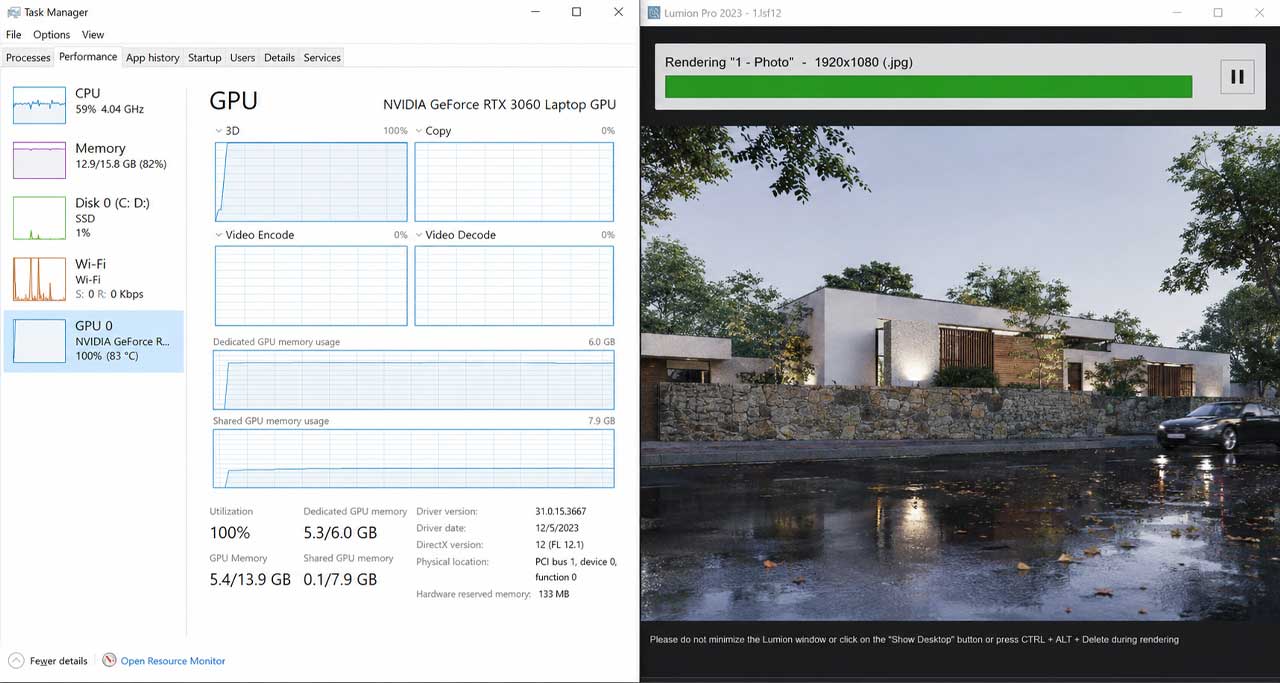
Why Does Lumion Punish Laptops in Particular?
I learned this one the hard way on a residential exterior a few years back. Same scene, same settings, but my studio desktop spat out a 4K still in about four minutes while my travel laptop sat there for fifteen, fans screaming. Nothing was broken. The laptop was just doing what laptops do.
Lumion behaves like a video game rather than a traditional renderer. It leans almost entirely on one GPU and paints each frame in real time. That design is great for working fast, but it means your render speed lives and dies by the graphics card, and a laptop is exactly where that card is weakest.
Three things gang up on you. A laptop “RTX 4060” is not the desktop 4060; it is a lower power version squeezed into a thin chassis, so its real Lumion throughput can sit closer to a mid range desktop card from a couple of generations ago. On top of that, a render that starts quick often slows to a drag after a few minutes, because once the chip crosses roughly 85 to 90 degrees the laptop pulls back its clock speed to survive. We get into why that happens in why your laptop GPU keeps throttling. And many laptop cards ship with 6 to 8GB of video memory, which a detailed exterior full of vegetation, reflections and high resolution textures can blow straight through, throwing memory errors or forcing Lumion to crawl through system RAM.
How Do I Speed Up Lumion on a Laptop Without Spending Money?
Before you reach for your wallet, work through the free stuff. For lighter scenes this clears the problem completely, and I would rather you fix it for nothing than rent hardware you do not need.
Get the heat under control first, because throttling undoes everything else. Render on a hard flat surface, never a bed or your lap, prop the back up for airflow, add a cooling pad if you have one, and set Windows to its top performance power profile with the charger plugged in. A laptop running on battery deliberately underclocks the GPU, so you are racing with the handbrake on.
Next, drop Lumion’s editor quality to one or two stars while you build the scene. You only need full quality at final render, not while you are placing trees. Then go after scene weight: delete objects the camera never sees, thin out dense vegetation, lower the polycount on imported models, and resize oversized textures, since an 8K brick wall almost never needs to be 8K. That single habit kills most memory errors. Close Chrome, Revit and SketchUp before you hit render so they stop fighting Lumion for the same GPU and RAM. Finally, update to the current NVIDIA Studio driver, because Lumion performance patches land there regularly.
If you are not sure which problem you actually have, find your symptom here:
| What you see | Usual cause | What to try |
|---|---|---|
| Render starts fast, then drags | Thermal throttling, GPU at 85 to 90°C | Cooling pad, raise the back, cool room, charger plugged in |
| “Out of memory” or scene will not load | VRAM exceeded on a 6 to 8GB card | Resize textures, cut vegetation, remove unseen objects; heavy scenes want 12 to 24GB |
| The whole laptop locks up mid render | GPU, CPU and RAM all maxed at once | Close other apps, render through the Movie or Photo queue, not while editing live |
| Hours per animation clip | Mobile GPU compute too low for 4K plus effects | Lower output settings, or move the heavy job to a desktop or cloud GPU |
Can’t I Just Use a Render Farm to Speed Up Lumion?
This is where a lot of architects lose a day before they find out the answer, so let me save you the trouble. The big render farms cannot run Lumion at all. Services like GarageFarm, RebusFarm and Fox Renderfarm work by splitting your frames across a pool of automated nodes and sending them back. That model is excellent for offline engines such as V-Ray, Corona or Arnold, where each frame can be computed independently. Lumion does not work that way. It needs a live desktop session and one dedicated GPU, so there is nothing for those farms to distribute. If your bottleneck is a Lumion scene, the only cloud option is an IaaS service, where you rent a whole machine and run Lumion on it yourself.
Since this site reviews these services independently, here is the part of the landscape that actually applies to you, with the catches included rather than glossed over:
| Service | Model | Runs Lumion? | Best for | Watch out for |
|---|---|---|---|---|
| iRender | IaaS (full GPU server) | Yes | Real-time apps (Lumion, Enscape, D5), full control, RTX 4090 | You manage setup (~15 min first time); billing runs until you shut down; RTX 4090, not 5090 |
| Xesktop / AWS EC2 | IaaS | Yes | Alternative GPU servers for Lumion | Higher cost; AWS in particular needs heavy manual cloud setup |
| GarageFarm | SaaS (node farm) | No | Easiest to use, strong human support, great for beginners on V-Ray, Corona, Blender | Cannot run Lumion; you do not get a full machine to control |
| RebusFarm | SaaS | No | Broad plugin support, an automated scene checker that catches errors, strong for CPU renderers | Cannot run Lumion; the automated flow gives beginners less hand holding |
| Fox Renderfarm | SaaS | No | Competitive pricing on large offline batch jobs | Cannot run Lumion; users report a higher rate of failed frames to recheck |
So if your wider pipeline includes V-Ray or Corona stills, GarageFarm and RebusFarm are genuinely good tools and worth keeping in your kit. For the Lumion problem in front of you, they are simply the wrong category.
When the Laptop Simply Cannot Keep Up
The free fixes run out eventually. If you are pushing large 4K animations, heavy imported BIM models, or a client deadline that will not wait for an overnight render, no setting changes the fact that a mobile GPU is the bottleneck. Either you buy a desktop with a proper card, which we cost out in render farm vs new workstation, or you rent one in the cloud for the heavy jobs.
Among the IaaS options I reach for iRender first, mostly for how little friction it adds. You connect by remote desktop to a machine carrying an RTX 4090 with 24GB of VRAM and 256GB of RAM, load your Lumion build, and render the way you would locally, just faster and without the heat ceiling or the memory wall on normal arch-viz scenes. The same still that took fifteen minutes on my laptop lands in roughly three to four on the 4090 in my tests, and a walkthrough that ran overnight finishes inside an hour. Their message now is your renders, your rules: you install the exact Lumion version and plugins you use, so the scene comes out the way you set it up rather than the way some farm’s pipeline read it. There are catches I already listed in the table, and the billing timer is the one that bites, so set an alarm before any overnight job. New accounts get a 100 percent bonus on the first deposit, there is 10 to 20 percent Credit Back after that, and a free trial lets you test your own scene before
Hitting a wall on a deadline scene? Render your Lumion project on a full RTX 4090 cloud server with iRender. 100 percent bonus on your first deposit, 10 to 20 percent Credit Back, and a free trial to test your own scene first.
[mkd_highlight background_color=”” color=”#FF8C00″] See iRender’s Lumion RTX 4090 servers and current bonus[/mkd_highlight]
Frequently Asked Questions
- Why is Lumion so much slower on a laptop than a desktop?
Lumion’s speed comes almost entirely from the GPU, and a laptop card is a lower power version of its desktop namesake with less video memory. As a render runs and the chip heats up, the laptop drops its clock speed to protect itself, so a job that started fast slows down. Laptop cards also tend to carry 6 to 8GB of VRAM against 16 to 24GB on desktops, which causes memory errors on detailed arch-viz scenes. The same project can run several times longer on a laptop as a result.
2. Can I use a render farm like GarageFarm or RebusFarm for Lumion?
No. GarageFarm, RebusFarm and Fox Renderfarm are SaaS farms that split frames across automated nodes, which suits offline engines like V-Ray, Corona and Arnold but not Lumion. Lumion is a real-time application that needs a live desktop session and one dedicated GPU, so there is nothing for those farms to distribute. The only cloud route for Lumion is an IaaS service such as iRender, Xesktop or AWS EC2, where you rent a whole machine and run Lumion on it yourself.
3. Can I make Lumion faster on my laptop without new hardware?
Often yes, for lighter scenes. Stop the overheating with a cooling pad, the charger plugged in and Windows on top performance mode. Drop the editor quality while you build, resize oversized textures, thin out vegetation, and close other apps before rendering. If your renders still run for hours after all that, usually large 4K animations or very heavy models, the GPU itself is the limit and only a stronger card, owned or rented, will change it.
4. How much faster is a cloud RTX 4090 than a laptop GPU for Lumion?
In my own tests a 4K exterior still that took about fifteen minutes on a laptop RTX 4060 finished in roughly three to four minutes on a desktop class RTX 4090, so around three to four times faster, and a heavy walkthrough dropped from an overnight job to under an hour. Just as important, the 4090’s 24GB of VRAM loads large scenes an 8GB laptop card cannot open at all. Speed varies with scene complexity, so run your own to confirm.