

Why Enscape Looks Different on Every Machine (Hardware Consistency Problem)
Enscape produces different images on different machines because the image is shaped by more than the model. Settings Presets are stored in the project file, but which preset is active, what each person has changed in it, and which copy of the file they opened can all differ. The performance options in General Settings and the features a graphics card supports differ too. DLSS only runs on NVIDIA RTX cards and needs Auto Exposure switched on, while Auto Upsampling activates by itself when a card runs out of memory during a capture, quietly softening the result. Rendering Quality set to Draft removes glass reflections from the final render. The fix is one agreed preset, agreed versions and drivers, and a short check before export. Identical machines are not required.
Why does the same file look different on my colleague’s computer?
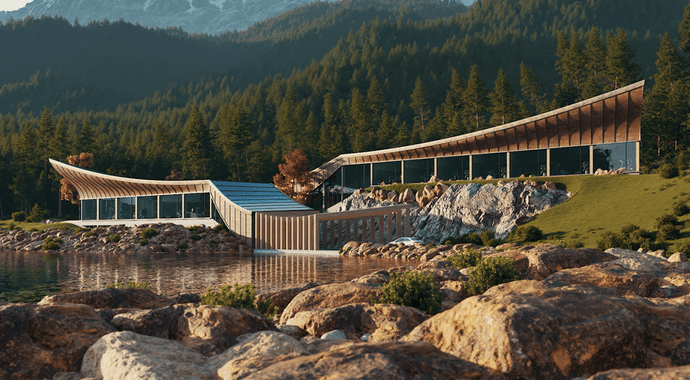
Image Source: Chaos
Because most of what defines the look of an Enscape image sits in the Visual Settings, and two people rarely have the same Visual Settings in effect at the moment they press export. The model is identical. The instructions for turning it into a picture are different.
Visual Settings control exposure, the sky and environment, image corrections such as contrast and saturation, the export resolution, and the Rendering Quality level. Change any one of them and the same geometry produces a different picture.
A common belief is that these settings belong to each computer. The Chaos documentation says otherwise: Settings Presets are saved inside the CAD project file by default, and can also be written out as a .json file for use in other projects. So the presets do travel with the file. Teams still end up with mismatched images for four reasons.
- A different preset is active. A project can hold several presets, and presets can be linked to individual views. Two people can have two different ones selected without realising.
- Edits save themselves. Any change made in the Visual Settings window is written into the currently selected preset automatically. A colleague who nudges exposure for a quick test has changed the preset for that file.
- Copies drift. Once the model is duplicated, emailed, or opened from a local cache, each copy carries its own version of the presets. Chaos also notes that Enscape cannot tell when Revit syncs embedded data such as presets in shared projects, and advises syncing with central before changing presets.
- Not everything is in the preset. The performance options under General Settings are separate from Visual Settings presets, and hardware features vary by graphics card.
The main fix belongs here because it solves the largest share of cases. Create a master preset, save it out as a .json file, store it somewhere the whole team can reach, and name one person who is allowed to change it. Everyone else imports it and leaves it alone. Make at least two, one for interiors and one for exteriors, since a single set of exposure and sky values rarely serves both well.
Is Auto Exposure the reason my brightness keeps changing?
Usually, yes. Auto Exposure adjusts brightness to whatever the camera is looking at, so the same room shot from two angles can come out at two brightness levels, and the same view opened on two machines can as well.
The mechanism works like a phone camera. Enscape measures the light in the current frame and sets exposure to suit it. Point the camera toward a window and the frame holds more bright sky, so the interior is pulled darker. Turn toward a wall and it lifts again.
The fix most teams settle on is to switch Auto Exposure off in the Main tab of Visual Settings, set the exposure value by hand, and save that into the shared preset. Every image in a set then uses the same exposure, whoever exports it. There is a conflict here that teams discover late. The Chaos page on performance settings states that Auto Exposure has to be enabled when DLSS is active, and lists a disabled Auto Exposure among the first things to check when DLSS appears not to work. A team cannot lock exposure by hand and also rely on DLSS.
For stills going to a client, use manual exposure so the whole set matches. For live design reviews where a smooth frame rate matters more than matching brightness between views, Auto Exposure with DLSS is a reasonable setup, kept in its own clearly named preset.
Which differences actually come from the graphics card?

Four things: features that only exist on some cards, the kind of ray tracing the card can do, automatic quality reductions when memory runs short, and differences in driver and vendor. These options sit under General Settings in the Rendering tab, apart from the Visual Settings presets, so a shared preset does not align them.
DLSS. Chaos describes DLSS as an NVIDIA RTX technology. A machine with an AMD card, an Intel Arc card, or an NVIDIA card outside the RTX line has no such option. If one person has it on and another cannot have it at all, the two images were produced along different paths before any preset was applied.
Hardware or software ray tracing. Enscape uses hardware-accelerated ray tracing where the card supports it and falls back to software ray tracing elsewhere, which Chaos associates with Macs and older Windows hardware. The Rendering Quality page lists features that are not available under software ray tracing even in captures, including coloured shadows from artificial lights through semi-transparent materials. A scene with tinted glass and interior lighting can therefore export differently on two machines with identical presets.
Auto Upsampling. Upsampling is activated automatically when the graphics card runs out of memory during a capture. This is the most common reason one machine produces softer images than the rest, and the person at that machine gets no obvious warning. Chaos suggests disabling the option if quality degrades, but switching it off does not give the card more memory, so the capture may fail instead. The durable fix is a lower export resolution or a lighter scene on that machine. Chaos also notes that ray-traced sun shadows are turned off automatically when GPU memory is insufficient, which changes shadow detail on weaker cards.
Drivers and vendor. The system requirements ask for a GPU with dedicated VRAM and Vulkan 1.1 support, and Chaos recommends current or specifically recommended drivers. A team spread across driver versions months apart has a source of small mismatches that is tedious to trace.
Auto Resolution lowers the display resolution when a machine struggles to hold its frame rate, and the documentation is explicit that it has no effect on rendered exports. People switch it off hoping for sharper stills, and nothing changes. It explains why two viewports look different while the exported files match.
Memory limits also affect export time on large panoramas.
Why does glass look flat in one person’s render?
The likely cause is Rendering Quality left on Draft. The Chaos guide to rendering a single image states that with Rendering Quality set to Draft there are no glass reflections in the final render.
The slider lives at the bottom of the Main tab in Visual Settings and has four levels: Draft, Medium, High and Ultra. In Draft only direct light illuminates the scene and reflections are heavily simplified. That is useful on a struggling laptop and damaging in a client image.
The pattern behind this mistake is predictable. Someone on a weaker machine drops to Draft so the viewport stops stuttering while they model, the deadline arrives, and they export without raising it again. Since the quality level is part of the Visual Settings, the change can also be written into the active preset and travel to whoever opens the file next.
On a building with large glazed areas, the difference is obvious. Curtain walls turn into flat tinted panels, shopfronts lose the street, and the image reads as an earlier design stage.
Put the export quality level in the team standard and treat it as a line on the pre-send checklist. Chaos generally recommends Medium or High while working in real time to save GPU resources, with the level raised for final output when needed, and notes that Ultra with a high resolution gives the best image at the cost of time.
Could the difference come from Revit rather than Enscape?
Yes. With Revit, Enscape renders the geometry Revit provides from the active view, so the Detail Level of that view decides whether small elements exist in the render at all.
If the view Detail Level is Coarse or Medium, small elements such as window muntins can be omitted from the 3D model, and they will then be absent in Enscape. For the most accurate windows and facades, Chaos advises setting the Revit view Detail Level to Fine before rendering.
For a team, the consequence is that two people who start Enscape from two different views of the same file are looking at two different models. No Enscape setting can restore geometry that Revit never handed over.
Other host-side controls act the same way. Visibility and graphics overrides, view filters, hidden categories, phases and section boxes all change what is sent to Enscape. The simplest protection is a dedicated set of 3D views reserved for rendering, with Detail Level and visibility fixed, that everyone uses for exports.
How do we standardise Enscape across a team?
We should agree on one set of presets, match the Enscape and CAD versions, write down a rule for each option that changes itself automatically.
- Create master presets and give them an owner. One for interiors and one for exteriors at minimum, saved as .json files in a shared location. One named person edits them. Everyone else imports and does not touch.
- Decide Auto Exposure once. Manual exposure for client stills is the usual choice. Record the consequence next to the rule: with Auto Exposure off, DLSS will not work properly.
- Set the export Rendering Quality. State the level for deliverables and a separate, lower level people may use while working. The second one is where Draft belongs.
- Fix the output resolution. Choose a named resolution for exports. Leaving it on Window ties the pixel size of the image to whatever monitor and window size each person happens to have.
- Align versions and drivers. Same Enscape release, same CAD release, and GPU drivers from the same branch. Update together on an agreed day, never one machine at a time in the middle of a project.
- Standardise the Revit side. Dedicated render views with Detail Level on Fine and visibility settings locked.
- Check before sending. For a workshared model, sync with central before changing any preset.
Should we just render everything on one machine?
Using one reference machine for final exports is simple and effective, but it creates a bottleneck, so it suits teams whose export volume is moderate.
Every client image passes through the same graphics card, the same driver, the same General Settings and the same preset. The hardware-dependent differences described above disappear because there is only one set of hardware in the chain.
Among services that rent whole machines, iRender offers RTX 4090 24GB configurations and a single-card RTX 5090 32GB package. Enscape uses one GPU, so the single-card options are the relevant ones. The weakness of this route is specific to the reference-machine idea: only one person can sit at a rented machine at a time.
FAQ
- Why does the same Enscape project look different on another computer?
Because the image is shaped by settings and hardware as well as by the model. Enscape stores Settings Presets inside the project file, but two people can still have different presets active, and any change in the Visual Settings window is written into the selected preset automatically.
- How do I stop Enscape brightness from changing between views?
Switch Auto Exposure off in the Main tab of Visual Settings, set the exposure value manually, and save it into the preset your whole team uses. Auto Exposure re-measures brightness for each view, so the same room captured from two angles can come out at two different levels.
- Why are glass reflections missing in one of our renders?
The most likely cause is Rendering Quality set to Draft on that machine. According to Chaos documentation, when Rendering Quality is set to Draft there are no glass reflections in the final render.
- Why does one machine produce softer images than the others?
Usually because its graphics card ran out of memory during the capture and Enscape activated Auto Upsampling, which renders at a lower resolution and scales the result up. The process is automatic, so the person exporting may not realise the image is softer than it should be. Chaos suggests disabling the option if quality degrades, but turning it off does not give the card more memory and the capture can fail instead.
- Do we all need identical computers to get consistent results?
No. Most differences come from settings, so a master preset with a single owner, a fixed export quality and resolution, and matching Enscape, CAD and driver versions resolve the majority of cases.
See more: Corona Render Is Too Slow on My CPU: Faster Options for Arch-Viz
Part of our guide: for a full overview of cloud options, see the Enscape render farm guide.