

Why Enscape Lags in VR Mode (And the GPU That Actually Fixes It)
VR asks your GPU to do roughly twice the work of a desktop walkthrough, and it is not allowed to slow down. In a headset, Enscape renders a separate image for each eye, and it has to hold a high, steady framerate, around 90 frames a second, or your stomach notices within seconds. So a scene that runs smoothly on your monitor can lag badly the moment you put the headset on, because you just doubled the pixels and raised the framerate bar at the same time. The fix that actually works is a strong RTX card with ray tracing cores and plenty of VRAM, and for live headset use it needs to be a local card, not a remote one.
Why VR is so much harder than a desktop walkthrough
On a monitor, Enscape renders one image and a dropped frame here and there is barely noticeable. VR removes that slack entirely. Your headset has two displays, one per eye, so Enscape renders the scene twice from slightly different positions, every frame. On top of that, comfortable VR needs a high and stable framerate, because your inner ear expects the view to track your head instantly. When the framerate dips, the image lags behind your movement, and that mismatch is what causes the queasy, swimming feeling people describe. So VR is not a little harder than desktop. It is close to double the rendering work with a much stricter deadline on every frame.
This is the same GPU ceiling that makes Enscape demanding in general, covered in why Enscape needs so much GPU power, just with the stakes raised. A card that holds 60fps on your monitor can fall well short of a stable 90fps per eye in the headset.
What is actually causing the lag
VR lag usually traces back to a handful of causes, and sorting which one you have points you at the fix.
| Likely cause | What is happening | What helps |
|---|---|---|
| GPU too weak for VR | The card cannot sustain two eyes at 90fps in your scene | A stronger RTX card with ray tracing cores |
| VRAM running out | Scene exceeds the card’s memory, causing stutter and hitches | More VRAM, or lighten the scene |
| Heavy reflections and vegetation | Expensive effects doubled across both eyes | Trim reflective surfaces and dense planting for the VR pass |
| VR settings too high | Render resolution or quality set beyond the card’s headroom | Lower VR render scale and effect quality |
| Wrong GPU in use (laptops) | Enscape running on integrated graphics, not the dedicated card | Force Enscape onto the dedicated GPU in driver settings |
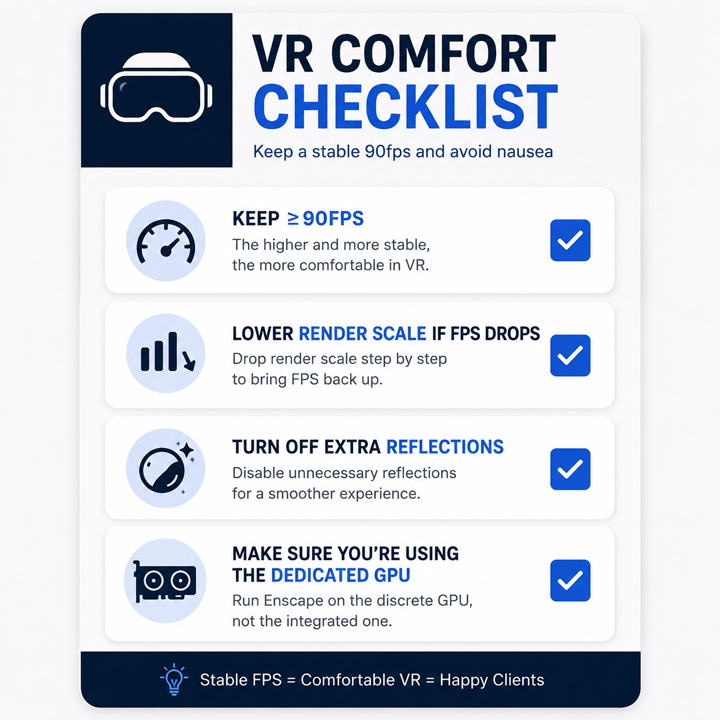
The GPU that actually fixes it
Since the problem is sustained ray tracing for two eyes at high framerate, the cards that fix it are the ones built for ray tracing with memory to spare. In practice that means a strong RTX card with ray tracing cores and generous VRAM, a 24GB RTX 4090 being the comfortable end for heavy VR scenes. Pair that with sensible VR settings, a render scale you can hold rather than the maximum, and effects trimmed for the headset pass, and the lag clears because the card finally has the headroom to keep both eyes fed at 90fps.
Where the cloud fits, and where it does not
This is the part most articles get wrong, so I will be straight about it. For producing Enscape output, heavy renders, large scenes, batch stills and animations, a cloud RTX 4090 is excellent and frees your machine. But a live VR session streamed from a remote machine adds network latency on top of the render, and in a headset even small latency reads as lag and discomfort. So renting a cloud GPU does not fix live tethered VR the way it fixes offline rendering. For a client wearing the headset in your office, the card that drives it needs to be in the machine it is plugged into.
Where a cloud machine does help VR work is everything around the live demo: building and testing the heavy scene on a powerful remote RTX 4090, rendering the high-resolution stills and walkthrough videos that accompany a VR presentation, and checking how a scene behaves before you commit to local hardware. iRender is the service I use for that, and because Enscape is real-time, the traditional render farms cannot run it at all. GarageFarm, RebusFarm and Fox handle offline engines like V-Ray and Corona well, but not Enscape. With iRender you get a dedicated RTX 4090, on RTX 4090 rather than the 5090, with the per-hour meter to shut down after use, and a free trial to test your scene.
Need a stronger card for VR scene prep and rendering?Build and render heavy Enscape VR scenes on a remote RTX 4090 with 24GB of VRAM through iRender, then drive the live headset from a local card. Free trial to test your scene. Try it on your project
FAQ
- Why does Enscape lag in VR but run fine on my monitor?
Because VR roughly doubles the work and tightens the deadline. In a headset, Enscape renders a separate image for each eye every frame, and it has to hold a high, steady framerate, around 90fps, or the lag causes nausea. On a monitor it renders one image and an occasional dropped frame goes unnoticed. So a card that is comfortable at 60fps on your display can fall short of a stable 90fps per eye in VR, which shows up as the lag you feel.
2. What GPU fixes Enscape VR lag?
A strong RTX card with ray tracing cores and plenty of VRAM, with a 24GB RTX 4090 at the comfortable end for heavy VR scenes. The card needs enough headroom to render both eyes at a stable 90fps in your scene. Pair it with sensible VR settings, a render scale you can sustain rather than the maximum, and trimmed reflections and vegetation for the headset pass. For a live headset session, that card has to be local.
3. Can a cloud GPU fix Enscape VR lag?
Not for a live tethered headset session. Streaming VR from a remote machine adds network latency on top of the render, and in a headset even small latency reads as lag and discomfort, so the card driving a live demo needs to be local. A cloud GPU does help everything around the demo: building and testing heavy VR scenes on a powerful remote RTX 4090, and rendering the stills and videos that go with a VR presentation.
4. How do I stop VR nausea in Enscape?
Keep the framerate high and stable, since nausea comes from the view lagging behind your head movement. Make sure you hold close to 90fps by lowering the VR render scale if needed, trimming expensive reflections and dense vegetation for the VR pass, and confirming Enscape is using your dedicated GPU rather than integrated graphics. If the card still cannot sustain it in a heavy scene, a stronger RTX GPU with more VRAM is the underlying fix.
Related post: Enscape Batch Rendering Is Painfully Slow: A Faster Cloud Workflow