

Enscape Panorama Export Taking Forever: How to Speed It Up
Enscape panorama takes far longer than a normal render because of how many pixels it contains. Chaos lists mono panoramas at 2048×4096 on Low, 4096×8192 on Normal and 8192×16384 on High, with stereo doubling that again because it renders two offset views for Cardboard viewing. Each step up multiplies the pixel count by four, so a High stereo panorama is around 268 million pixels against about 2 million in a Full HD image. Drop to Normal and use mono unless the client actually views in a headset, then lower Rendering Quality, which Chaos notes affects panorama render time directly. If exports come out both slow and soft, your graphics card is likely running out of memory.
Why does a panorama take so much longer than a normal render?

Image Source: Chaos Blog
Because a panorama contains vastly more pixels than a normal image. At High mono, Chaos lists 8192×16384 pixels, and the stereo version doubles that again because it has to render two viewpoints.
Here is the official resolution table from the Chaos documentation. Chaos notes that only the height is set by the level you pick, and the width adjusts to match.
| Level | Mono | Stereo |
| Low | 2048 x 4096 | 4096 x 4096 |
| Normal | 4096 x 8192 | 8192 x 8192 |
| High | 8192 x 16384 | 16384 x 16384 |
Those dimensions look abstract until you multiply them out:
| Level | Mono pixels | Stereo pixels |
| Low | about 8.4 million | about 16.8 million |
| Normal | about 33.6 million | about 67.1 million |
| High | about 134.2 million | about 268.4 million |
Full HD still at 1920×1080 holds about 2.07 million pixels. Normal mono panorama is roughly 16 times that. A High mono panorama is roughly 65 times that. A High stereo panorama, at 268,435,456 pixels, is close to 130 times the size of the still you rendered. When a job is 130 times larger, a long export is the expected outcome.
The pattern is also regular enough to plan around. Every step up the resolution ladder multiplies the pixel count by exactly four, and moving from mono to stereo doubles it. If a Normal mono panorama of a scene takes ten minutes on your machine, a High mono of the same scene will land somewhere near forty, and High stereo near eighty. Real times shift with scene content.
There is also a structural reason panoramas cost more than stills. A still renders one direction of view. A panorama renders the entire surroundings of the camera position, above, below and behind included, so every heavy object in the room is on screen, including the ones your still camera was politely pointed away from. So before you look at hardware, look at the resolution level. It is the single largest factor in export time, and it is one dropdown away.
Do I actually need a stereo panorama?
Add Panoram to Your Workflow - Image Source: Chaos Blog
Only if the viewer is using a Cardboard headset or something similar. Stereo renders two images offset by roughly the distance between human eyes, so it doubles the workload.
Chaos describes a stereo panorama as two images taken from slightly different viewpoints, which improves the sense of depth when each eye sees its own image. That effect only exists when a headset delivers one image to each eye.
In practice this means that if your client opens the link on a laptop, you are paying double render time for something no one will see. That is a common situation, because the default is easy to override by habit. The Render Panorama button exports mono by default. Stereo sits behind the small arrow next to it, and once someone has picked it for a VR presentation, it tends to stay picked for every export after that.
Which settings actually control panorama export time?
Three settings, in order of impact: the panorama resolution level, mono versus stereo, and Rendering Quality.
The panorama resolution level lives in the Output tab of Visual Settings. Rendering Quality sits in the general settings. Chaos states that Rendering Quality affects both the time and the quality of panorama renders. The setting people most often change by mistake is Auto Resolution. When exports feel slow, all most users will switch off. Chaos is clear that Auto Resolution only affects image quality while you move around in the real-time viewport, and has no effect on exported images. Turning it off will not shorten your panorama by a second.
One more setting sits outside the speed question but costs time all the same. If Automatic Exposure is on, Enscape measures exposure once at the start of the panorama capture, and that value may not suit every direction of the finished image. A room with bright windows on one side and a dark corridor on the other can come out blown in one direction and murky in the other. The fix Chaos gives is to turn off Automatic Exposure in the Main tab of Visual Settings and set exposure by hand.
Why is my panorama both slow and blurry?
Most likely your graphics card ran out of memory during capture. When that happens, Enscape switches on Auto Upsampling, rendering at a lower resolution and scaling up, so the result looks softer than you expected.
Chaos documentation describes Auto Upsampling as activating automatically when the graphics card runs out of memory during a capture, and says you can turn it off if you notice a drop in quality. Turning it off does not create memory that is not there, though. If you disable it without reducing the load, the export has nowhere to go and fails. The real fix is to lower the resolution level or lighten the scene.
Chaos also warns that exporting at very high resolutions can overload the graphics card and, in extreme cases, cause Enscape to shut down. To check whether memory is the problem, keep a GPU memory monitor open during the export. Task Manager on Windows shows dedicated GPU memory usage. If the figure sits pinned at the card’s limit while the panorama renders, you have found your answer.
Is the wait the render or the upload?
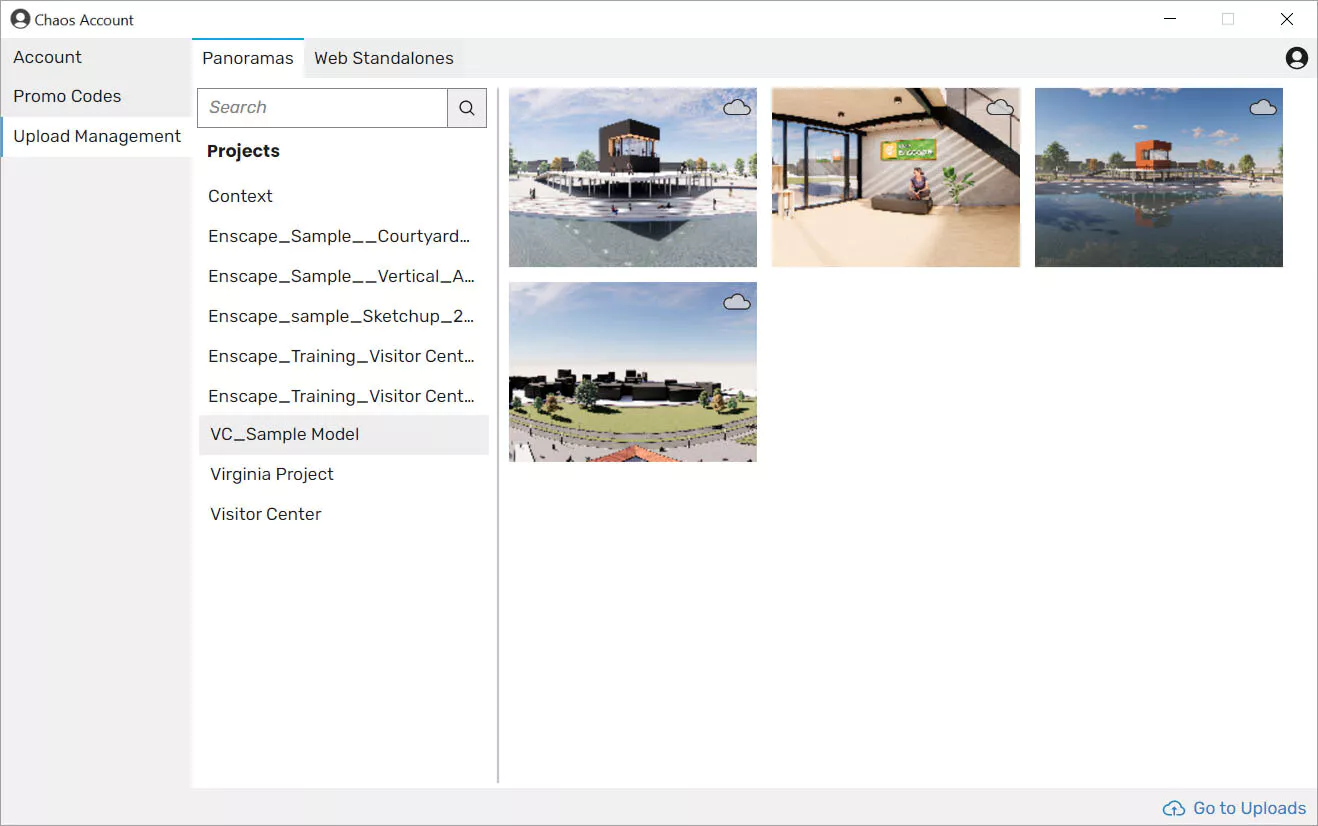
They are two separate waits. A panorama can be saved as a local file or uploaded to the Chaos cloud to share by link and QR code. Upload time depends on your connection, not your graphics card.
Watch the progress indicator. The rendering phase comes first, and the upload follows once the image is complete. If the render finishes quickly and the delay sits in the upload, no setting on the graphics side will help much, and a better connection or a quieter time of day will. Lowering the resolution level still shortens uploads, because a Normal file is a quarter the size of a High one.
Will a stronger machine fix this?
If you are exporting High stereo when mono Normal would do, a stronger machine just helps you waste time faster.
The pipeline set the resolution level and mono or stereo to what the viewer actually needs, lighten the scene, check whether memory is the constraint, and only then consider hardware. Hardware becomes the answer when you genuinely need High for a large display or print, the scene is heavy even after simplification, and your current card sits at its memory limit during export. In that case more VRAM on a single card is what changes the outcome.
Enscape runs as a plugin inside your CAD software and uses one GPU, so job submission render farms, where you upload a scene file to a queue, cannot run it. The workable cloud option is renting a whole machine and working on it remotely. iRender offers this with RTX 4090 24GB machines and a single-card RTX 5090 32GB configuration. For Enscape the single-card figure is the one that counts, since extra cards in a machine do not speed up one Enscape export. The point to weigh before renting: because Enscape lives inside the CAD application, the rented machine needs both the host software, Revit or SketchUp for example, and Enscape installed and activated. That means managing two licenses rather than one, and for someone who only needs a handful of panoramas, the setup can take longer than the work itself.
FAQ
- Why does an Enscape panorama take so much longer than a still image?
Because it holds far more pixels. According to the Chaos documentation, a mono panorama is 2048×4096 at Low, 4096×8192 at Normal and 8192×16384 at High, and the stereo version doubles each of those because it renders two offset viewpoints. Every step up the resolution scale multiplies the pixel count by four. A High stereo panorama therefore holds about 268 million pixels, roughly 130 times the 2 million in a Full HD still.
- What is the fastest way to speed up an Enscape panorama export?
Start with resolution and mode, since they change the workload more than anything else. Dropping from High to Normal cuts the pixel count by four, and switching from stereo to mono halves it again, so together the two changes reduce a High stereo export to one eighth of its size. Next, lower Rendering Quality, which the Chaos documentation lists as directly affecting both the time and the quality of panorama renders.
- Do I need stereo panoramas for clients?
Only if they will view the panorama in a Cardboard headset or a similar device. A stereo panorama consists of two images offset by roughly the distance between human eyes, which creates a sense of depth when each eye sees its own image, and that doubles the render workload.
- Why is my Enscape panorama blurry as well as slow?
Most likely the graphics card ran out of memory during capture. The Chaos documentation describes Auto Upsampling as switching on automatically when the card runs out of memory, which means the image is rendered at a lower resolution and then scaled up, so it looks softer than expected. You can turn Auto Upsampling off if the quality loss bothers you, but doing so does not create any extra memory.
- Does Auto Resolution affect panorama export time?
No. Chaos states that Auto Resolution only affects image quality while you move through the real-time viewport and has no effect on exported images.
See more: Switching From Local to Cloud Rendering: A Migration Guide for Architects
Part of our guide: for a full overview of cloud options, see the Enscape render farm guide.