

Twinmotion vs D5 Render on Weak Hardware: Which Runs Smoother?
On weak hardware, Twinmotion is far more likely to run at all, which is the real priority long before viewport smoothness even comes into question. D5 Render is built on a real-time ray tracing pipeline, requiring a discrete GPU with DXR support on Windows (starting at a GTX 1060 6GB), which means cards like the GTX 1650 fail its hardware test. Twinmotion runs on DirectX 11 or 12 with at least 6GB of dedicated VRAM, and it offers native support for Apple Silicon Macs a platform where D5 has no presence. Once your rig clears D5’s threshold with a mid-range card like an RTX 3060, both applications run fluidly, with official D5 guidance noting that GPU power dictates viewport speed rather than final output quality. Below the hardware ray tracing line, Twinmotion is usually your only practical option.
In this guide, Radarrender will walk you through how both Twinmotion vs D5 Render perform on low-spec systems to help you choose the right tool for your setup.
Will D5 Render or Twinmotion even run on my computer?
Before testing viewport fluidity, check two main factors: whether your graphics card supports hardware ray tracing via DXR, and whether you are running Windows or macOS. D5 Render requires both conditions, while Twinmotion offers a much wider entry window.
D5 Render relies strictly on real-time ray tracing pipeline technology. Because of this, it only accepts discrete GPUs with DXR support, setting a GTX 1060 6GB, AMD RX 6000 series, or Intel Arc A3 as its absolute floor. A common issue for architecture students involves laptops with a GTX 1650 card. D5 documentation states that 50-series entry GPUs lack the required baseline power, causing the GTX 1650 to fail D5’s initial hardware scan.
Twinmotion operates on DirectX 11 or DirectX 12, requiring at least 6GB of dedicated VRAM and a benchmark score around 10,000. It does not force hardware ray tracing for standard real-time working modes.
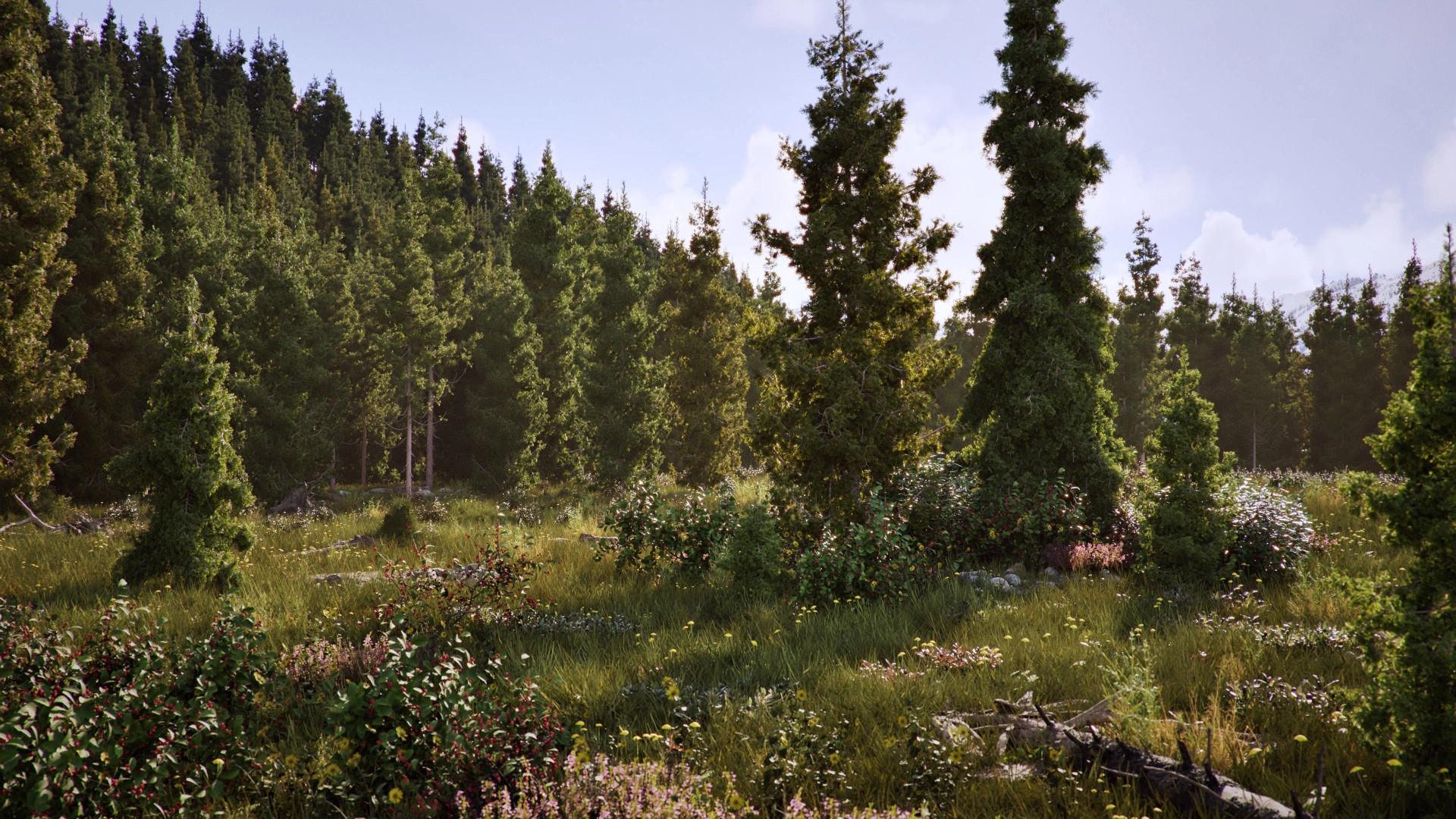
Source: Twinmotion
Why does D5 say my laptop fails the hardware test when it has an NVIDIA card?
Laptops often fail D5’s hardware check because the system defaults to the integrated processor graphics instead of the dedicated NVIDIA GPU. D5 Render requires a discrete graphics card and rejects integrated chips completely.
When this conflict occurs, D5’s System Info window displays your graphics card and driver version as “Unknown”. To resolve this, open Windows Display Settings or the NVIDIA Control Panel and manually assign D5 Render to run on the High-Performance NVIDIA processor. Outdated graphics drivers or running a Windows build older than version 10.0.19044 can also trigger hardware test failures
If Both Run, Which One Feels Smoother on a Mid-Range Card?
On a mid-range card such as an RTX 3060 12GB, both renderers run comfortably. At this hardware level, viewport smoothness depends more on scene organization and graphic settings than core software limitations. An RTX 3060 satisfies D5’s official recommended specifications while providing plenty of VRAM for Twinmotion assets.
Official D5 documentation notes an important fact for low-spec users: your graphics card affects real-time viewport speed and final render time, but it does not degrade final output image quality. Twinmotion users with NVIDIA RTX GPUs can enable DLSS features to increase real-time frame rates during heavy scene navigation. During a recent residential project test on an RTX 3060 workstation, both engines maintained fluid camera movement. The main performance drops occurred when scattering dense 3D foliage packages across large ground surfaces rather than navigating general building geometry.
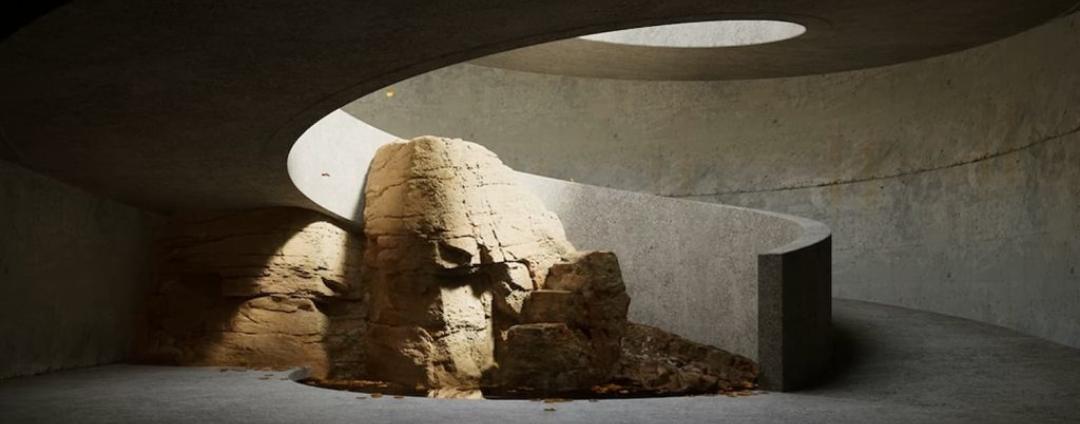
Source: D5 Render
What settings help each one run on weak hardware?
For both tools, the first move is to lower preview quality while modeling, cut down heavy foliage and effects, and only raise quality back up when exporting the final image. For Twinmotion specifically, there’s also the option of skipping Path Tracer, since it needs hardware ray tracing and at least 8GB of VRAM.
A few things worth doing for both:
- Lower viewport display quality while working, raise it only for final export
- Reduce grass density and heavy reflective surfaces
- Close browsers and other GPU-hungry apps running in the background
- Install and store your projects on an SSD instead of a regular hard drive
For Twinmotion, avoid turning on Path Tracer on weak hardware, since it requires DXR through DirectX 12 and at least 8GB of VRAM. Working in the standard real-time mode is much lighter. Double-check the exact names of the quality settings in your current Twinmotion version, since menu names can shift between updates.
For D5, the app uses a streaming asset-loading approach instead of loading the entire scene at once, which helps mid-range cards handle fairly heavy scenes. Check the preview quality options in your current D5 version to make full use of this.
What if my hardware can’t run either one smoothly?
If your local computer cannot handle your scene complexity, you have three primary paths forward: upgrade your physical GPU, use university or studio workstation labs, or rent a cloud desktop machine.
Standard upload-and-render SaaS render farms cannot process Twinmotion or D5 Render because these are interactive, real-time applications requiring live user input. You need a dedicated remote desktop environment.
iRender offers dedicated cloud desktop rentals equipped with RTX 4090 (24GB VRAM) and single RTX 5090 (32GB VRAM) nodes. You log into the remote machine and operate Twinmotion or D5 exactly as you would on a local workstation.
Need Extra Hardware Power for Real-Time Arch-Viz?
If your laptop fails D5’s hardware check or Twinmotion stutters on complex client files, iRender provides dedicated remote desktop machines featuring RTX 4090 (24GB) and RTX 5090 (32GB) GPUs. Install your own software licenses and control the machine directly from your workstation. Take advantage of a 100% first-deposit bonus when funding your account within 24 hours of registration.
Run Twinmotion or D5 on an iRender GPU Server Today
FAQs
- Can D5 Render run on a GTX 1650?
No. D5 Render relies on hardware real-time ray tracing and sets a GTX 1060 6GB as its minimum NVIDIA baseline. Official D5 documentation confirms that GTX 1650 GPUs are unsupported and fail the initial hardware test. Twinmotion also struggles on a GTX 1650 due to its strict 6GB VRAM requirement.
2. Does D5 Render work on a Mac?
No. D5 Render is exclusively available on Windows operating systems because its pipeline depends on DirectX 12 and DXR. Twinmotion is the primary option for macOS users, offering native support for Apple Silicon M-series chips.
3. Is Twinmotion lighter than D5 Render?
Twinmotion has lower entry requirements because it runs on DirectX 11, supports macOS, and does not force hardware ray tracing for basic viewport work. However, once a computer features a mid-range RTX graphics card like an RTX 3060, both applications run smoothly.
4. Will a weak graphics card make my D5 renders look worse?
No. D5 documentation confirms that your GPU affects real-time viewport frame rates and export speed, not image quality. A weaker GPU results in lower viewport FPS and longer export times, but your final rendered image quality remains unchanged.
5. What can I do if neither Twinmotion nor D5 runs smoothly on my PC?
You can upgrade your physical GPU to an RTX card with 12GB+ VRAM, use workstation labs at school or work, or rent a dedicated cloud desktop GPU server. Standard automated render farms cannot run interactive real-time applications.
See more: Twinmotion Path Tracer Render Times: Why They Explode on a Single GPU