

Some Tips for Faster Rendering in Houdini SideFX
SideFX Houdini is famous for its procedural power—but that power often comes with long render times. As scenes grow more complex with high-resolution geometry, simulations, and lighting, even small changes can lead to hours of extra rendering. For artists, developers, and researchers alike, slow renders mean slower creativity and iteration.
The good news is that faster rendering in Houdini isn’t just about stronger hardware. With the right settings, smarter workflows, and a few overlooked optimizations, you can significantly reduce render times without sacrificing quality. In this article, Radarrender will explore some tips for faster rendering in Houdini SideFx, helping you get more results in less time and keep your projects moving efficiently.
Let’s get started!
I. Overview of Houdini
Houdini is a professional 3D software application developed by SideFX for creating complex visual effects, simulations, and procedural 3D content.
Unlike traditional 3D tools, Houdini uses a procedural, node-based workflow, meaning artists build networks of nodes that define how objects are created and modified rather than editing them manually. This makes Houdini extremely powerful for tasks like smoke, fire, explosions, fluids, destruction, crowds, terrain, and procedural environments.
Houdini is widely used in film, television, games, advertising, and technical fields, and it integrates with modern renderers and game engines. Its ability to handle large, complex scenes efficiently and adapt quickly to changes makes it a favorite tool for VFX artists, technical artists, and researchers working on high-end productions.

Source: SideFx
II. Some Tips for Faster Rendering in Houdini SideFX
1. Switch to GPU rendering
Switching from CPU to GPU rendering is a straightforward way to accelerate renders in Houdini. Modern GPUs can handle numerous calculations in parallel, significantly accelerating shading, lighting, and ray tracing. Houdini supports GPU rendering with Karma XPU and third-party engines like Redshift or Octane.
GPU rendering works best for preview renders, lighting tests, and look development, giving fast feedback while you tweak scenes. To get good results, keep textures and geometry optimized and monitor GPU memory. Combining GPU rendering with denoising and adaptive sampling can give high-quality images much faster than CPU rendering.
- Go to your Render Settings and choose Karma XPU
- Select GPU Device: In Renderer Settings, pick CUDA, OptiX, or HIP depending on your GPU.
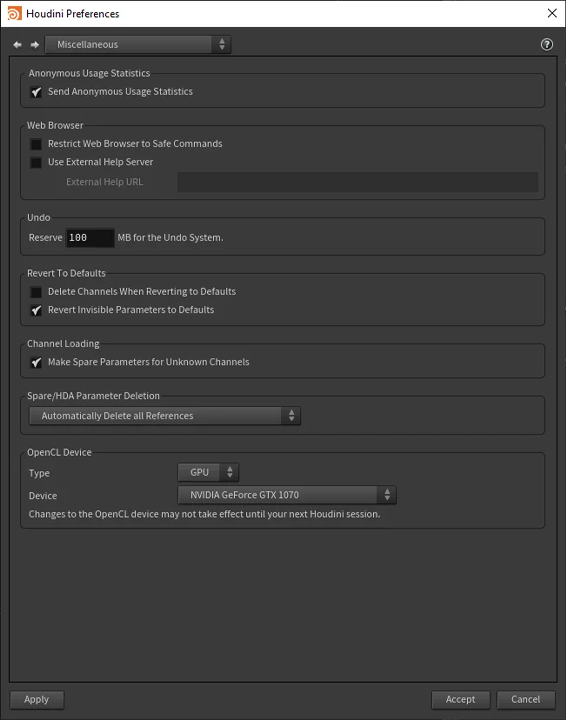
- Go to Preferences > Miscellaneous and select your OpenCL GPU device.
- Restart Houdini.
2. Optimize caches and attributes
Optimizing caches and attributes helps Houdini run faster and smoother, especially for heavy simulations and renders.
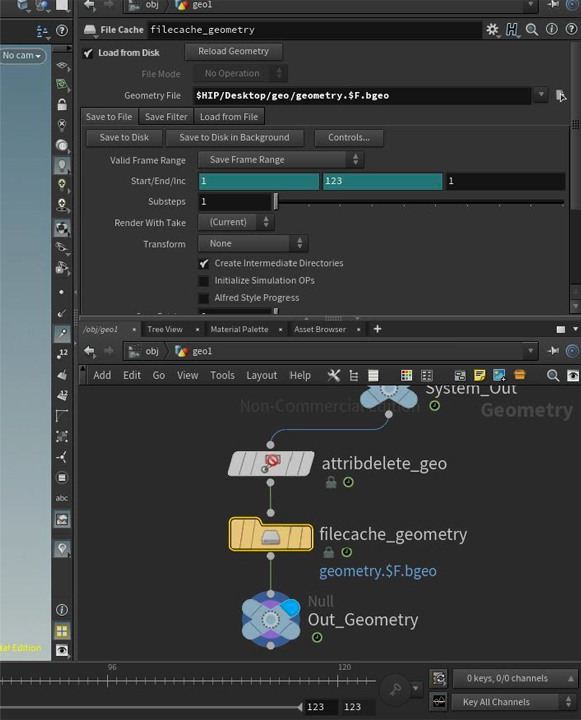
Optimize Caches: Cache simulations and geometry to disk so Houdini doesn’t recalculate them every time. Use ROP or File Cache nodes, cache only the frames you need, and save files as .bgeo.sc to reduce file size and load time.
Optimize Attributes: Remove attributes you don’t need for rendering or export. Use the Attribute Delete node to clean up data and keep only essential attributes like position, normals, or velocity. Fewer attributes mean lower memory usage and faster processing.
3. Use fewer shadows
Shadows are one of the most render-expensive features in Houdini. Using fewer shadow-casting lights can greatly improve render speed. Instead of enabling shadows on every light, limit shadows to only the lights that truly need them. For secondary or fill lights, turn off shadows or reduce their quality. This reduces the number of shadow rays calculated during rendering.
You can also lower shadow quality by reducing shadow samples or softness, especially for preview renders. For faster results, avoid multiple overlapping shadow-casting lights and use simple lighting setups whenever possible.
4. Choose a suitable render engine
Choosing the right render engine in Houdini can make a big difference in render speed, quality, and workflow efficiency. Houdini supports multiple renderers, each suited for different tasks.
For modern workflows, Karma is the recommended renderer. Karma CPU is stable and accurate for final-quality renders, while Karma XPU uses both CPU and GPU for much faster previews and iteration. Karma also works seamlessly with Solaris (LOPs) and USD-based pipelines.
If you need very fast GPU rendering, third-party engines like Redshift or Octane are ideal for look development, motion graphics, and scenes with heavy lighting and textures. They provide quick feedback but require compatible GPU hardware.
5. Use Hotkeys
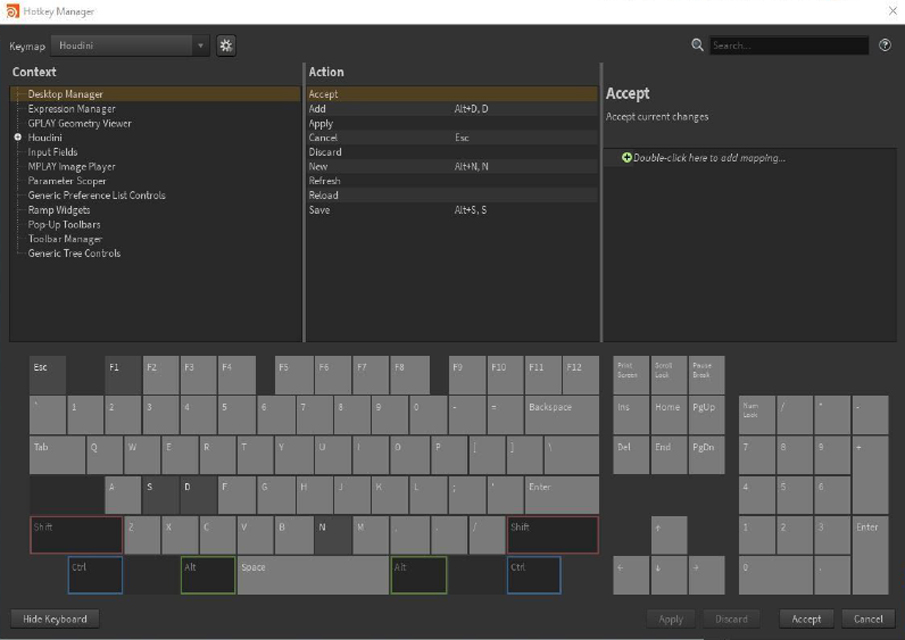
Using hotkeys in Houdini can greatly improve your speed and overall workflow efficiency. Instead of navigating menus, shortcuts allow you to access tools and nodes instantly, saving time during modeling, simulation, and rendering.
Houdini has several hotkeys applicable to the different viewports and views you’ll operate in your scene.
- ‘Ctrl+R”: Starts the rendering process, letting you preview or render the scene without having to navigate menus or panels.
- “Ctrl+Shift+R”: Renders the current frame without caching
- Space + G: Recenter your viewport.
- Left-click + Alt: Drop keyframes.
- Y + mouse drag: Hold and move in a direction to cut node connections.
- Ctrl + Left-click: Press over camera icon to drop a camera.
6. Use Render Farm
Using a render farm is one of the most effective ways to dramatically speed up rendering in SideFX Houdini, especially for animations and heavy scenes. A render farm allows multiple machines (render nodes) to work together, splitting the workload instead of relying on a single computer. This parallel processing can reduce render times from days to hours.
Render farms provide many advantages for rendering, including access to powerful computers, the ability to render many things at once and the option to increase or decrease resources as needed. They make rendering faster by dividing the work among many machines.
Some top render farms support Houdini rendering:
| Render farm | Best for | Level skill |
| GridMarkets | Heavy Houdini FX | Advanced |
| Fox Renderfarm | Speed & scale | Beginner–Pro |
| iRender | Technical artists | Intermediate → Advanced |
| Rebusfarm | Freelancers | Beginner |
| Garagefarm | Budget projects | Beginner–Intermediate |
III. Conclusion
Faster rendering in SideFX Houdini is not only about having strong hardware, but about working smarter. Simple steps like choosing the right render engine, using GPU rendering, cleaning caches and attributes, reducing shadows, and using a render farm can greatly reduce render times.
By following these tips, you can preview faster, render more efficiently, and finish projects on time. Good optimization habits make Houdini easier to work with and help you focus more on creativity instead of waiting for renders.